> ## Documentation Index
> Fetch the complete documentation index at: https://aitextura.mintlify.site/llms.txt
> Use this file to discover all available pages before exploring further.
# Connecting to your agent
> Connecting Telegram and other messengers to an autonomous agent: the bot is created without a token, and only the people you specify can message the agent.
An agent is only as useful as it is handy: it's faster to fire off a task from your phone on the go than to open the workspace. The **Connect** tab connects messengers where you chat with the agent just like with a person.
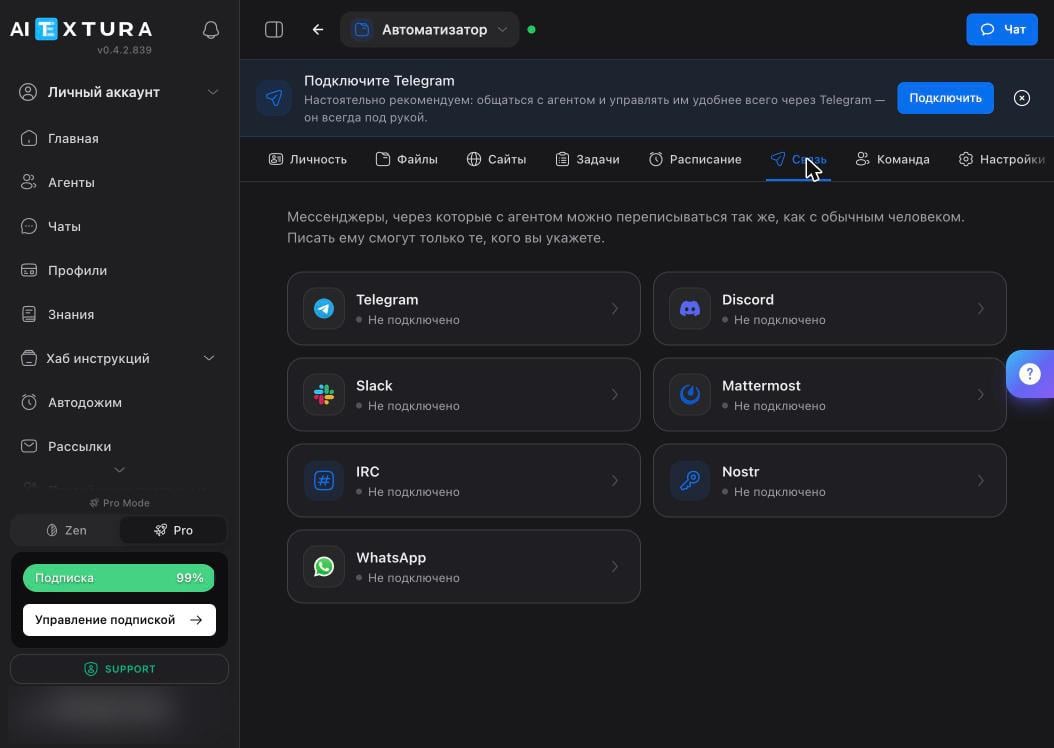 | Messenger | Notes |
| ---------------------------------------- | -------------------------------------------------------------------------------- |
| **Telegram** | The main option. You can create the bot right from the platform; no token needed |
| **Discord** · **Slack** · **Mattermost** | For teams that already work there |
| **IRC** · **Nostr** | For those who know why they need them |
| **WhatsApp** | Connects the same way |
These are the agent's channels, not [AI Employee channels](/en/channels). Here it's you who does the talking, not your customers, and they're configured separately for each agent.
## What you'll need
* A Telegram account — on your phone or in the desktop app.
* Your Telegram ID, if you're connecting the bot with your own token. To find it, message `@userinfobot` — it replies with a number.
* Nothing else: no server, domain, or platform token required.
## Connect Telegram
Click the **Telegram** card — a panel with two tabs opens.
| Messenger | Notes |
| ---------------------------------------- | -------------------------------------------------------------------------------- |
| **Telegram** | The main option. You can create the bot right from the platform; no token needed |
| **Discord** · **Slack** · **Mattermost** | For teams that already work there |
| **IRC** · **Nostr** | For those who know why they need them |
| **WhatsApp** | Connects the same way |
These are the agent's channels, not [AI Employee channels](/en/channels). Here it's you who does the talking, not your customers, and they're configured separately for each agent.
## What you'll need
* A Telegram account — on your phone or in the desktop app.
* Your Telegram ID, if you're connecting the bot with your own token. To find it, message `@userinfobot` — it replies with a number.
* Nothing else: no server, domain, or platform token required.
## Connect Telegram
Click the **Telegram** card — a panel with two tabs opens.
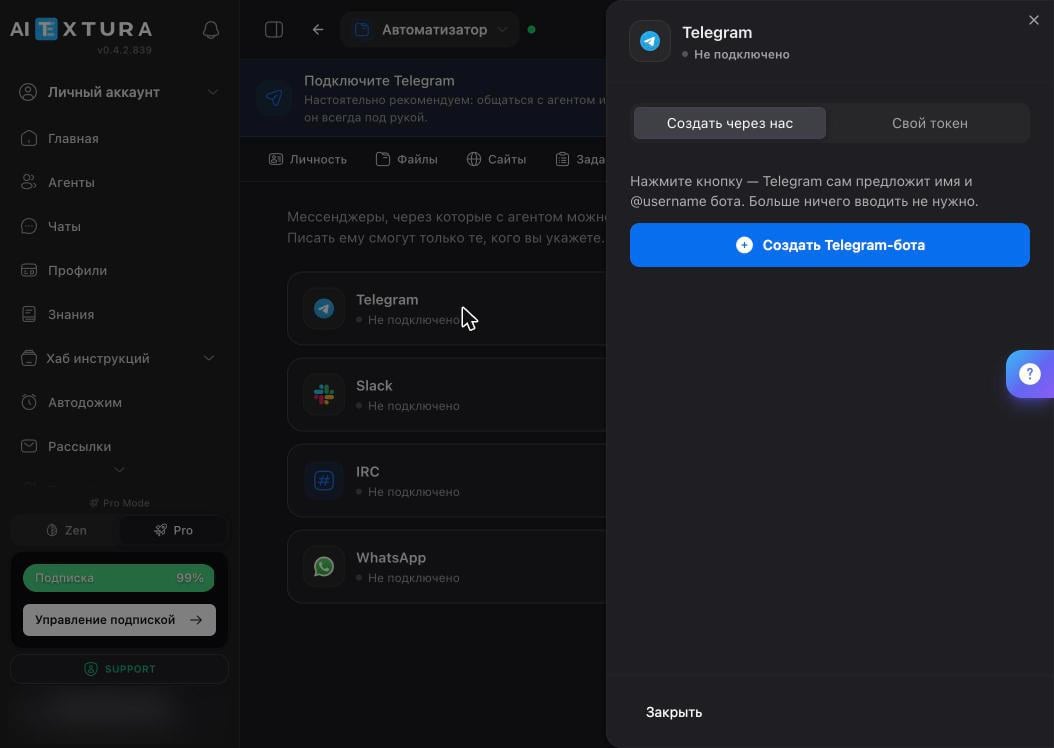 The platform opens `t.me`. Your browser asks for permission to open the Telegram app — allow it.
Telegram opens the **Create bot** service screen: **BOT NAME** is how it's labeled in conversations, and **USERNAME** is a unique handle that must end in `bot`. Tap **Create**.
A chat with the new bot opens. Be sure to tap **Start** (the `/start` command) — without it, the platform can't reach the bot.
Use this if you've already created a bot with `@BotFather`.
The platform opens `t.me`. Your browser asks for permission to open the Telegram app — allow it.
Telegram opens the **Create bot** service screen: **BOT NAME** is how it's labeled in conversations, and **USERNAME** is a unique handle that must end in `bot`. Tap **Create**.
A chat with the new bot opens. Be sure to tap **Start** (the `/start` command) — without it, the platform can't reach the bot.
Use this if you've already created a bot with `@BotFather`.
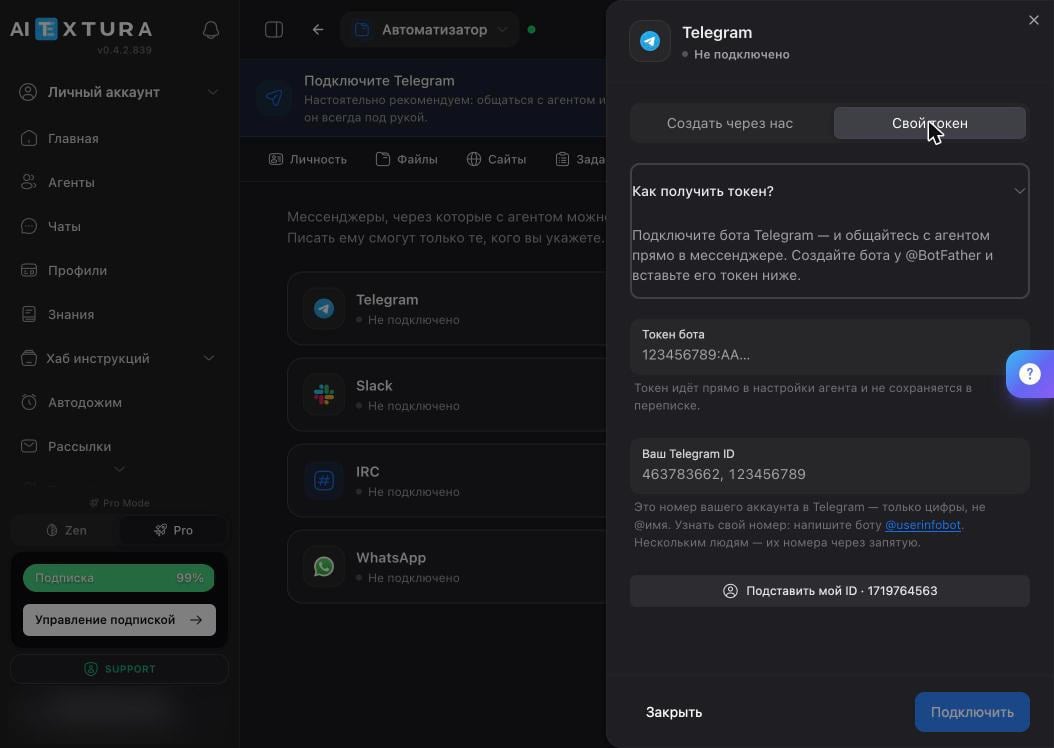 The **Bot token** field takes a string like `123456789:AA...` from `@BotFather`. The token goes straight into the agent's settings, isn't stored in the conversation, and is never sent back to the browser.
The **Your Telegram ID** field takes numeric IDs separated by commas. The **Insert my ID** button fills in yours automatically. Find other people's IDs with the same `@userinfobot`.
The Telegram card status changes to **Connected**.
## Who can message the agent
The agent replies only to people whose Telegram IDs are listed in the setting. Anyone else who finds the bot gets silence.
This is the only barrier between your agent and outsiders. The agent has access to your files, email, and command line — don't add the IDs of people you wouldn't trust with all of that access. Learn more in [Security and Access](/en/agents/security).
To add a colleague, get their ID via `@userinfobot` and append it, separated by a comma, in the same field.
## Check it
Send the bot "Hi". A fresh agent replies with an introduction — asks how to address you and suggests a name for itself. An agent that's already set up replies to the point.
If you haven't gone through the [first run](/en/agents/first-run) yet, now is the time: whatever you tell it about yourself, it writes to its files.
## Troubleshooting
| Symptom | Cause and fix |
| ----------------------------------------- | ---------------------------------------------------------------------------------------------------- |
| The bot doesn't reply to anything | **Start** wasn't tapped in the chat with the bot. Open the chat and tap it |
| The bot doesn't reply only to a colleague | Their Telegram ID isn't in the **Your Telegram ID** field |
| "Invalid token" | The token was copied with an extra space or was already revoked in `@BotFather` — generate a new one |
| The bot replies, but for the wrong agent | One bot works with one agent. Create a separate bot for your second agent |
| Replies arrive minutes late | The container was restarted. Check the agent's status and the [Log](/en/agents/maintenance) |
## FAQ
Yes. The **Chat** button in the workspace opens the same conversation with the agent. Telegram is for your phone: that's where you'll give tasks on the go and receive [scheduled summaries](/en/agents/schedule).
Message `@userinfobot` — it replies with a number. It's not your `@username` but the actual digits. You don't have to look up your own ID: the **Insert my ID** button fills it in.
Add their IDs separated by commas. Each person messages the agent individually; a shared group chat is a different scenario, and for customer groups there's the [AI Employee](/en/channels/telegram-groups).
Open the messenger card on the **Connect** tab and clear the token field. An empty field disconnects it.
Discord, Slack, Mattermost, IRC, Nostr, and WhatsApp connect the same way: card → connection panel → access credentials. The "who can message" restriction works there too.
## What's next
Your first conversation with the agent in the connected messenger
Summaries that will arrive in this same chat
Who should and shouldn't get access to the agent
A separate bot for each of the agent's personas
The **Bot token** field takes a string like `123456789:AA...` from `@BotFather`. The token goes straight into the agent's settings, isn't stored in the conversation, and is never sent back to the browser.
The **Your Telegram ID** field takes numeric IDs separated by commas. The **Insert my ID** button fills in yours automatically. Find other people's IDs with the same `@userinfobot`.
The Telegram card status changes to **Connected**.
## Who can message the agent
The agent replies only to people whose Telegram IDs are listed in the setting. Anyone else who finds the bot gets silence.
This is the only barrier between your agent and outsiders. The agent has access to your files, email, and command line — don't add the IDs of people you wouldn't trust with all of that access. Learn more in [Security and Access](/en/agents/security).
To add a colleague, get their ID via `@userinfobot` and append it, separated by a comma, in the same field.
## Check it
Send the bot "Hi". A fresh agent replies with an introduction — asks how to address you and suggests a name for itself. An agent that's already set up replies to the point.
If you haven't gone through the [first run](/en/agents/first-run) yet, now is the time: whatever you tell it about yourself, it writes to its files.
## Troubleshooting
| Symptom | Cause and fix |
| ----------------------------------------- | ---------------------------------------------------------------------------------------------------- |
| The bot doesn't reply to anything | **Start** wasn't tapped in the chat with the bot. Open the chat and tap it |
| The bot doesn't reply only to a colleague | Their Telegram ID isn't in the **Your Telegram ID** field |
| "Invalid token" | The token was copied with an extra space or was already revoked in `@BotFather` — generate a new one |
| The bot replies, but for the wrong agent | One bot works with one agent. Create a separate bot for your second agent |
| Replies arrive minutes late | The container was restarted. Check the agent's status and the [Log](/en/agents/maintenance) |
## FAQ
Yes. The **Chat** button in the workspace opens the same conversation with the agent. Telegram is for your phone: that's where you'll give tasks on the go and receive [scheduled summaries](/en/agents/schedule).
Message `@userinfobot` — it replies with a number. It's not your `@username` but the actual digits. You don't have to look up your own ID: the **Insert my ID** button fills it in.
Add their IDs separated by commas. Each person messages the agent individually; a shared group chat is a different scenario, and for customer groups there's the [AI Employee](/en/channels/telegram-groups).
Open the messenger card on the **Connect** tab and clear the token field. An empty field disconnects it.
Discord, Slack, Mattermost, IRC, Nostr, and WhatsApp connect the same way: card → connection panel → access credentials. The "who can message" restriction works there too.
## What's next
Your first conversation with the agent in the connected messenger
Summaries that will arrive in this same chat
Who should and shouldn't get access to the agent
A separate bot for each of the agent's personas