> ## Documentation Index
> Fetch the complete documentation index at: https://aitextura.mintlify.site/llms.txt
> Use this file to discover all available pages before exploring further.
# Kommo
> Connect Kommo as a channel: your AI Employee replies to customers right from the deal card, and you choose which sources and pipelines it handles.
Customers write in WhatsApp, Telegram, Instagram, and VK, and your manager sorts it all out in Kommo. The **Kommo** channel routes those same messages to your AI Employee: it replies right in the deal card, the conversation stays where it is, and nobody has to learn a new interface.
## Connect the channel
Open the AI Employee → **Channel** tab → **Connect New** → **Kommo**.
Enter a channel name (only you see it) and click **Connect KommoCRM**. A Kommo window opens: sign in to your account and grant access. The platform handles the rest, and the channel appears on the **Connected** tab.
The AI Employee gets exactly the permissions of the user account you signed in with. If that account can't see a pipeline, neither can the AI Employee.
## Choose sources
To open a connected channel, click it on the **Connected** tab. The first thing to do is narrow the scope: your AI Employee doesn't always need to reply in every chat at once.
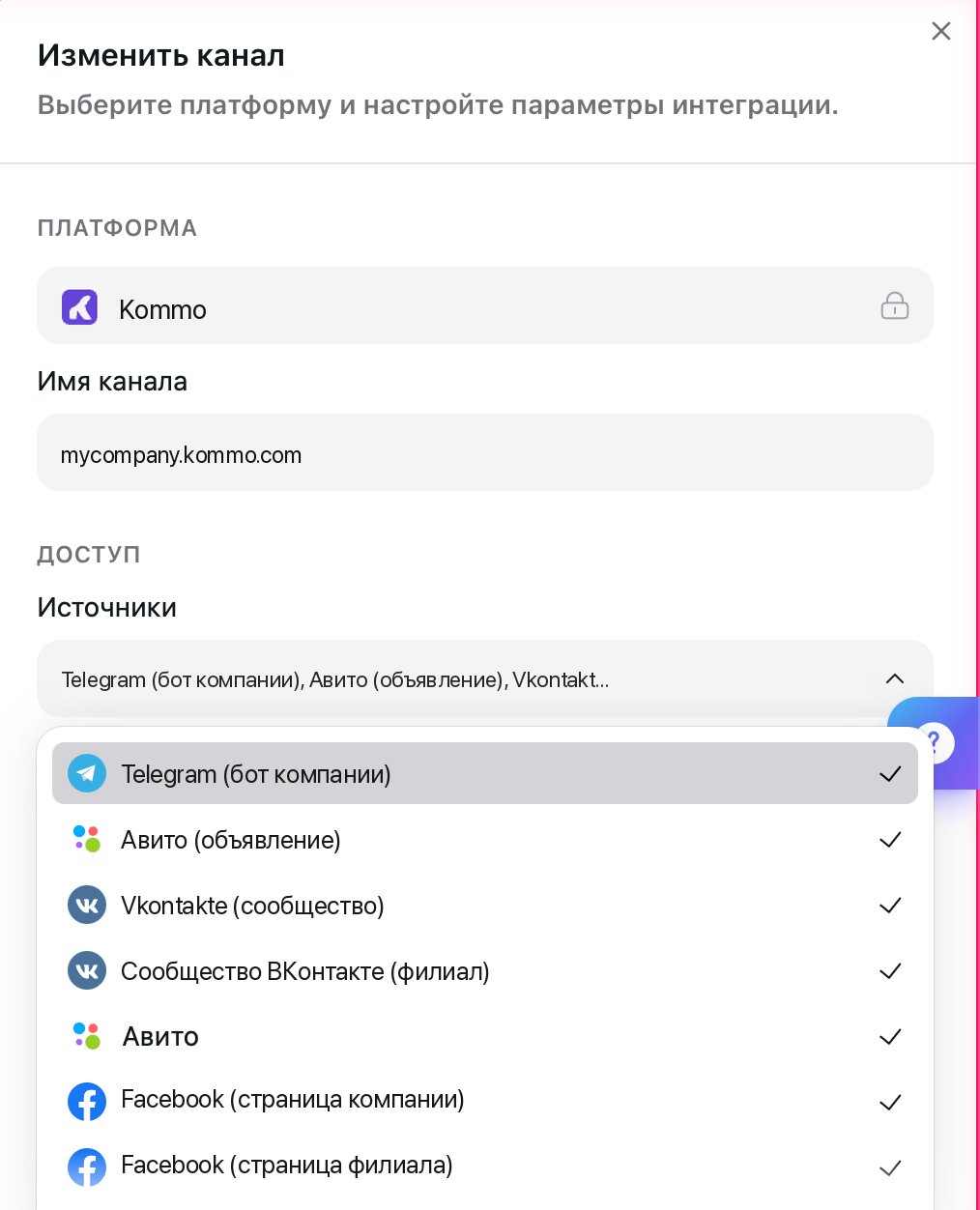 The **Sources** list shows the messengers set up in your Kommo: Telegram, WhatsApp, Instagram, VK, and others. Uncheck the ones the AI Employee shouldn't handle. For example, leave it Telegram and WhatsApp, and let your managers reply in Instagram themselves.
**Pipeline Filter** does the same for pipelines. While nothing is selected, the AI Employee replies to all deals. Select one pipeline, and it works only there, leaving your cold leads or post-sale support alone.
## Co-Pilot mode
The **Sources** list shows the messengers set up in your Kommo: Telegram, WhatsApp, Instagram, VK, and others. Uncheck the ones the AI Employee shouldn't handle. For example, leave it Telegram and WhatsApp, and let your managers reply in Instagram themselves.
**Pipeline Filter** does the same for pipelines. While nothing is selected, the AI Employee replies to all deals. Select one pipeline, and it works only there, leaving your cold leads or post-sale support alone.
## Co-Pilot mode
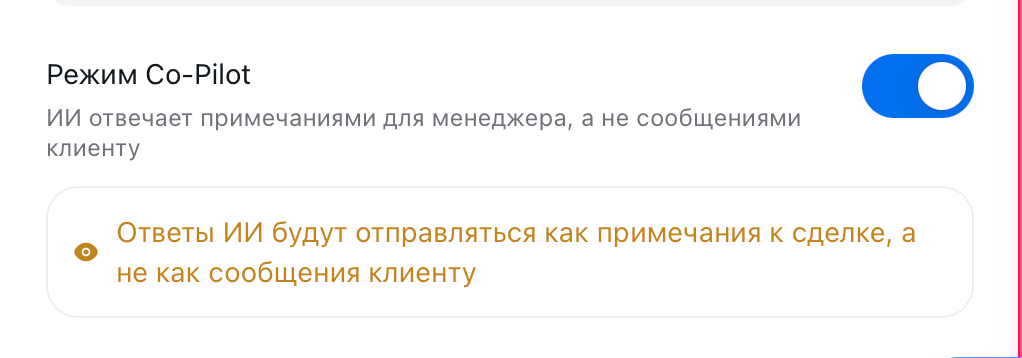 With **Co-Pilot** on, the AI Employee sends nothing to the customer. Instead, it writes its reply as a note on the deal: the manager reads the suggestion, edits it as they see fit, and sends it themselves.
This is the best way to roll out an AI Employee in a live sales team: for a week it writes notes, you review what it suggests and refine the [Persona](/en/guides/persona), and only then do you let it talk to customers.
## Settings
With **Co-Pilot** on, the AI Employee sends nothing to the customer. Instead, it writes its reply as a note on the deal: the manager reads the suggestion, edits it as they see fit, and sends it themselves.
This is the best way to roll out an AI Employee in a live sales team: for a week it writes notes, you review what it suggests and refine the [Persona](/en/guides/persona), and only then do you let it talk to customers.
## Settings
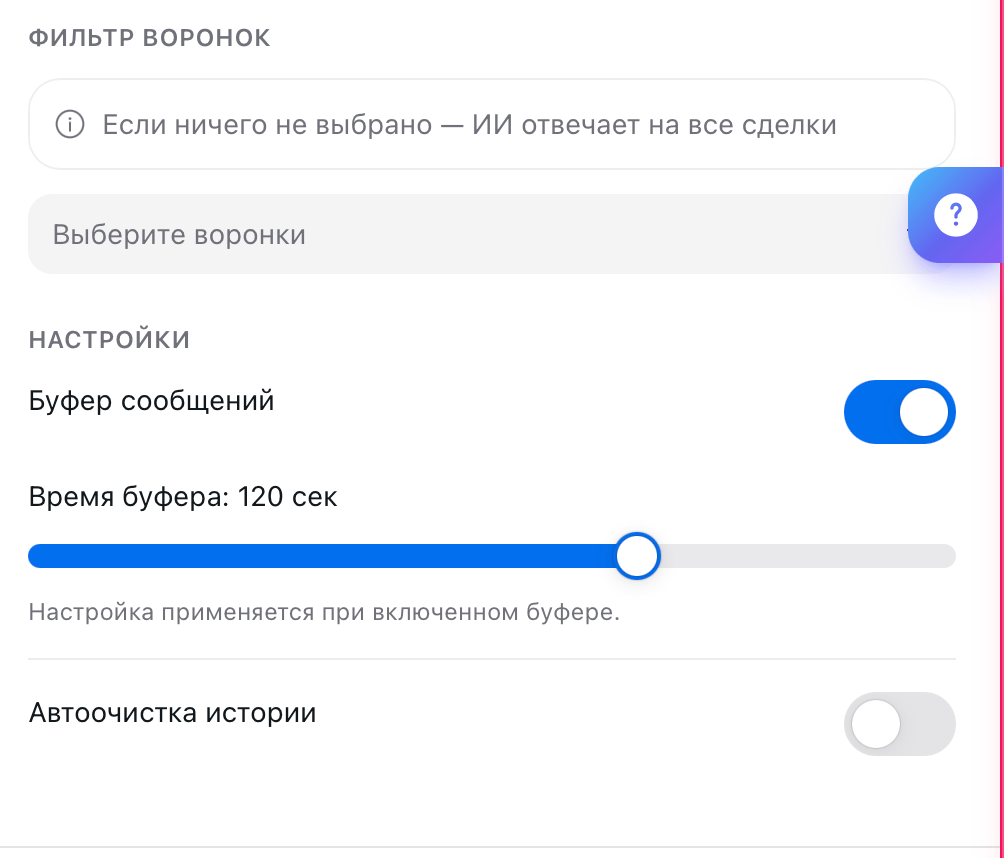 **Message Buffer** makes the AI Employee wait before replying, since customers often split one thought into several messages. In a CRM, set a longer buffer than in a messenger, up to 120 seconds: messages arrive here with a delay, and an extra minute of silence doesn't bother anyone.
**History Auto-Cleanup** deletes the conversation on a schedule.
Auto-cleanup deletes messages permanently.
## Actions in Kommo
The channel only brings in messages; on its own, it doesn't create deals or tasks. To let your AI Employee work with cards hands-on (create deals and contacts, look up customers, add notes and tasks), connect the Kommo talent on the **Talents** tab: [here's how](/en/guides/connect-talents#how-to-connect-kommo).
## What's next
The Russian version connects the same way
Deals, tasks, and notes handled by your AI Employee
All the ways to connect customers to your AI Employee
What the AI Employee remembers about a customer
**Message Buffer** makes the AI Employee wait before replying, since customers often split one thought into several messages. In a CRM, set a longer buffer than in a messenger, up to 120 seconds: messages arrive here with a delay, and an extra minute of silence doesn't bother anyone.
**History Auto-Cleanup** deletes the conversation on a schedule.
Auto-cleanup deletes messages permanently.
## Actions in Kommo
The channel only brings in messages; on its own, it doesn't create deals or tasks. To let your AI Employee work with cards hands-on (create deals and contacts, look up customers, add notes and tasks), connect the Kommo talent on the **Talents** tab: [here's how](/en/guides/connect-talents#how-to-connect-kommo).
## What's next
The Russian version connects the same way
Deals, tasks, and notes handled by your AI Employee
All the ways to connect customers to your AI Employee
What the AI Employee remembers about a customer