> ## Documentation Index
> Fetch the complete documentation index at: https://aitextura.mintlify.site/llms.txt
> Use this file to discover all available pages before exploring further.
# Telegram Groups
> An AI Employee in a Telegram group chat: it replies to mentions and replies or decides on its own when to step in, adds reactions, and sends a digest of discussions.
In a group, your AI Employee works differently than in a private chat: it doesn't reply to every message, or it would flood the chat. A group bot stays silent until someone calls it with an `@mention` or **Reply**. If you turn on the **AI Trigger**, it decides on its own when to chime in.
## Add the bot to a group
You'll need your own bot from **@BotFather**; the platform doesn't create bots for group channels. You get the token with the `/mybots` command → your bot → **API Token**.
Open the AI Employee → **Channel** tab → **Connect New** → **Telegram** and switch **Channel Type** to **Group**.
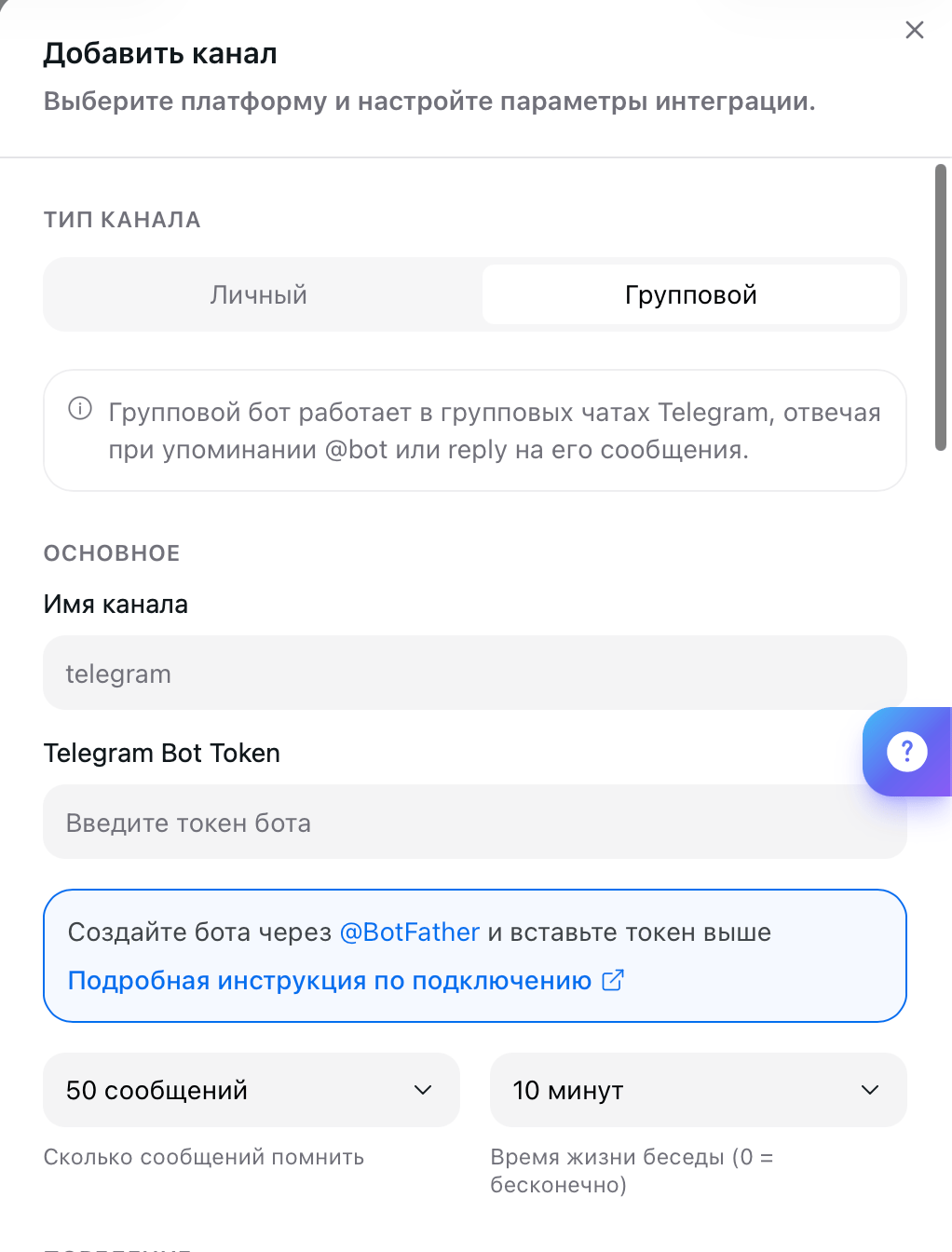 Fill in **Channel Name** and **Telegram Bot Token**, click **Create**, and then add the bot to the group as a regular member.
Turn off Privacy Mode in @BotFather: **My Bots** → your bot → **Bot Settings** → **Group Privacy** → **Turn off**. While it's on, the bot only sees mentions and replies, and the AI Trigger, reactions, and digest won't work.
## Conversation memory
Two fields below the token set how much context your AI Employee keeps in mind. **Messages to Remember** sets how many recent group messages it rereads before replying. **Conversation Lifetime** sets how many minutes of silence end the conversation and reset the context. Zero means the conversation never ends.
## When the bot replies
Fill in **Channel Name** and **Telegram Bot Token**, click **Create**, and then add the bot to the group as a regular member.
Turn off Privacy Mode in @BotFather: **My Bots** → your bot → **Bot Settings** → **Group Privacy** → **Turn off**. While it's on, the bot only sees mentions and replies, and the AI Trigger, reactions, and digest won't work.
## Conversation memory
Two fields below the token set how much context your AI Employee keeps in mind. **Messages to Remember** sets how many recent group messages it rereads before replying. **Conversation Lifetime** sets how many minutes of silence end the conversation and reset the context. Zero means the conversation never ends.
## When the bot replies
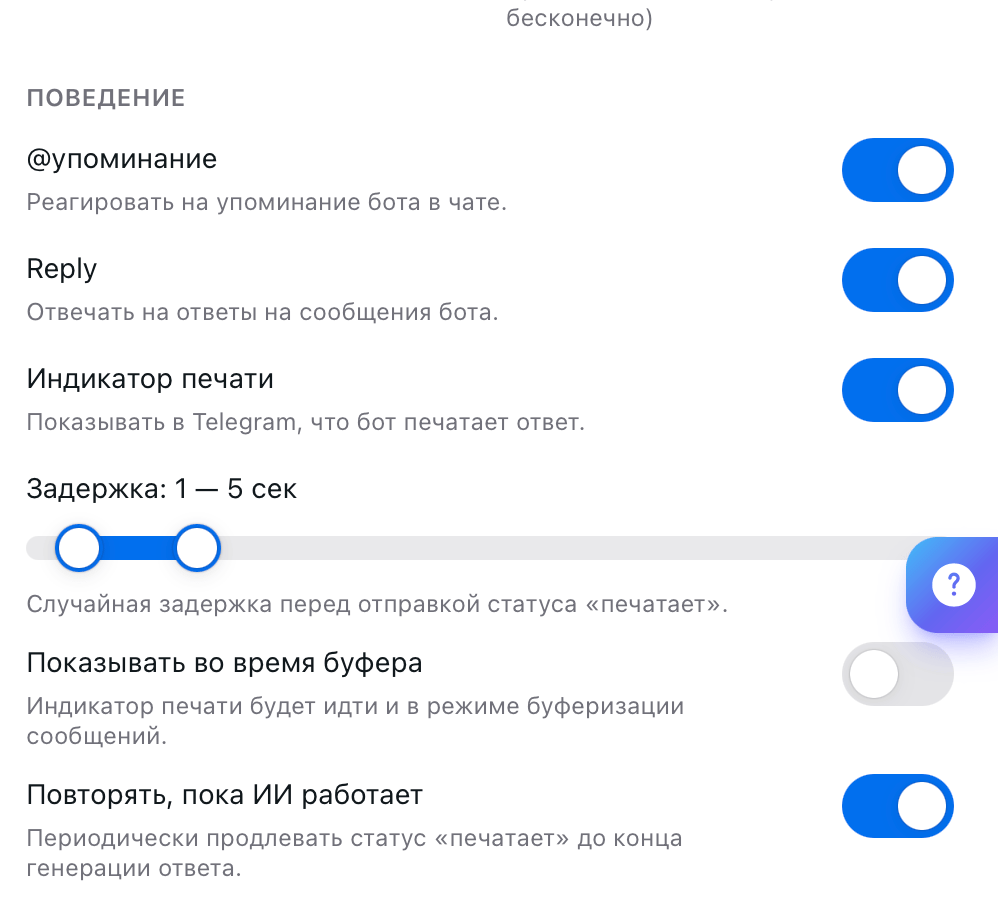 The **Behavior** block controls direct requests. With **@mention**, the AI Employee replies when someone calls it by the bot's name. With **Reply**, it replies when someone responds to its message and the conversation continues. Both are usually left on: without them, the bot won't respond in the group at all.
**Typing Indicator** shows a "typing" status in the chat. **Delay** sets how many seconds before it appears, **Show During Buffer** sets whether it shows while the AI Employee waits for more messages, and **Repeat While AI Is Working** keeps the status on until the reply is sent.
### AI Trigger
The **Behavior** block controls direct requests. With **@mention**, the AI Employee replies when someone calls it by the bot's name. With **Reply**, it replies when someone responds to its message and the conversation continues. Both are usually left on: without them, the bot won't respond in the group at all.
**Typing Indicator** shows a "typing" status in the chat. **Delay** sets how many seconds before it appears, **Show During Buffer** sets whether it shows while the AI Employee waits for more messages, and **Repeat While AI Is Working** keeps the status on until the reply is sent.
### AI Trigger
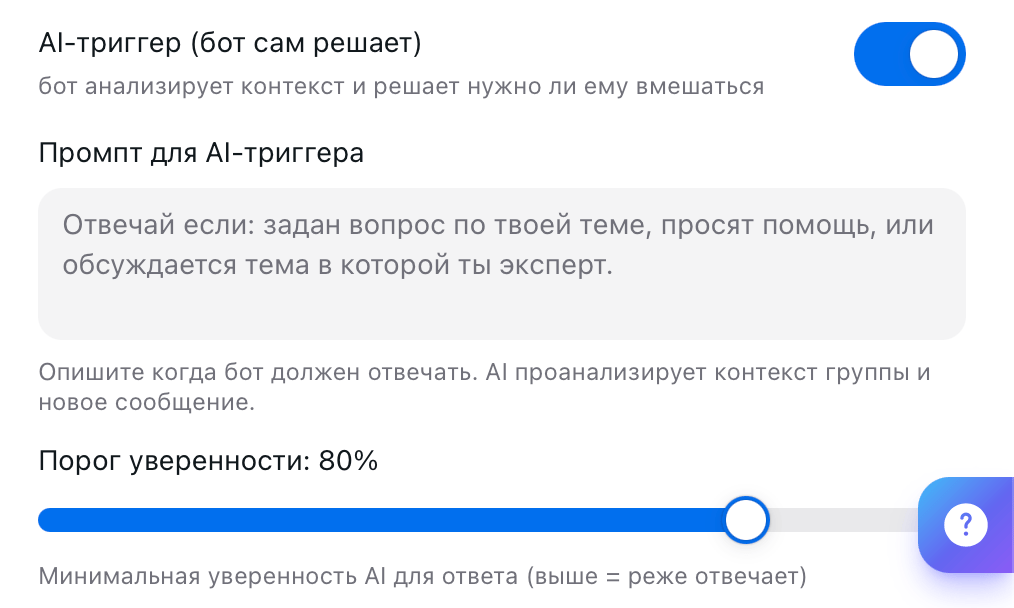 With the **AI Trigger** on, your AI Employee reads the conversation and decides whether it has something to say, even when nobody called it. In the **AI Trigger Prompt**, describe in plain words when it should step in: "reply if someone asks a question on your topic, asks for help, or discusses a subject you're an expert in."
**Confidence Threshold** sets how confident the AI Employee must be before it posts. The higher the value, the less often it chimes in: at 80%, it only replies when the reason is obvious; below 50%, it starts commenting on almost everything.
## Reactions
With the **AI Trigger** on, your AI Employee reads the conversation and decides whether it has something to say, even when nobody called it. In the **AI Trigger Prompt**, describe in plain words when it should step in: "reply if someone asks a question on your topic, asks for help, or discusses a subject you're an expert in."
**Confidence Threshold** sets how confident the AI Employee must be before it posts. The higher the value, the less often it chimes in: at 80%, it only replies when the reason is obvious; below 50%, it starts commenting on almost everything.
## Reactions
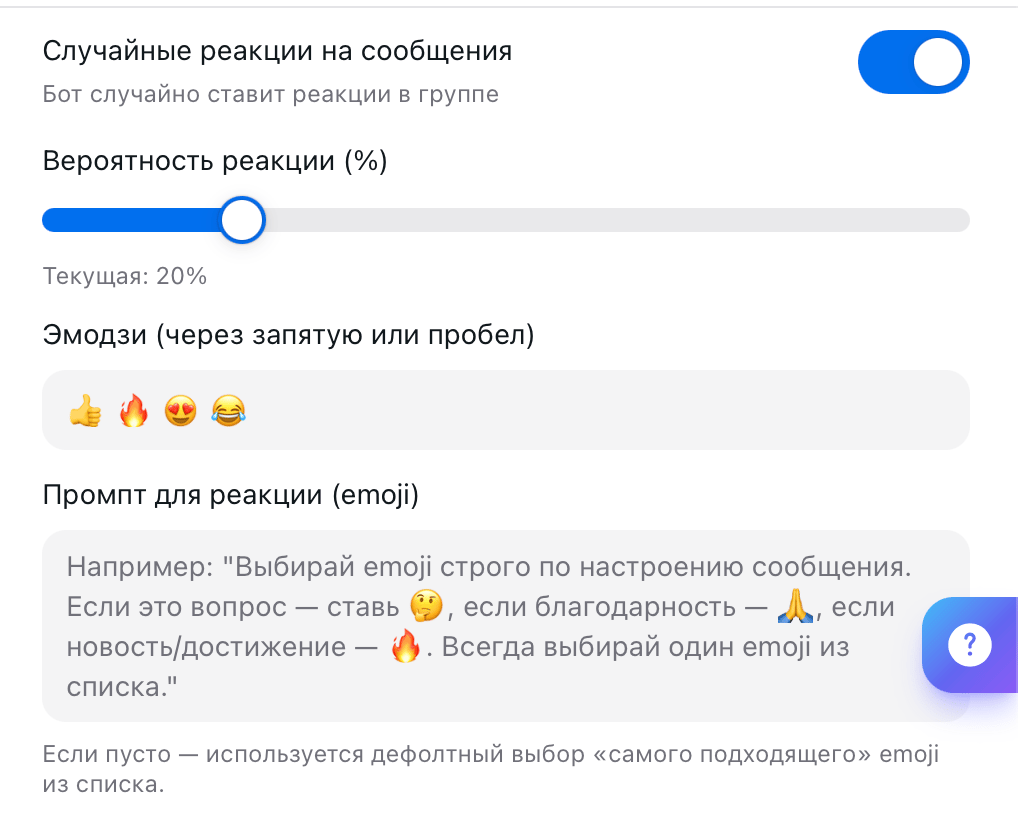 **Random Reactions** make your AI Employee occasionally mark other people's messages with an emoji. The chat feels livelier, and the bot doesn't sit completely silent between replies. **Reaction Probability** sets how often this happens: 20% means roughly every fifth message.
In the **Emoji** field, list the reactions it's allowed to use. The **Reaction Prompt** explains how to choose: "for a question, 🤔; for thanks, 🙏; for news, 🔥." If you leave the prompt empty, the AI Employee picks whatever it considers fitting from the list each time.
## Daily digest
**Random Reactions** make your AI Employee occasionally mark other people's messages with an emoji. The chat feels livelier, and the bot doesn't sit completely silent between replies. **Reaction Probability** sets how often this happens: 20% means roughly every fifth message.
In the **Emoji** field, list the reactions it's allowed to use. The **Reaction Prompt** explains how to choose: "for a question, 🤔; for thanks, 🙏; for news, 🔥." If you leave the prompt empty, the AI Employee picks whatever it considers fitting from the list each time.
## Daily digest
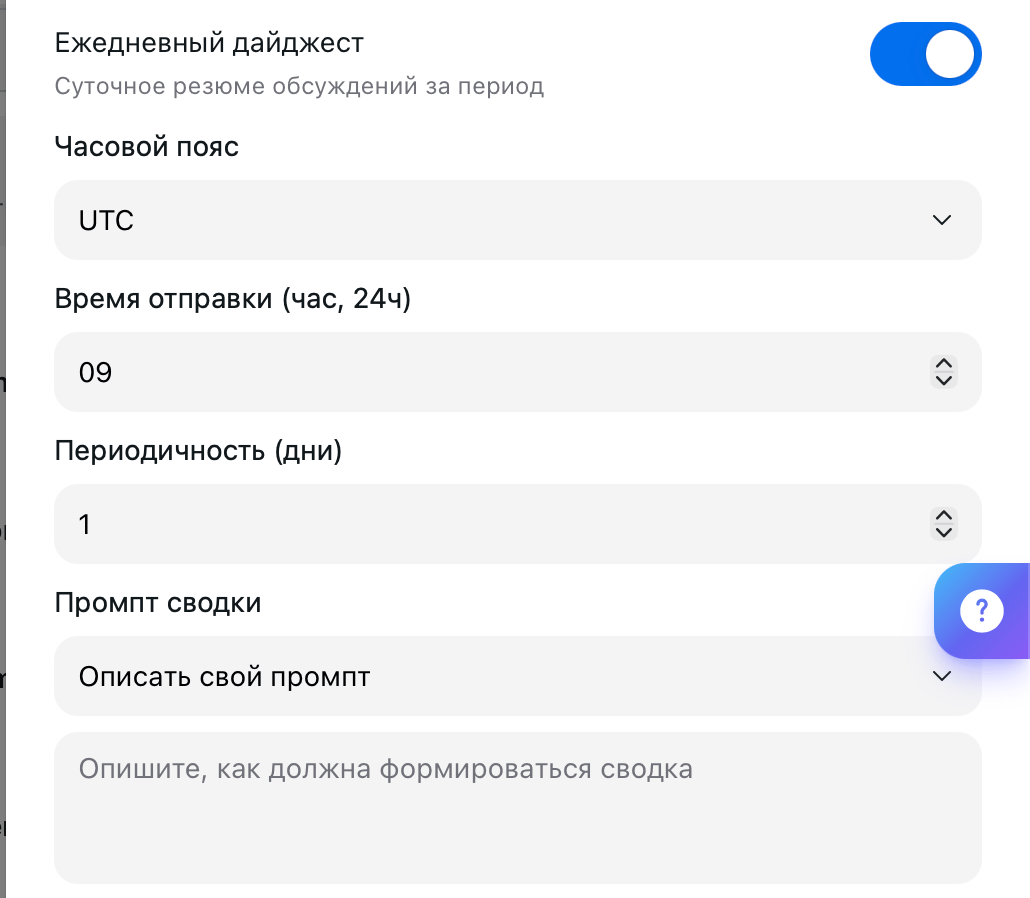 Your AI Employee posts a recap of recent discussions to the group. This is handy for work chats where two hundred messages pile up in a day and nobody reads them all.
Set the **Time Zone** and **Send Time** (the hour, in 24-hour format). **Frequency** sets how many days apart the summaries arrive. For the **Summary Prompt**, you can use a ready-made option or select **Write Your Own Prompt** and explain what matters to you: "highlight decisions made and open questions, skip the rest."
## Other settings
Your AI Employee posts a recap of recent discussions to the group. This is handy for work chats where two hundred messages pile up in a day and nobody reads them all.
Set the **Time Zone** and **Send Time** (the hour, in 24-hour format). **Frequency** sets how many days apart the summaries arrive. For the **Summary Prompt**, you can use a ready-made option or select **Write Your Own Prompt** and explain what matters to you: "highlight decisions made and open questions, skip the rest."
## Other settings
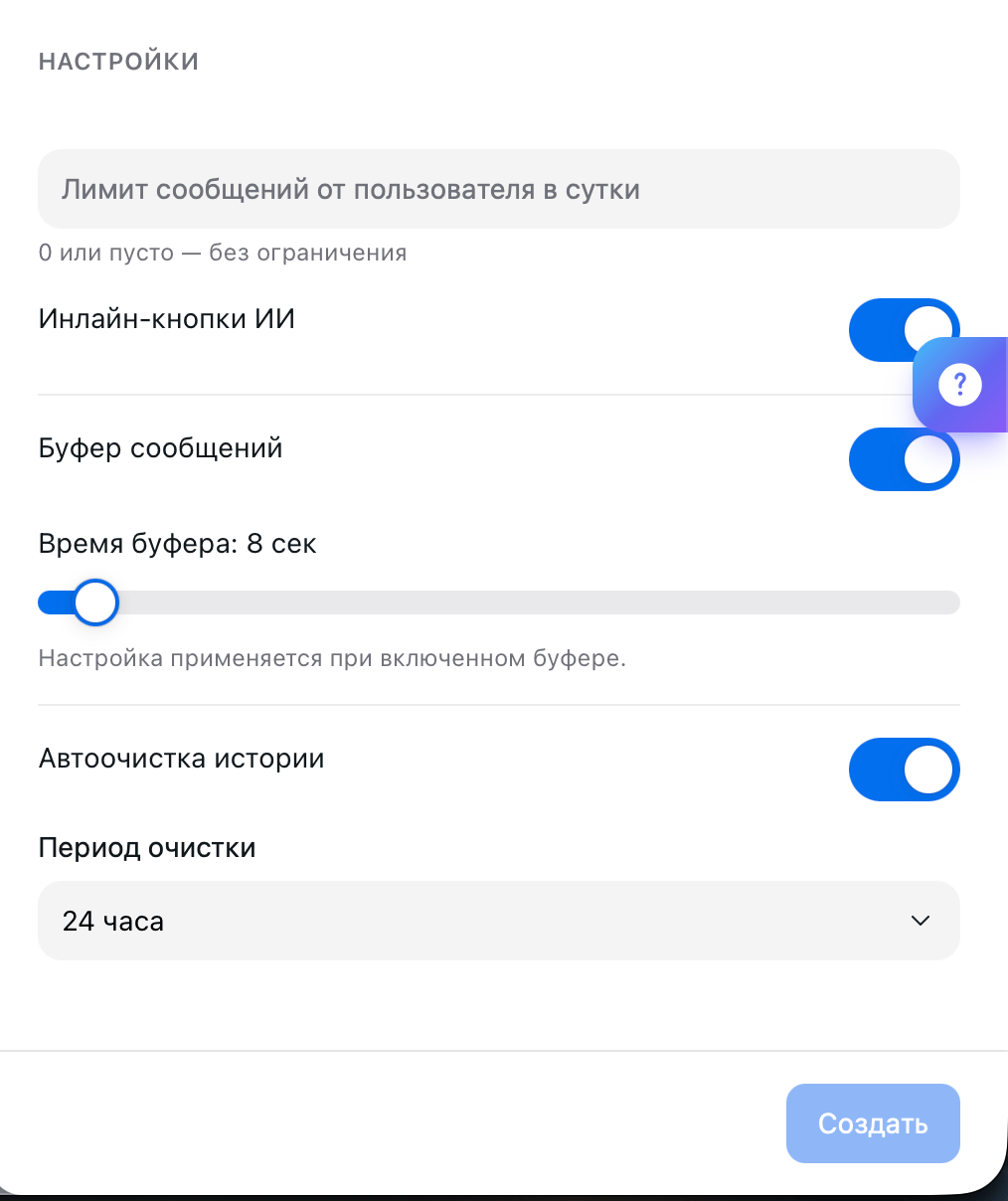 | Setting | What it does |
| -------------------------------- | ------------------------------------------------------------------------------------------------------------------------------------------------------------------------- |
| **Daily Message Limit per User** | How many times one member can call the AI Employee per day. Empty or zero means no limit |
| **AI Inline Buttons** | The AI Employee adds buttons with options below its reply. They work noticeably worse in groups than in private chats: anyone can tap them, not just the person who asked |
| **Message Buffer** | The AI Employee waits for the **Buffer Time** before replying, since people split one thought into several messages |
| **History Auto-Cleanup** | Deletes the conversation on a schedule; **Cleanup Period** sets the frequency |
Auto-cleanup deletes messages permanently.
## What's next
Private chats with customers and replies from your account
All the ways to connect customers to your AI Employee
How the AI Employee runs conversations and what tone it uses
Learn about important events in time
| Setting | What it does |
| -------------------------------- | ------------------------------------------------------------------------------------------------------------------------------------------------------------------------- |
| **Daily Message Limit per User** | How many times one member can call the AI Employee per day. Empty or zero means no limit |
| **AI Inline Buttons** | The AI Employee adds buttons with options below its reply. They work noticeably worse in groups than in private chats: anyone can tap them, not just the person who asked |
| **Message Buffer** | The AI Employee waits for the **Buffer Time** before replying, since people split one thought into several messages |
| **History Auto-Cleanup** | Deletes the conversation on a schedule; **Cleanup Period** sets the frequency |
Auto-cleanup deletes messages permanently.
## What's next
Private chats with customers and replies from your account
All the ways to connect customers to your AI Employee
How the AI Employee runs conversations and what tone it uses
Learn about important events in time