> ## Documentation Index
> Fetch the complete documentation index at: https://aitextura.mintlify.site/llms.txt
> Use this file to discover all available pages before exploring further.
# Detailed guide to connecting talents
> Step-by-step instructions for specific services: Bitrix24, amoCRM, Travelline, Bnovo, MEWS, payments, databases.
Each service connects with its own fields: one needs a key, another an OAuth sign-in, a third a hotel ID. Expand the row you need — inside you'll find what you'll need, the steps, and how to check that it works.
**General order for any talent:** click the card on the **Talents** tab → sign in to the service or paste an API key → review the list of available tools → spell out in the [Persona](/en/guides/persona) when the employee uses them → test in the test chat.
## CRM
Bitrix24 appears on the platform twice: as a [channel](/en/channels/bittrix24), so messages from Open Channels arrive in AI TEXTURA chats, and as a talent, so the employee can create leads and deals, look up contacts, and assign tasks. These are two independent connections, and you usually need both.
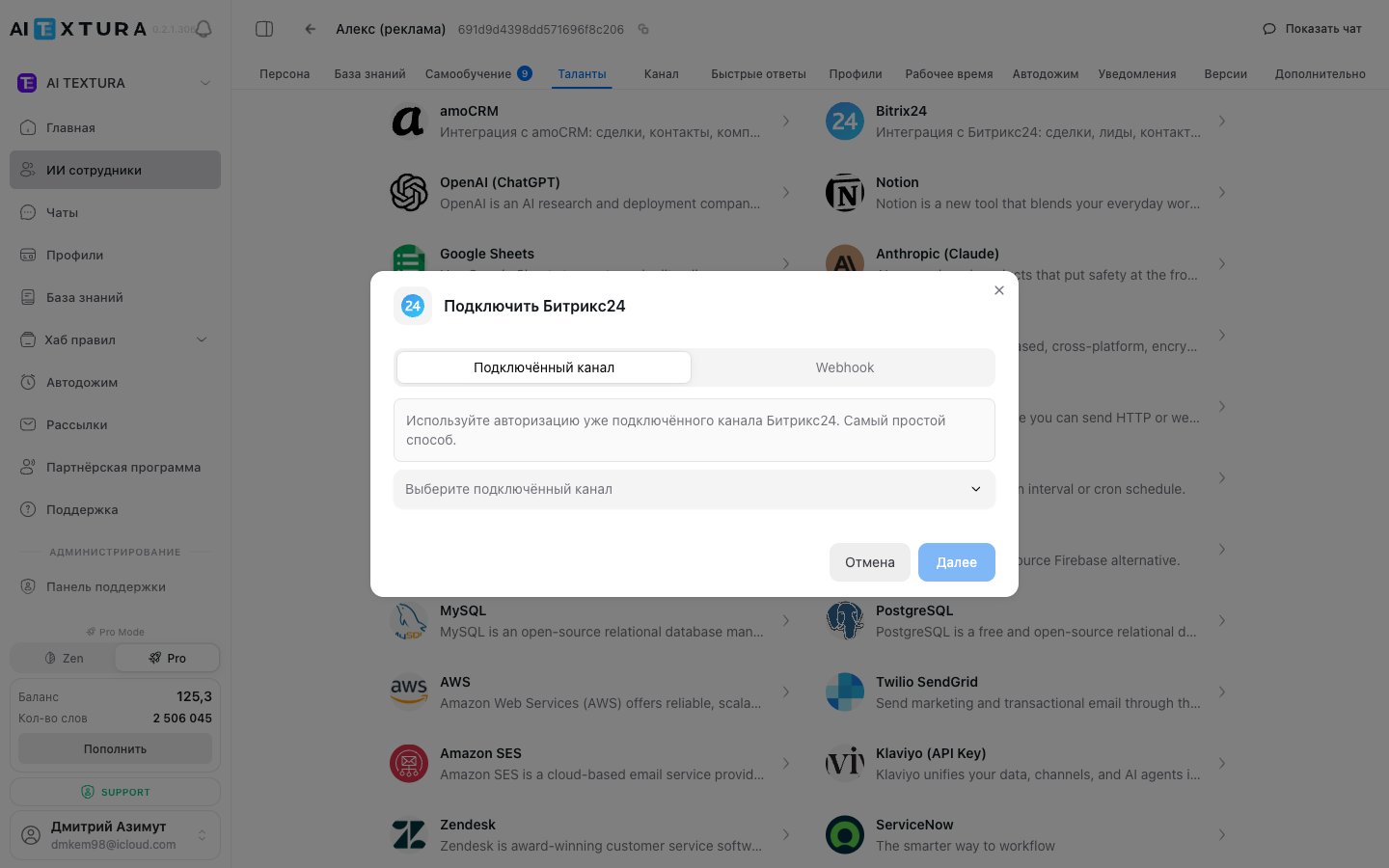
Click the **Bitrix24** card in the catalog and choose a tab.
The shortest path: the talent borrows the channel's authorization, so you don't need to create a separate webhook.
The list shows Bitrix24 channels already connected to your organization.
The talent gets the channel's permissions and appears on the **Connected** subtab.
The list is empty if no Bitrix24 channel is connected yet. In that case, [connect the channel](/en/channels/bittrix24) or use the webhook option.
Use this when you don't use the channel or the talent needs a separate set of permissions.
**Applications → Developer resources → Other → Inbound webhook**.
You need all six: **CRM** (`crm`), **Users** (`user`), **Tasks** (`task`), **Chat and notifications** (`im`), **Creating and managing chatbots** (`imbot`), **Open Channels** (`imopenlines`).
It looks like this: `https://your-portal.bitrix24.ru/rest/1/abcdef0123456/`.
Go back to the Bitrix24 talent window, paste the URL into the field, and click **Connect**.
**Check.** In the test chat, write: "I'd like to submit a request, my name is Ivan, my phone is 900-000-00-00." A deal or lead with this data should appear in Bitrix24.
If it doesn't:
* **The employee replies, but the CRM is empty** — the [Persona](/en/guides/persona) has no rule for when to create a deal. Add it explicitly.
* **The action fails** — the webhook doesn't have the **CRM** permission. Recreate the webhook with all six permissions.
* **It worked and then stopped** — the webhook was revoked on the Bitrix24 side. Create a new one and paste the URL again.
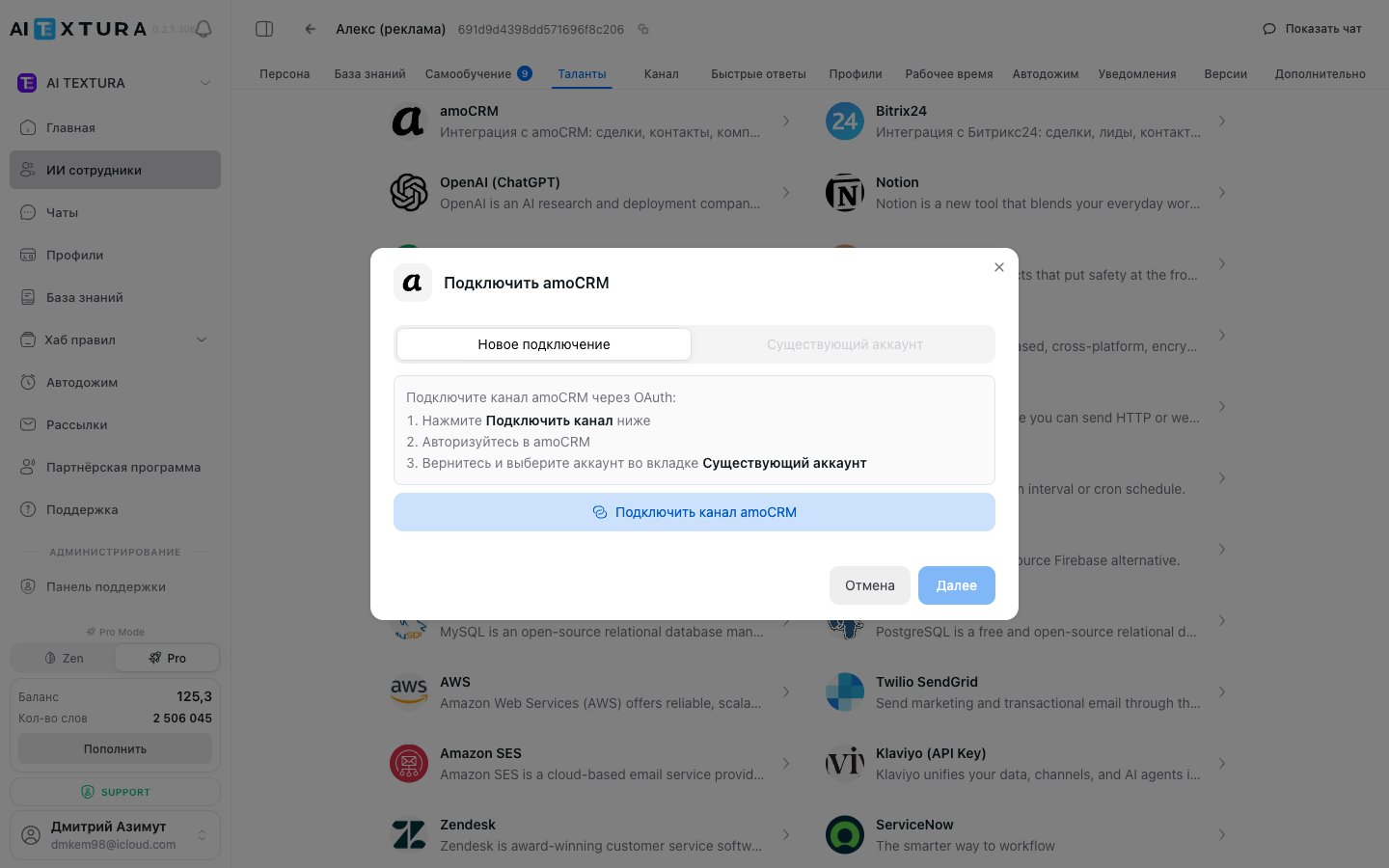
amoCRM connects via OAuth sign-in — no logins or keys to enter.
Find it in the talent catalog by searching for its name.
**New connection** — the platform redirects you to the amoCRM sign-in page. **Existing account** — if you've authorized amoCRM before, select it from the list.
The talent's permissions equal that account's permissions: sign in with one that has access to the pipeline you need.
The talent appears on the **Connected** subtab.
**Check.** Ask the employee in the test chat to submit a request — a deal should appear in amoCRM.
Like Bitrix24, amoCRM can also work as a channel — see [Channels](/en/channels/amocrm). The talent handles only actions in the CRM.
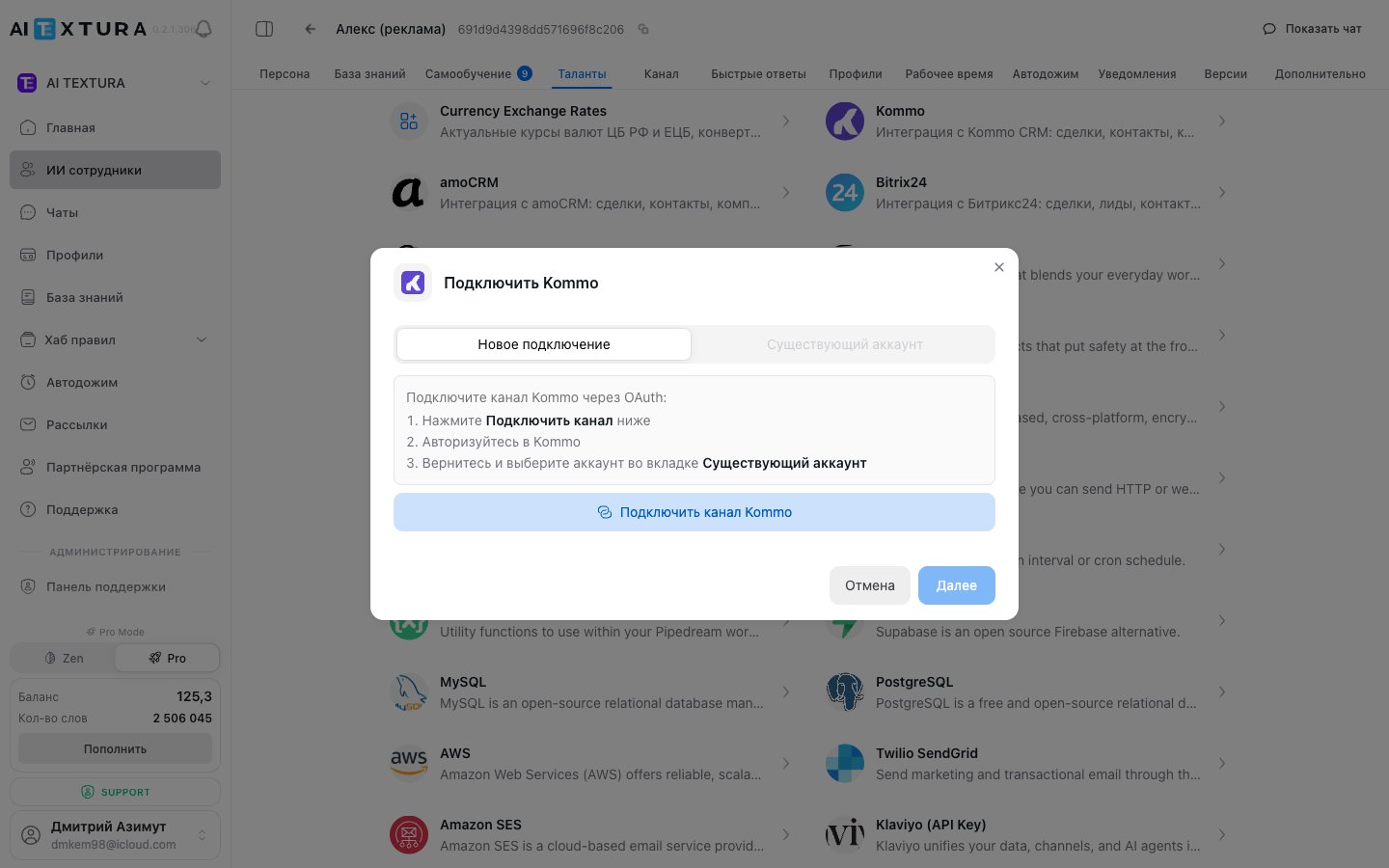
Kommo is the international version of amoCRM and connects the same way: **New connection** or **Existing account**, then an OAuth sign-in with an account that has access to the pipeline.
If the OAuth session expires, the talent stops working — reconnect it on the **Connected** subtab.
Salesforce and Zoho CRM connect via OAuth sign-in; HubSpot, Zendesk, and ServiceNow connect with an API key from the service's settings.
The general order: card in the catalog → authorization or key → **Connect talent**. The talent's permissions equal those of the account or key, so set up separate technical access with the minimum permissions required.
## PMS — hotels and apartments
A PMS gives the employee your room inventory: available dates, room types, rates. Without it, the employee can't answer "is anything available on November 5" or make a booking.
| PMS | Region | Property type | How it connects |
| ------------------- | -------------------------- | ------------------------------ | ----------------------------------- |
| **MEWS** | Global | Hotels, hotel chains | Configuration ID + connector tokens |
| **Travelline** | Russia, Belarus, worldwide | Hotels | Hotel ID + region |
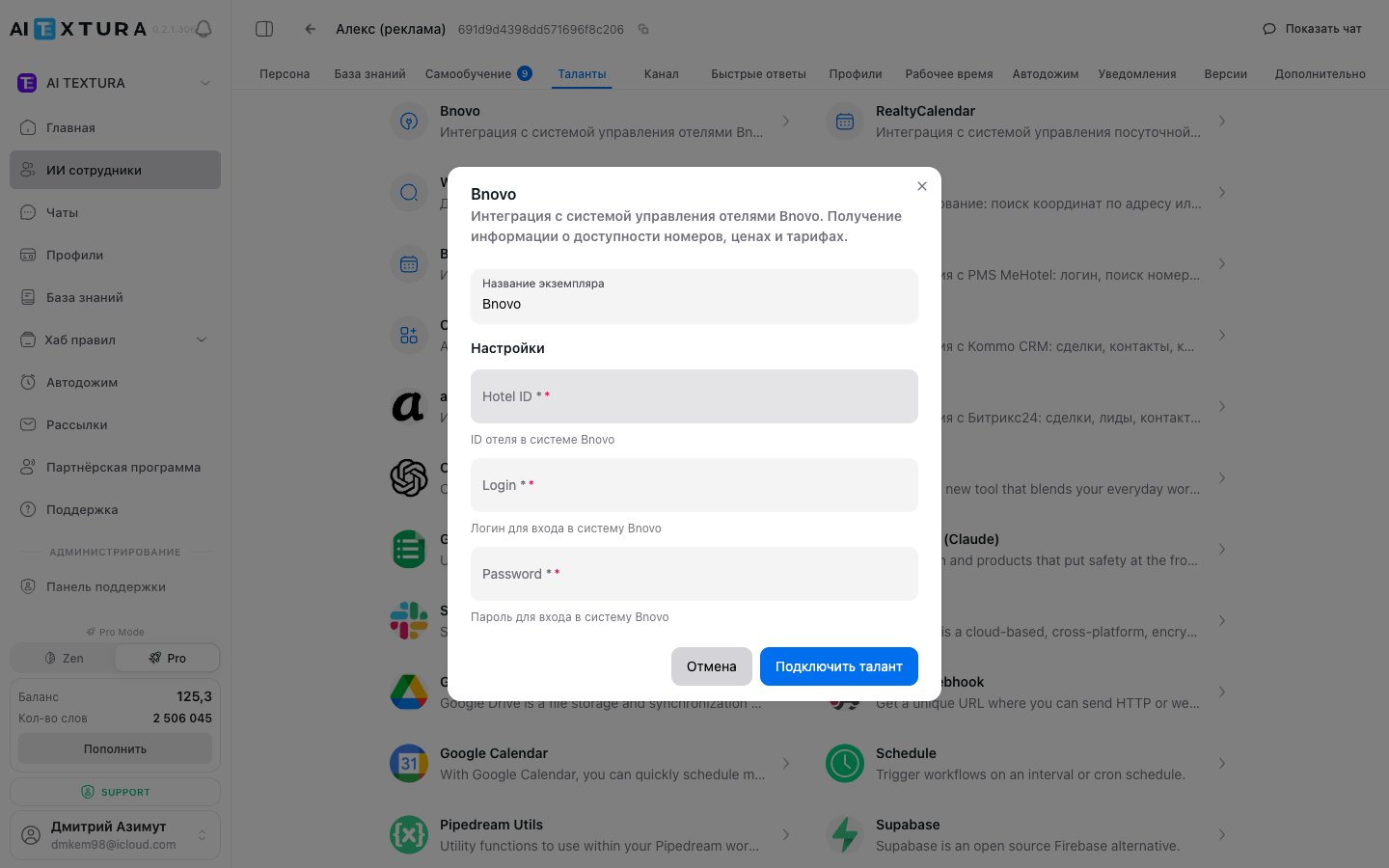
| **Bnovo** | Russia, CIS | Small hotels, guest houses | Hotel ID + login and password |
| **RealtyCalendar** | Russia | Apartments, short-term rentals | API key |
| **Bronirui Online** | Russia | Guest houses, mini-hotels | API key |
| **MeHotel** | Russia | Hotels, apartments | API key |
PMS cards are on the **Talents** tab → **App overview**, under the **Travel & Hospitality** filter. A connected PMS lets the employee check available dates, show room types and rates, create a draft booking or pass the details to a manager, answer questions about an existing booking, and see the day's arrivals and departures. The exact set depends on the specific system's API and the account's permissions.
PMS credentials give access to bookings, rates, and guest data. Create a separate technical account with the minimum permissions required: you can revoke it at any time without touching your working accounts.
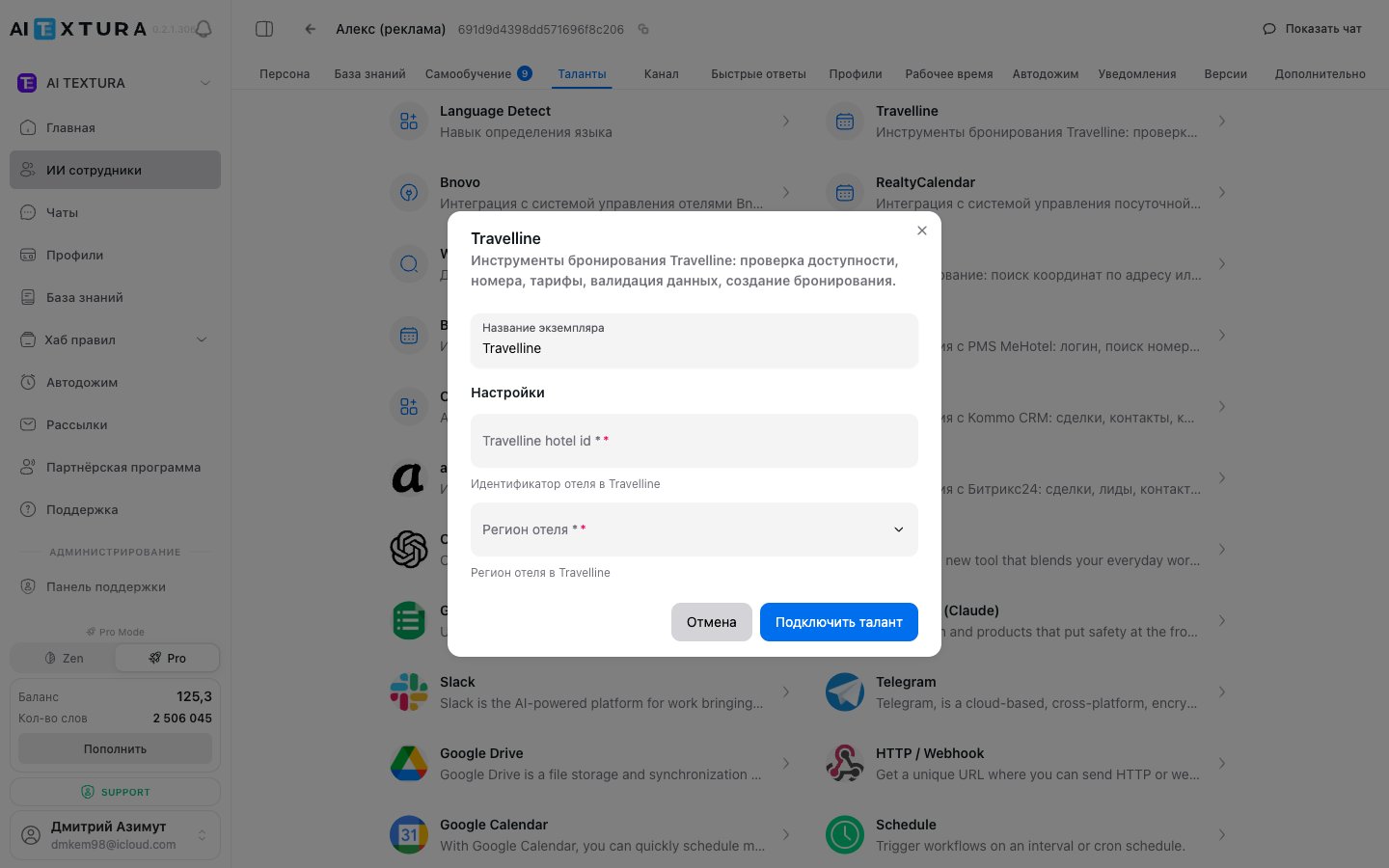
**What you'll need:** the Hotel ID from your Travelline account and the region where the hotel operates.
**Talents** tab → **App overview** → **Travel & Hospitality** filter, or search by name.
**Hotel ID** — the numeric ID from your Travelline account. **Region** — `РФ` (Russia), `РБ` (Belarus), or `МИР` (worldwide): this determines which Travelline server requests go to.
If you have several hotels, a name like "Travelline — Primorsky" will save you time later.
The talent appears on the **Connected** subtab.
Add a rule to the [Persona](/en/guides/persona) — without it, the employee won't query the PMS:
> When a guest asks about available dates or room prices, check availability in Travelline and show the available options with prices.
**Check.** Ask in the test chat: "Is a room available from November 5 to 7?" The employee should reply with specific room types and prices.
If the answer is vague:
* **"I can't check availability"** — check the Hotel ID and region, and also the account's permissions in Travelline.
* **It answers about prices but not dates** — the account lacks permission to read the calendar.
* **It doesn't query the PMS at all** — there's no rule in the Persona.
**What you'll need:** the Hotel ID, plus the login and password of a Bnovo account.
Talent catalog → search by name.
**Hotel ID** — the property ID in Bnovo. **Login** and **Password** — the credentials of the account the employee will use to access the PMS.
The talent appears on the **Connected** subtab.
Create a separate technical account in Bnovo for the integration. That makes it easier to grant exactly the permissions needed and revoke access without touching working accounts.
**Check.** Ask about available dates in the test chat — the employee should return room types and prices from Bnovo.
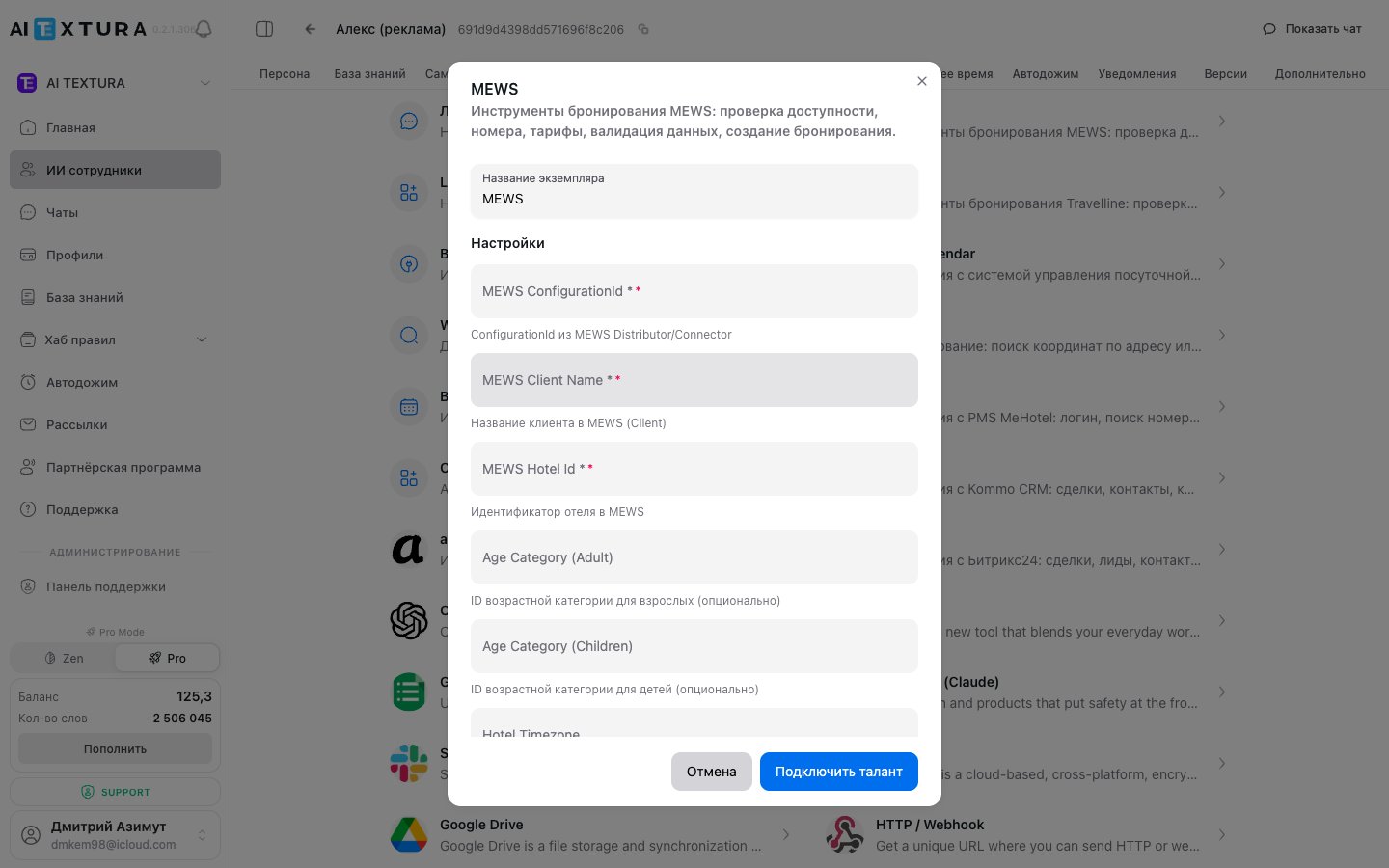
MEWS requires the most data, and nearly all of it comes from your MEWS partner manager: ask them for a configuration for the AI TEXTURA integration.
**What you'll need:**
| Field | Where to get it |
| -------------------------------------------------------- | ------------------------------------------- |
| **Configuration ID** | Issued by MEWS for the specific integration |
| **Client Name** | MEWS settings |
| **Hotel ID** | MEWS settings |
| **Age Category Adult** and **Children** | Guest categories in MEWS |
| **Hotel Timezone** | Hotel settings |
| **Connector Client Token**, **Access Token**, **Client** | Issued by MEWS |
| **Enterprise ID** | MEWS settings, for chains |
Fill in the fields on the **MEWS** card and click **Connect talent**. For a hotel chain, create a separate AI Employee for each hotel, each with its own Configuration ID and Hotel ID.
All three connect the same way — with an API key from the system's account dashboard.
In your RealtyCalendar, Bronirui Online, or MeHotel account — the settings or integrations section.
The **API Key** field in the connection window.
Test it in the test chat by asking about available dates.
Each property needs its own talent instance and, as a rule, its own AI Employee. One employee with two PMSs will start mixing up properties.
In **Travelline** — in the hotel account, in the settings at the top right: a few digits like `243332`. In **Bnovo** — in the account's address bar: `https://bnovo.ru/hotel/12345`, where `12345` is the ID.
The login or password was typed by hand and a space slipped in. Copy both values from Bnovo to the clipboard and paste them again. If the error persists, contact [Support](/en/guides/support).
It sees everything that's open "at the front desk." Configure rate visibility in Bnovo, or create a separate rate for the AI Employee and specify it in the [Persona](/en/guides/persona).
The price didn't reach the PMS. Take it from the Bnovo notification email and enter it manually, then send the case to [Support](/en/guides/support) — the discrepancy is investigated using logs. Creating bookings via the Bnovo API isn't available in every configuration yet: if you need it, check the status with Support.
MEWS expects times in the hotel's time zone, not UTC, so it's important to set **Hotel Timezone** correctly in the talent settings. Availability and price data update every two minutes. MEWS grants access to its Connector API after the integration is certified — request it from your MEWS manager.
It's a required field in the Travelline booking form — the booking won't be created without it. You can soften the wording of the question with a rule in the [Persona](/en/guides/persona).
No, promo codes aren't applied automatically. Describe the promotion terms in the [Persona](/en/guides/persona) — the employee will tell the guest about it, and a manager will apply it when finalizing the booking.
This is configured on the Travelline side: ask their support to add AI TEXTURA as a separate booking source.
Check three things in order: whether old context is being carried over — clear the conversation history and ask the guest to write again; whether a pay-at-check-in rate was selected — no link is created for it; whether a manager stepped in before the employee collected all the details. If everything looks fine, send a link to the conversation to [Support](/en/guides/support).
That's expected: the booking is recorded when the guest follows the link and confirms it. Until they do, nothing appears in the PMS.
It paraphrased the fact that it collected the details. Replace the wording in the [Persona](/en/guides/persona) with something precise: "Details passed to a manager" or "Booking link sent."
State the rule directly: "A one-night booking spans two days: check-in and check-out. 'From the 4th to the 6th' is two nights, not three." Add a rule about the year while you're at it: "Book in the current year unless the guest specifies another."
Prohibit this in the [Persona](/en/guides/persona): "Never use made-up or test data for a booking. Always ask the guest for their real details."
The employee doesn't handle these itself: it passes multiple rooms, hourly stays, and extra services to a manager along with the collected details. Describe in the [Persona](/en/guides/persona) how it phrases this, so the guest doesn't think the booking is already done.
Allow access from the addresses `136.144.29.235` and `136.144.28.219` and from the `aitextura.com` domain.
Contact [Support](/en/guides/support) — the catalog keeps growing. Alternatively, connect your own MCP server via **Create talent** — server type SSE or Streamable HTTP, with API key or Bearer token authorization.
Each hotel gets its own AI Employee with its own PMS talent, its own [Knowledge Base](/en/guides/knowledge), and its own [Persona](/en/guides/persona). You can still use a shared WhatsApp number or a single aggregator channel — it's the employees you separate, not the channels.
Technically, you can connect two PMSs to one employee, but it will start mixing up properties. If you have several properties, split them across employees.
Yes, if the talent has write permission and this is explicitly described in the [Persona](/en/guides/persona). Start with a "draft booking plus manager confirmation" scenario and move to full automation once you're happy with the conversations.
After connecting a PMS, the employee needs three more things: a rule in the [Persona](/en/guides/persona) for when to query the PMS; a [channel](/en/channels) to talk with the guest; and a [Knowledge Base](/en/guides/knowledge) with the cancellation policy, breakfast details, and house rules — the PMS provides room figures, and everything else comes from there.
## Documents, payments, databases
All Google services connect via OAuth sign-in: click the card, sign in to your Google account, and grant access. The talent's permissions equal that account's permissions — create a separate service account if you don't want to expose your personal drive.
If you have several calendars, create a separate AI Employee for each: the same talent can be connected to one employee only once.
Connect via OAuth. After signing in, select in Notion the pages and databases you want to share — the employee will see only those.
Stripe connects with an API key from the Stripe dashboard: **Developers → API keys**. Once connected, the employee can create payment links, check payment status, and issue refunds.
A key that can charge money is sensitive access. Use a key with the minimum permissions required and describe in the [Persona](/en/guides/persona) the exact conditions under which the employee creates a payment link.
All three connect with an API key from the service's dashboard. The sender domain must be verified on the service's side, or emails won't be sent.
You'll need the server address, port, database name, login, and password. Supabase connects with the project URL and a service key.
Give the account read-only access if the employee only needs to look up data, not change it. An open database is the most expensive way to make a mistake.
## Work without setup
These AI TEXTURA talents turn on with a single click — no keys, no accounts.
| Talent | What it does |
| ---------------------------------- | ---------------------------------------------------- |
| **Split paragraphs into messages** | Splits a long reply into several messenger messages |
| **Spam Filter** | Filters out spam before the employee starts replying |
| **Message limit** | Limits the number of messages per customer per day |
| **Language Detect** | Detects the language of an incoming message |
| **WebSearch** | Searches the web for up-to-date information |
| **Geocode** | Converts an address to coordinates and back |
| **Currency Exchange Rates** | Provides currency exchange rates |
## What's next
The general connection order and what to do if a talent doesn't fire
Where to describe when the employee calls a talent
Bitrix24 and amoCRM also connect as channels
If a service doesn't behave as expected
 **Check.** In the test chat, write: "I'd like to submit a request, my name is Ivan, my phone is 900-000-00-00." A deal or lead with this data should appear in Bitrix24.
If it doesn't:
* **The employee replies, but the CRM is empty** — the [Persona](/en/guides/persona) has no rule for when to create a deal. Add it explicitly.
* **The action fails** — the webhook doesn't have the **CRM** permission. Recreate the webhook with all six permissions.
* **It worked and then stopped** — the webhook was revoked on the Bitrix24 side. Create a new one and paste the URL again.
**Check.** In the test chat, write: "I'd like to submit a request, my name is Ivan, my phone is 900-000-00-00." A deal or lead with this data should appear in Bitrix24.
If it doesn't:
* **The employee replies, but the CRM is empty** — the [Persona](/en/guides/persona) has no rule for when to create a deal. Add it explicitly.
* **The action fails** — the webhook doesn't have the **CRM** permission. Recreate the webhook with all six permissions.
* **It worked and then stopped** — the webhook was revoked on the Bitrix24 side. Create a new one and paste the URL again.
 **Check.** Ask the employee in the test chat to submit a request — a deal should appear in amoCRM.
 If the OAuth session expires, the talent stops working — reconnect it on the **Connected** subtab.
 Add a rule to the [Persona](/en/guides/persona) — without it, the employee won't query the PMS:
> When a guest asks about available dates or room prices, check availability in Travelline and show the available options with prices.
**Check.** Ask in the test chat: "Is a room available from November 5 to 7?" The employee should reply with specific room types and prices.
If the answer is vague:
* **"I can't check availability"** — check the Hotel ID and region, and also the account's permissions in Travelline.
* **It answers about prices but not dates** — the account lacks permission to read the calendar.
* **It doesn't query the PMS at all** — there's no rule in the Persona.
Add a rule to the [Persona](/en/guides/persona) — without it, the employee won't query the PMS:
> When a guest asks about available dates or room prices, check availability in Travelline and show the available options with prices.
**Check.** Ask in the test chat: "Is a room available from November 5 to 7?" The employee should reply with specific room types and prices.
If the answer is vague:
* **"I can't check availability"** — check the Hotel ID and region, and also the account's permissions in Travelline.
* **It answers about prices but not dates** — the account lacks permission to read the calendar.
* **It doesn't query the PMS at all** — there's no rule in the Persona.
 Fill in the fields on the **MEWS** card and click **Connect talent**. For a hotel chain, create a separate AI Employee for each hotel, each with its own Configuration ID and Hotel ID.