

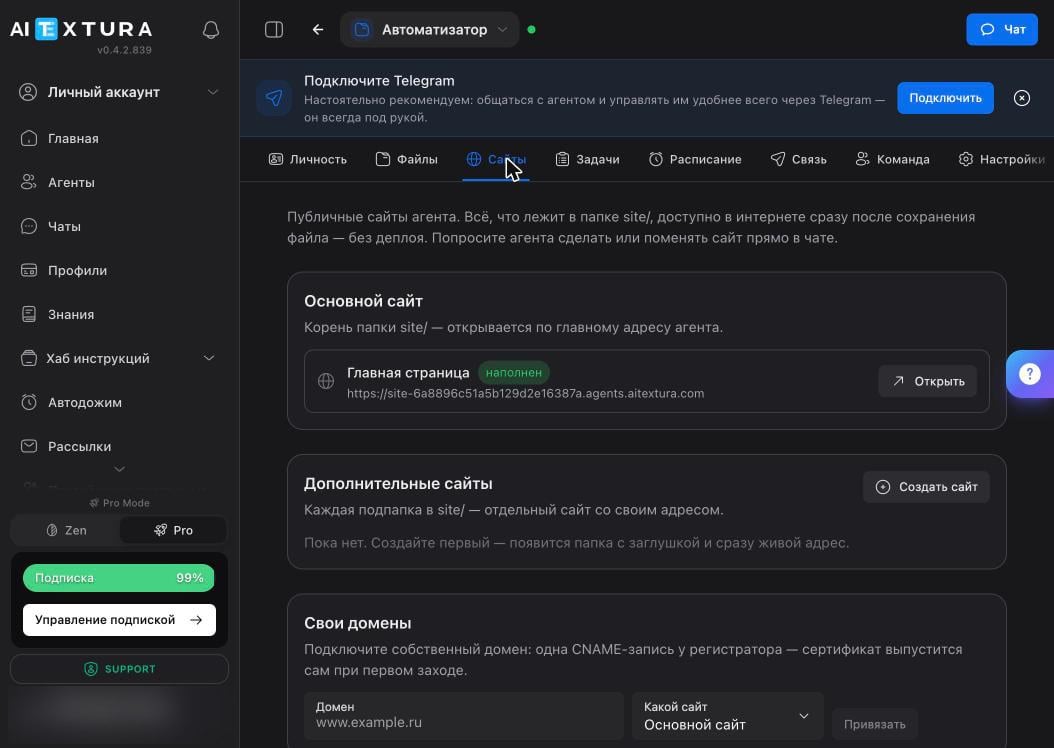
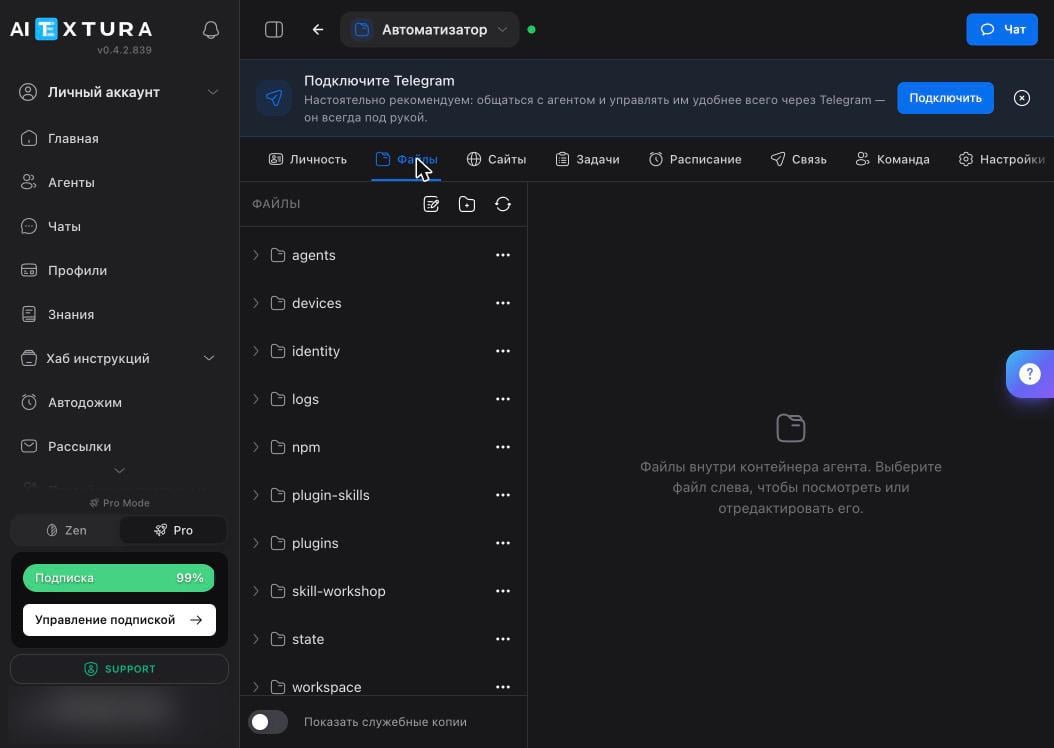
What lives where
Configuration files sit in the root. A ⚠ icon next to a name marks sensitive data — keys and connection settings.
The Show backup copies toggle at the bottom of the list reveals technical backup files. It’s off by default, and that’s the right setting: you don’t need them in everyday work.
Why you’d open this tab
Most of the time, you won’t need to: the agent manages the files. Open the tab in four cases.FAQ
Files disappeared after a restart
Files disappeared after a restart
They shouldn’t: the container disk survives restarts. Make sure you’re not looking in the wrong folder — the agent may have saved the result to a subfolder in
workspace. If the file really is gone, look for traces in the Log.Can I upload my own file to the agent?
Can I upload my own file to the agent?
Yes — create a file with the icon in the panel and paste in the content. The second way is easier: send the file to the agent in chat and ask it to put it in the right folder.
The agent can't see a file I added
The agent can't see a file I added
Give it the full path:
workspace/reports/july.csv. The agent doesn’t scan the disk continuously — it goes where you send it.What happens to the files if I delete the agent?
What happens to the files if I delete the agent?
They’re deleted with it and can’t be recovered. Before deleting, download a backup — an archive with the agent’s entire state.
How much storage does the agent have?
How much storage does the agent have?
The interface has no separate usage counter. Rule of thumb: the container is a working environment, not storage. Keep large archives on your side, and give the agent only what it’s working with right now.
What’s next
Sites
A folder that instantly becomes a live website
Personality and Memory
The same files, presented for easy editing
Maintenance
Backup, diagnostics, terminal
Security and Access
Why you shouldn’t touch files with keys