

Enable the board
The board is off by default — the Tasks tab shows an Enable board button.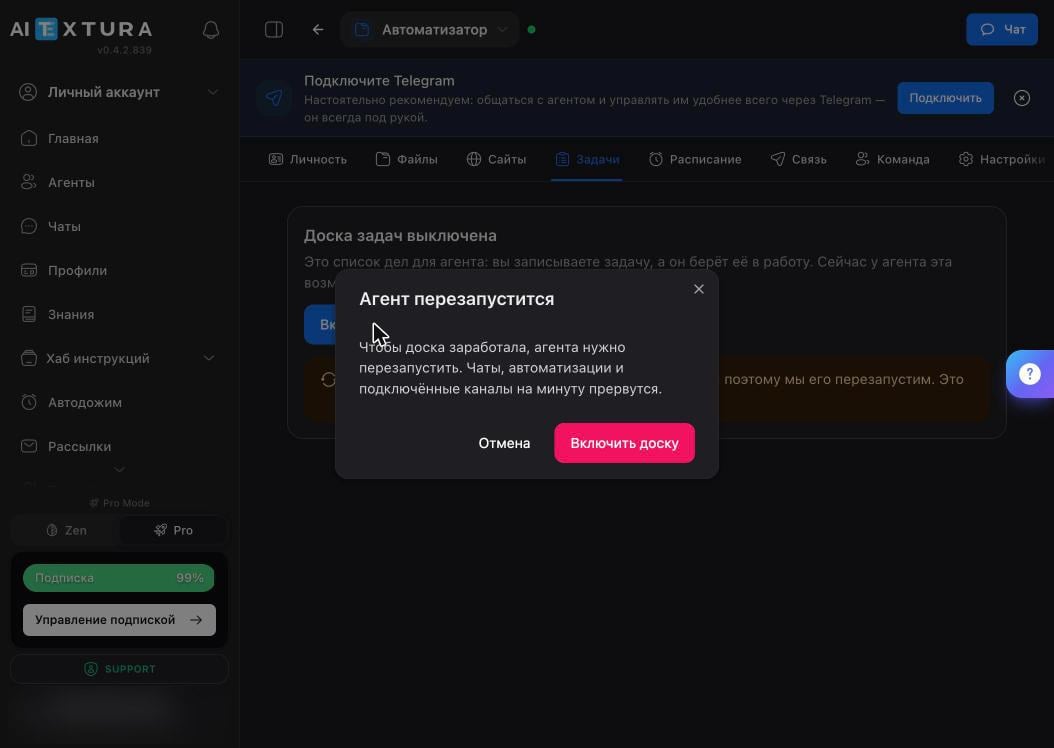
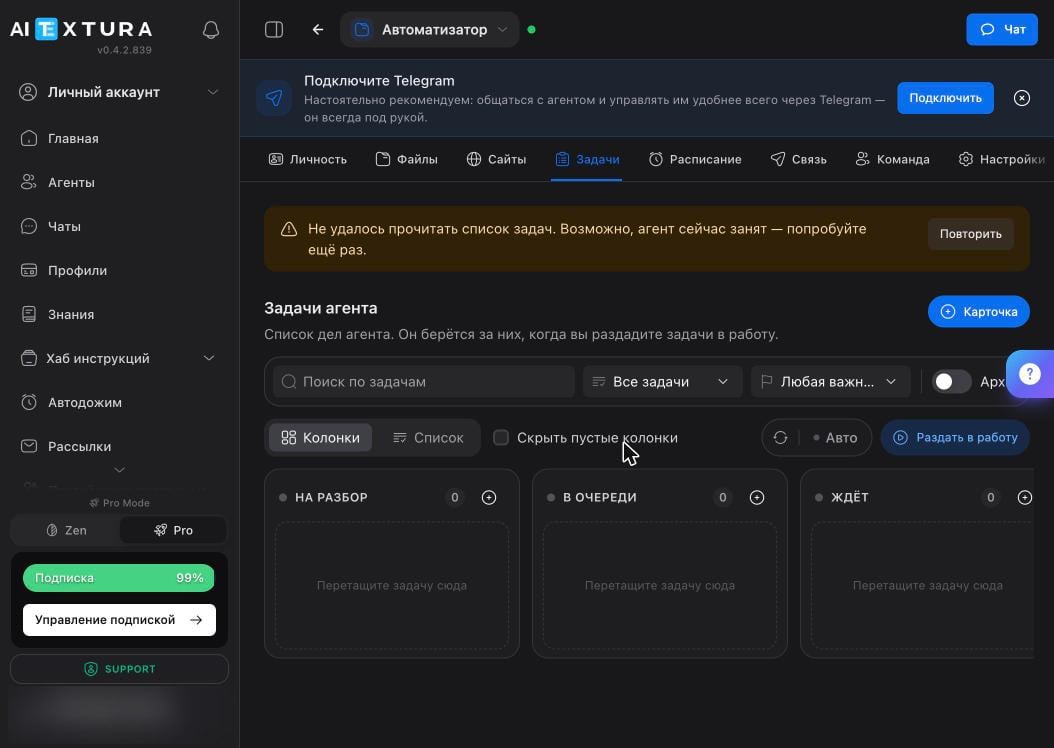
Right after you enable it, the board may show “Couldn’t load the task list” — the container is still restarting. Wait 15–20 seconds and click Retry.
Columns
Eight columns, left to right, trace a task’s path from idea to result.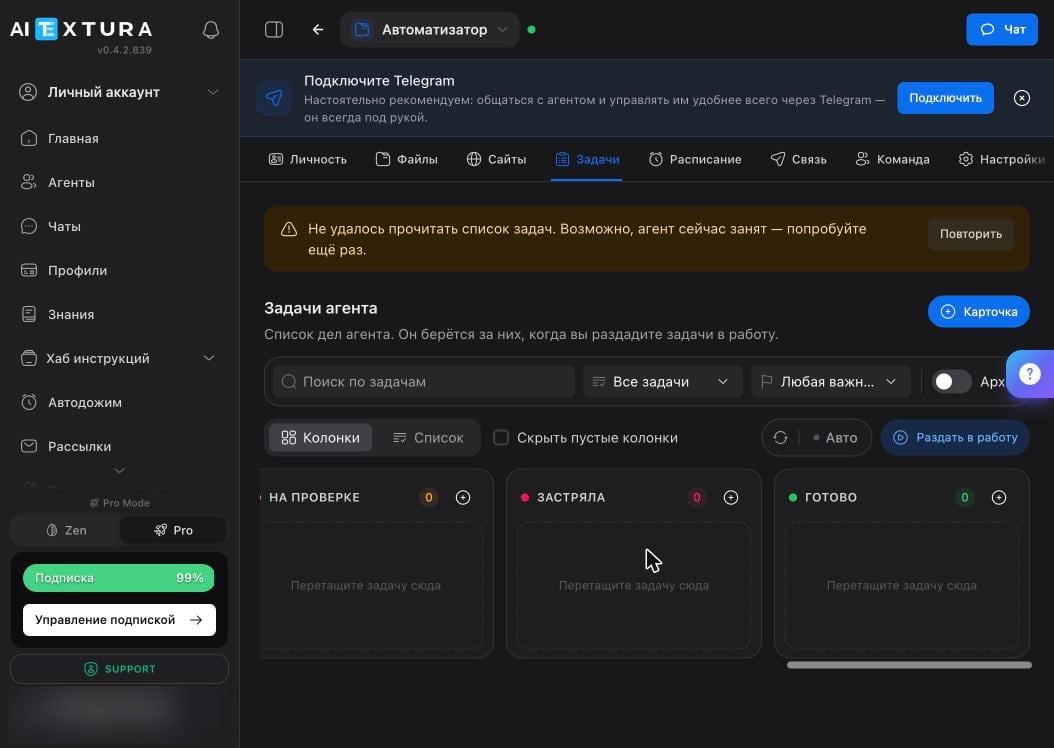
The Dispatch button in the top right moves queued tasks into work in bulk — this is your “go ahead” command.
New task
Click + Card in the top right, or + in the header of the column you want.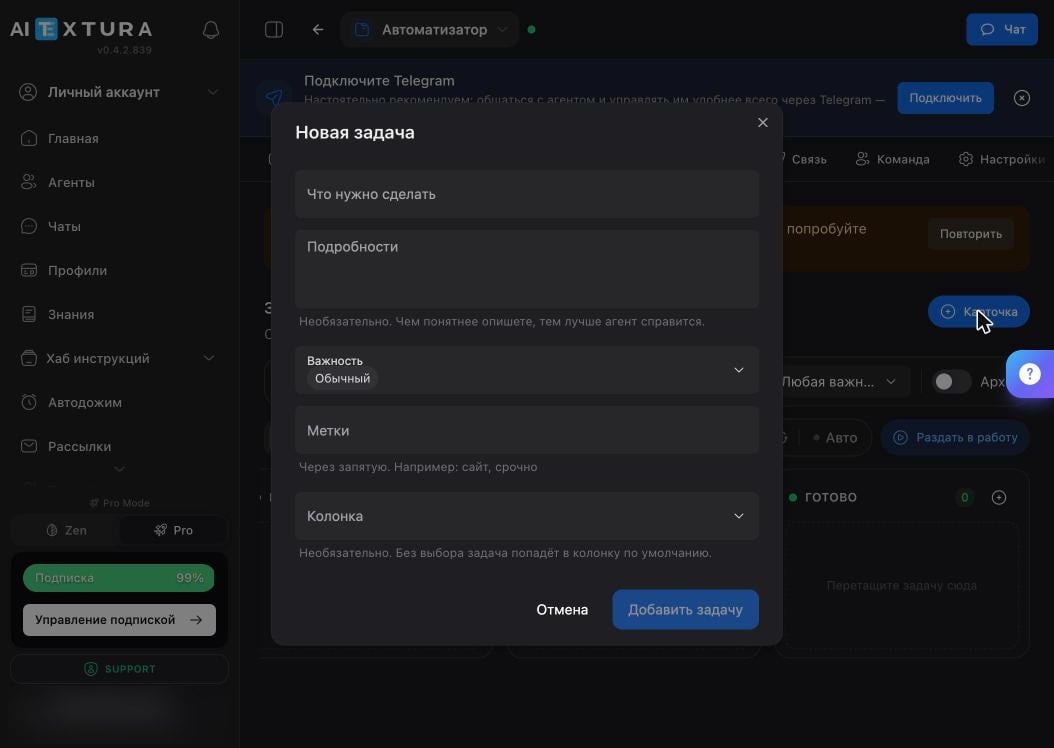
Phrase the task as an outcome, not a direction: “put July expenses into a spreadsheet by category and send me the file” instead of “sort out the expenses.”
How it works
The board doesn’t run the agent by itself — it gives the agent a queue to pull work from.1
You add a card
From the Agent Workspace or right from chat: ask the agent to create a task, and it will make the card itself.
2
You dispatch it
Click Dispatch or move the card to Ready.
3
The agent picks it up and does it
The card moves to In progress, and the result goes to In review.
4
You review
If you accept it, close the card. If the agent couldn’t finish, the card ends up in Stuck with the reason.
FAQ
Tasks sit in the queue and the agent doesn't pick them up
Tasks sit in the queue and the agent doesn't pick them up
Queued tasks don’t move into work on their own — click Dispatch or drag the card to Ready. If nothing happens after that, check the container status: the green dot next to the agent’s name.
A card is stuck — where's the reason?
A card is stuck — where's the reason?
Open the card in the Stuck column: the agent writes down where it stopped. Most often it’s missing access, or the description leaves out the key thing — what counts as a finished result.
The agent reported “done,” but there's no result
The agent reported “done,” but there's no result
This happens: the agent may report success after completing only part of the work. Verify the actual result — the file, the email, the row in the spreadsheet. Learn more in Where the agent breaks.
The board disappeared after a restart
The board disappeared after a restart
Wait half a minute and click Retry: the task list is unavailable while the container is starting up. If that doesn’t help, go to Settings → Management → Diagnostics.
How is the board different from the schedule?
How is the board different from the schedule?
The board holds one-off tasks you add by hand. The Schedule holds recurring jobs the agent runs on its own at set times.
What’s next
Schedule
Jobs the agent runs on its own at set times
Connect
Assign tasks and get reports from your phone
Team
Different personas for different kinds of tasks
Where the agent breaks
Why you should verify the actual result