

Log
Settings → Log is the agent’s technical diary: what it did and where it got stuck.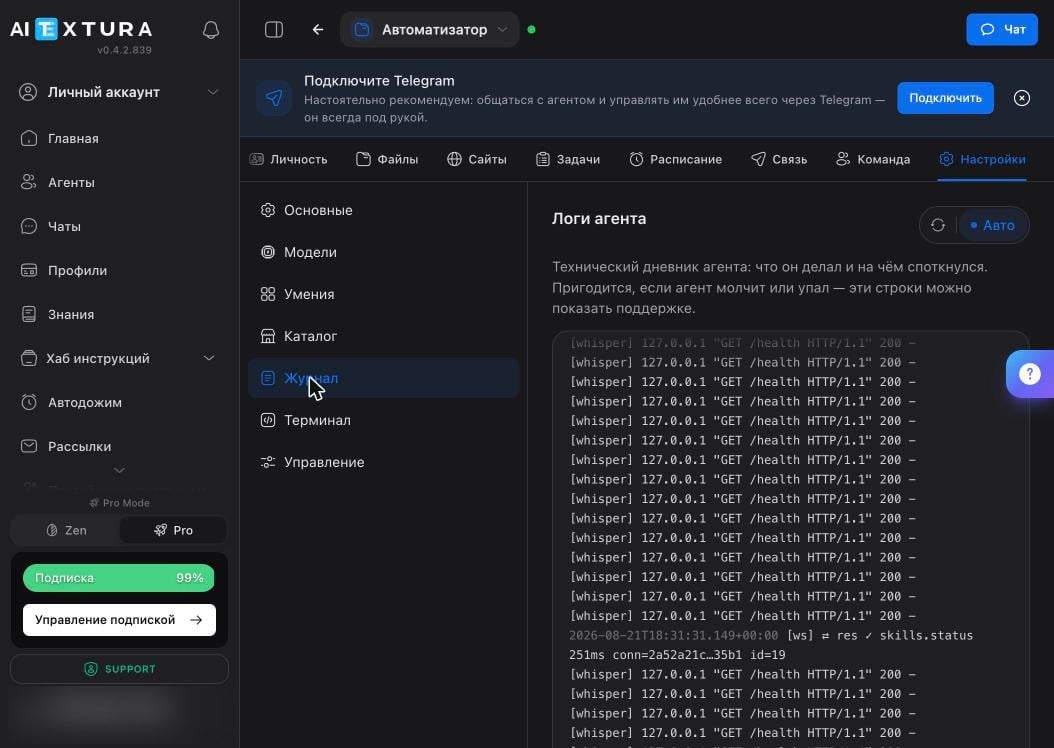
Management
Settings → Management covers everything you do with the container as a whole.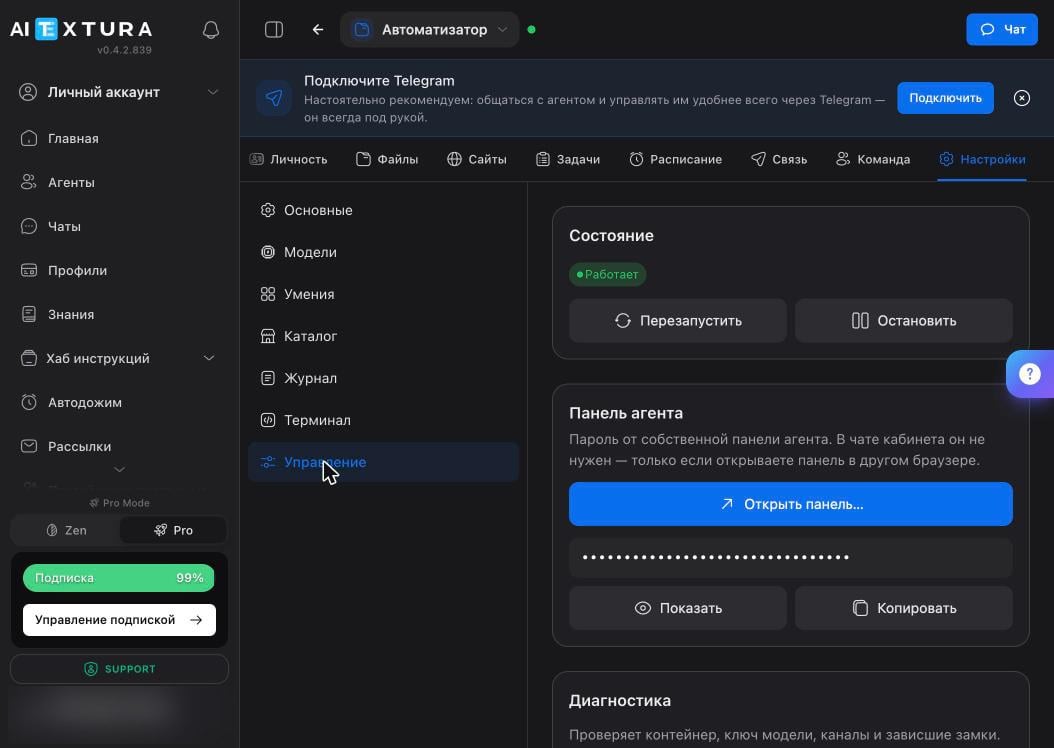
Diagnostics
This is the first thing to click when the agent behaves strangely. Check only inspects; Check and Fix repairs what it finds, and the agent may restart in the process.Backup
The Download Backup button gives you the archive. Make one before any major change: deleting skills, rewriting the personality, or giving the agent access to live data.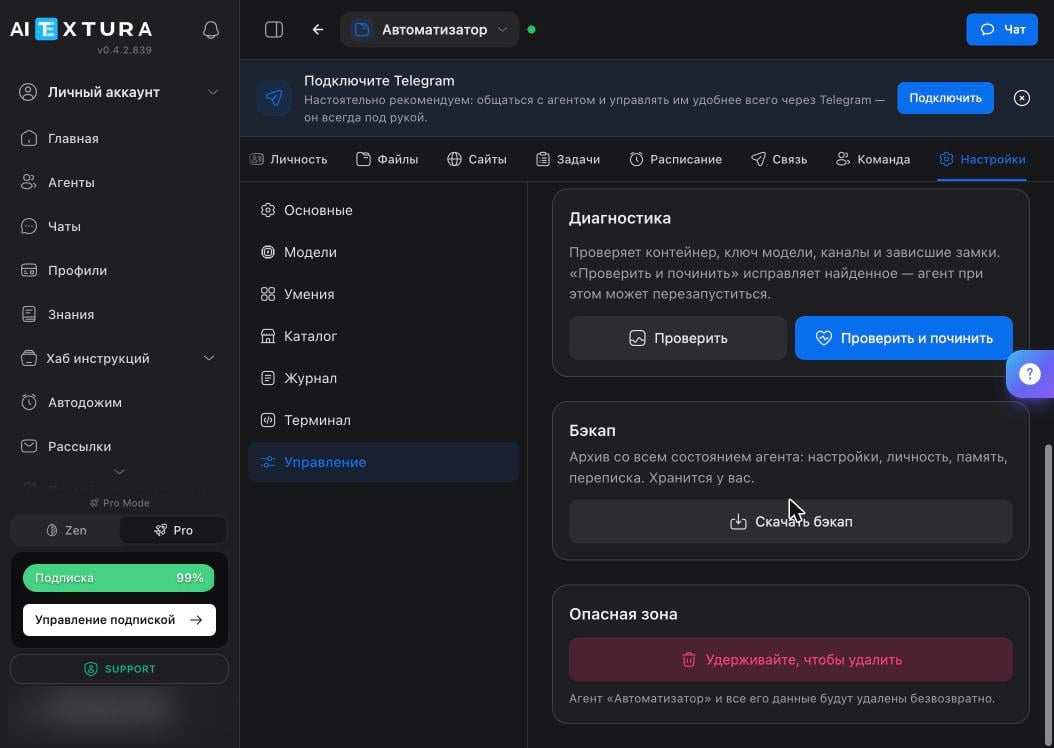
Deletion
The Danger Zone button works on press-and-hold, not a click, so you can’t trigger it by accident. The agent and all its data are deleted permanently: files, memory, conversations.Terminal
Settings → Terminal is a command line inside the agent’s container.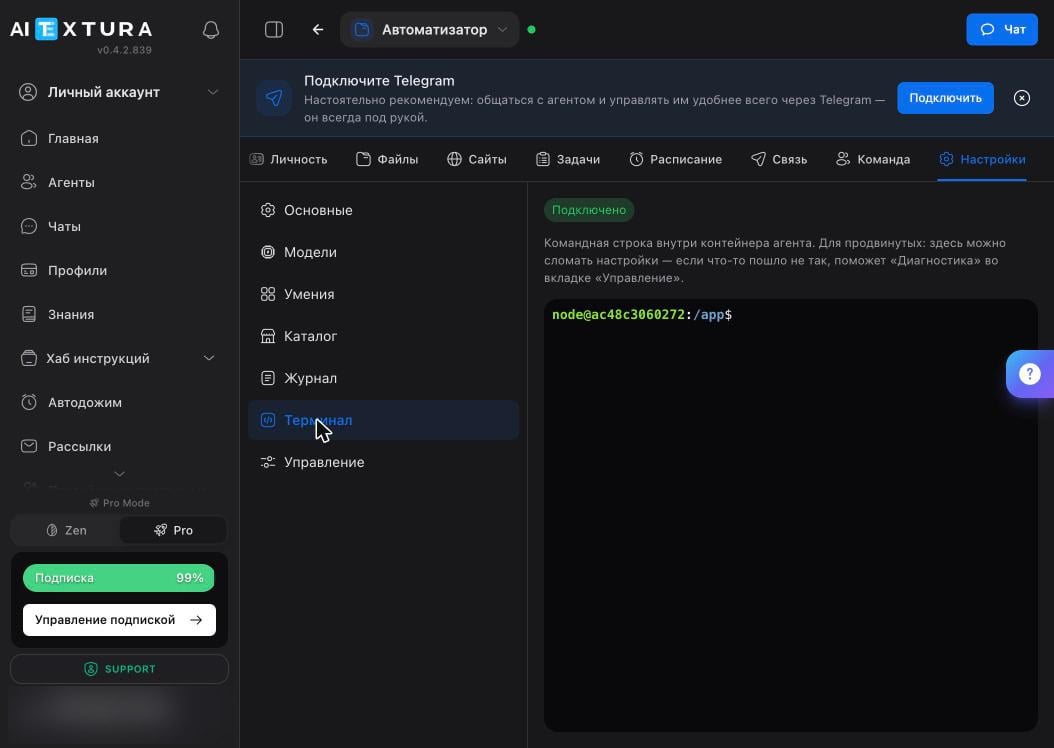
If the agent breaks
1
Check the status
Look for the green dot next to the agent’s name at the top of the workspace. No dot means the container isn’t running.
2
Restart
Management → Restart. It takes half a minute and clears most hang-ups.
3
Run diagnostics
Check and Fix finds problems with the model key, a channel, or a stuck lock on its own.
4
Check the log
If that didn’t help, the last log lines show where it’s stumbling.
5
Contact support
Include the log lines and a description of what you did before it broke: Support.
FAQ
What's lost on restart?
What's lost on restart?
None of the files or memory: they’re on the container’s disk. Only current conversations, scheduled tasks, and connected channels are interrupted, for about a minute.
Does a stopped agent use budget?
Does a stopped agent use budget?
A stopped agent does nothing: no scheduled tasks, no replies. Spending comes from model work, and there’s no work.
What's the agent panel password for?
What's the agent panel password for?
To open the agent panel outside the workspace, for example in another browser. You don’t need it inside the workspace. The buttons next to the field show and copy the password.
Can I restore an agent from a backup myself?
Can I restore an agent from a backup myself?
There’s no backup upload button in the interface: you keep the archive, and restoring is handled with support. That makes a backup insurance, not a full time machine.
The agent is running, but scheduled tasks are silent
The agent is running, but scheduled tasks are silent
Check the log to see whether the task ran at all. After a migration or long downtime, background tasks may fail to start, and the agent won’t tell you. See Where the Agent Fails.
What’s next
Where the Agent Fails
Common failures and how to catch them
Security and Access
Minimal permissions and a backup before risk
Models
Fallback models keep the agent from going silent
Support
When you’ve tried everything