

Four slots
Settings → Models. Each role has its own model. This isn’t duplication, it’s a division of labor.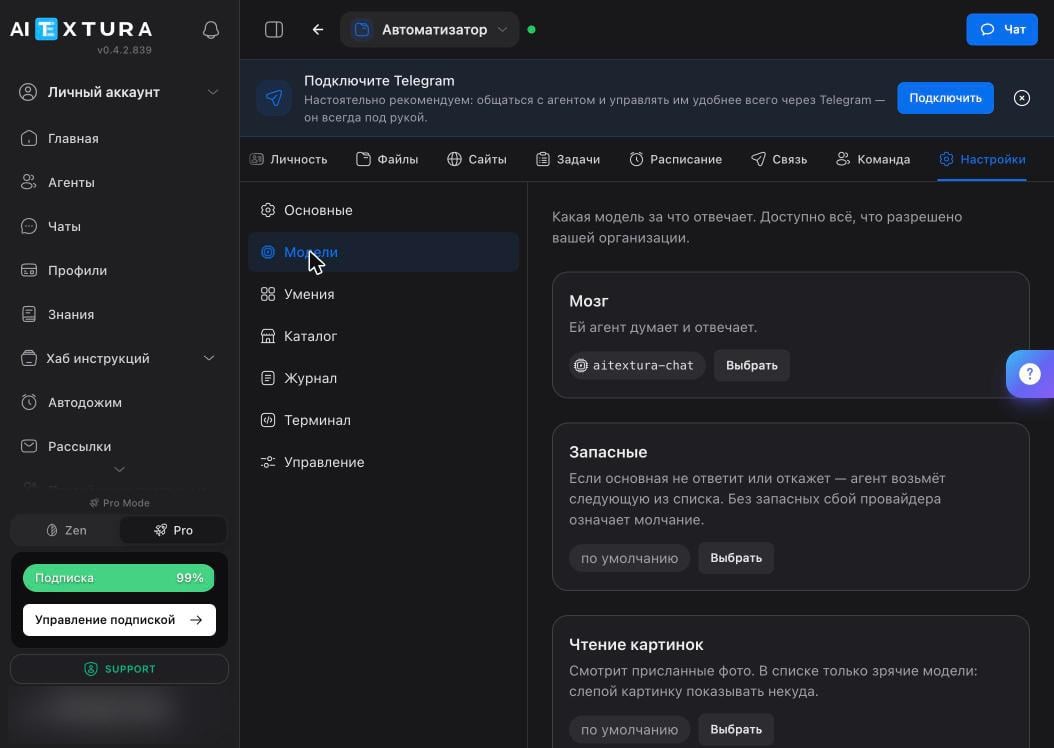
Catalog
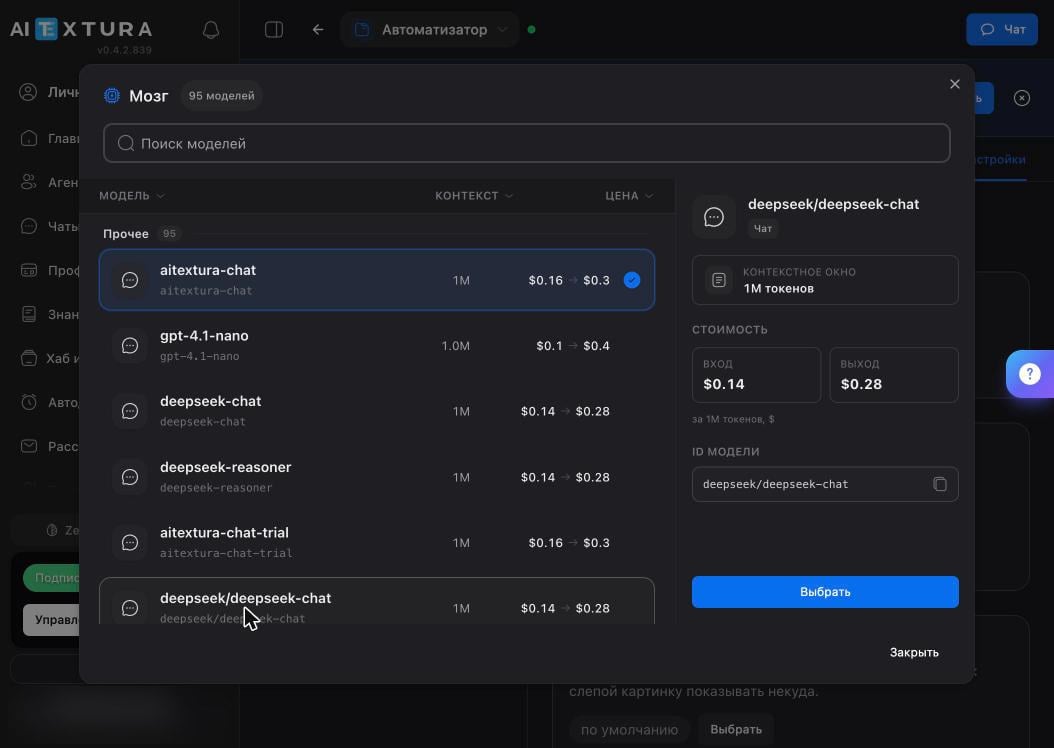
The Select button opens the list: about a hundred models with search and sorting.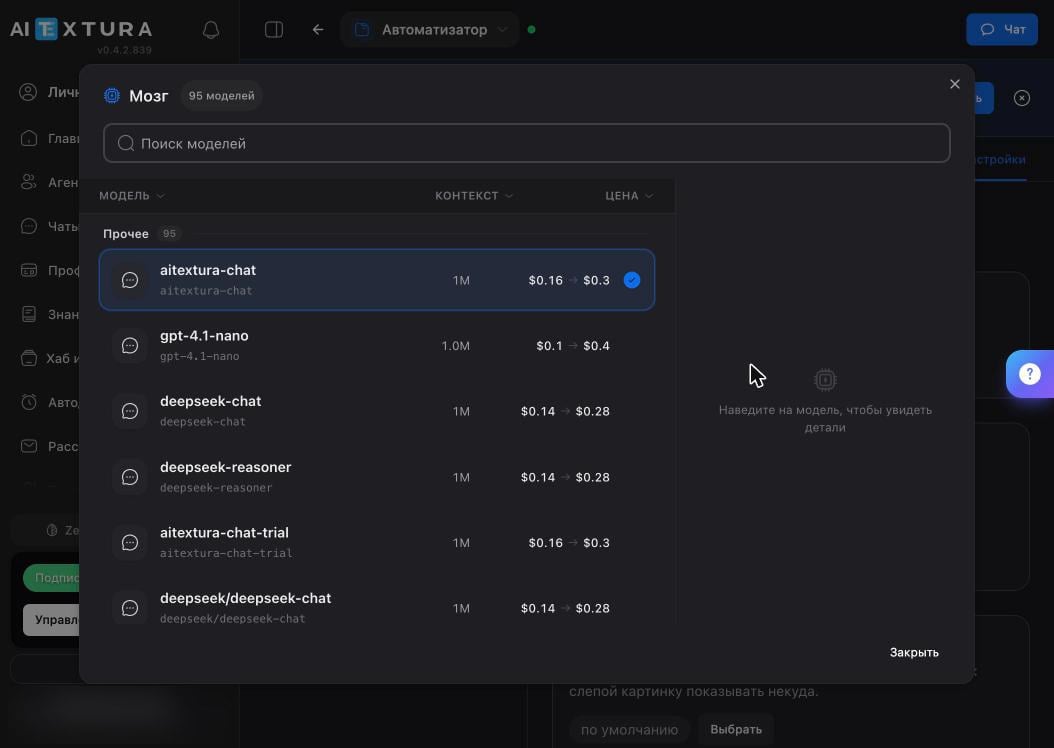
Your own model
Settings → General → Your Own Model (Your Own Key) block. The agent will call the provider directly, bypassing the platform’s infrastructure, and you’ll pay the provider.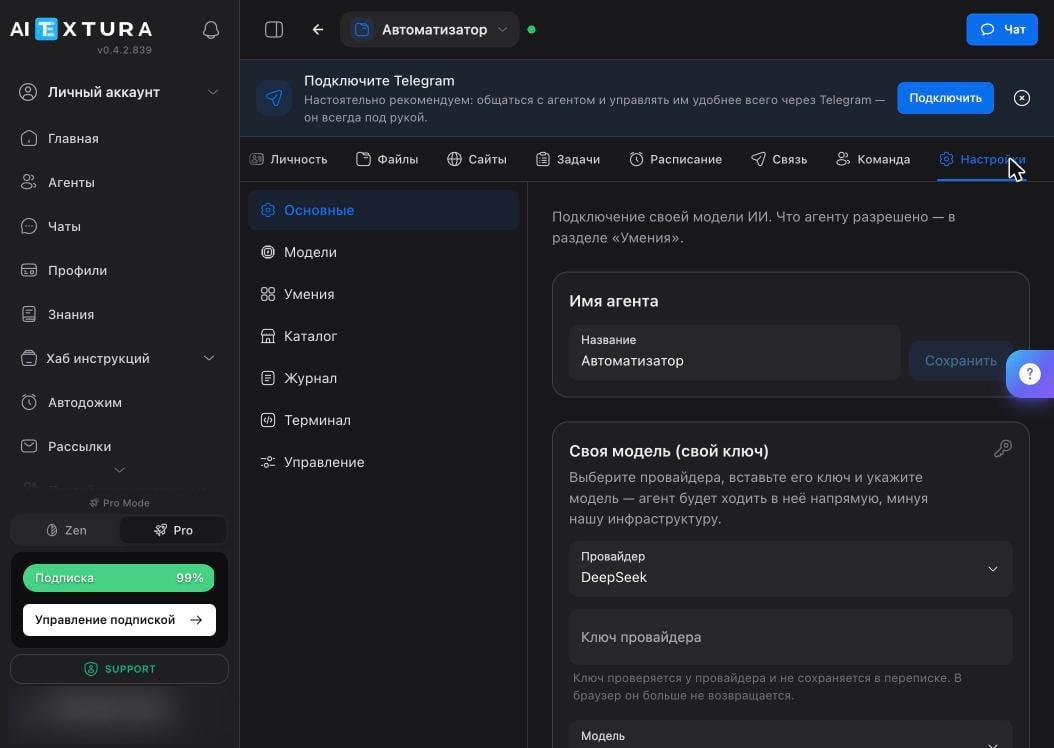
1
Choose a provider
The Provider list: who you buy access from.
2
Paste your key
The Provider Key field. The key is verified with the provider, isn’t stored in the conversation, and is never sent back to the browser.
3
Specify the model
Once you enter the key, the model list loads automatically. You can also type the name manually. The platform checks whether the model understands photos when you connect it, so you don’t need to specify that.
4
Click Verify and Connect
The platform contacts the provider and confirms the key works.
This is also where, in General, you change the agent’s name: the one shown in the list and in the workspace.
What it costs
The agent spends budget on every action: a conversation, a scheduled task, reading a file, overnight memory cleanup. Keep this in mind when you set up the schedule: monitoring every 30 minutes costs dozens of times more than a daily summary. You can see spending and the remaining balance in Billing and Charge History. They’re shared across the whole account.FAQ
The agent gives dumb answers. Should I change the model?
The agent gives dumb answers. Should I change the model?
First, check the documents on the Personality tab and how the task is worded: a vague task produces confident nonsense on any model. Change the model when the task is clearly described and the result still misses.
The agent went completely silent
The agent went completely silent
This looks like an outage at the main model’s provider. Fill in the Fallbacks slot so the agent switches over on its own. You can see what happened in the Log.
It can't see the photos I send
It can't see the photos I send
Check the Image Reading slot: if it holds a model without vision, the picture is simply never shown to it.
The conversation keeps losing details
The conversation keeps losing details
That’s history compression. Put a model with a larger context in the Brain slot, and keep important facts in memory files: they aren’t compressed.
Is my own key cheaper?
Is my own key cheaper?
It depends on the provider and volume. The practical value of your own key isn’t only the price: it’s your own limit and your own quota, independent of the account’s shared budget.
What’s next
Abilities and Skills
What the agent is allowed to do
Maintenance
Log, diagnostics, backup
Schedule
The main source of ongoing spending
Charge History
Where the account budget goes