Track spending on the AI Textura platform: word balance, analytics, charts, the charge table, pricing, and optimization tips.
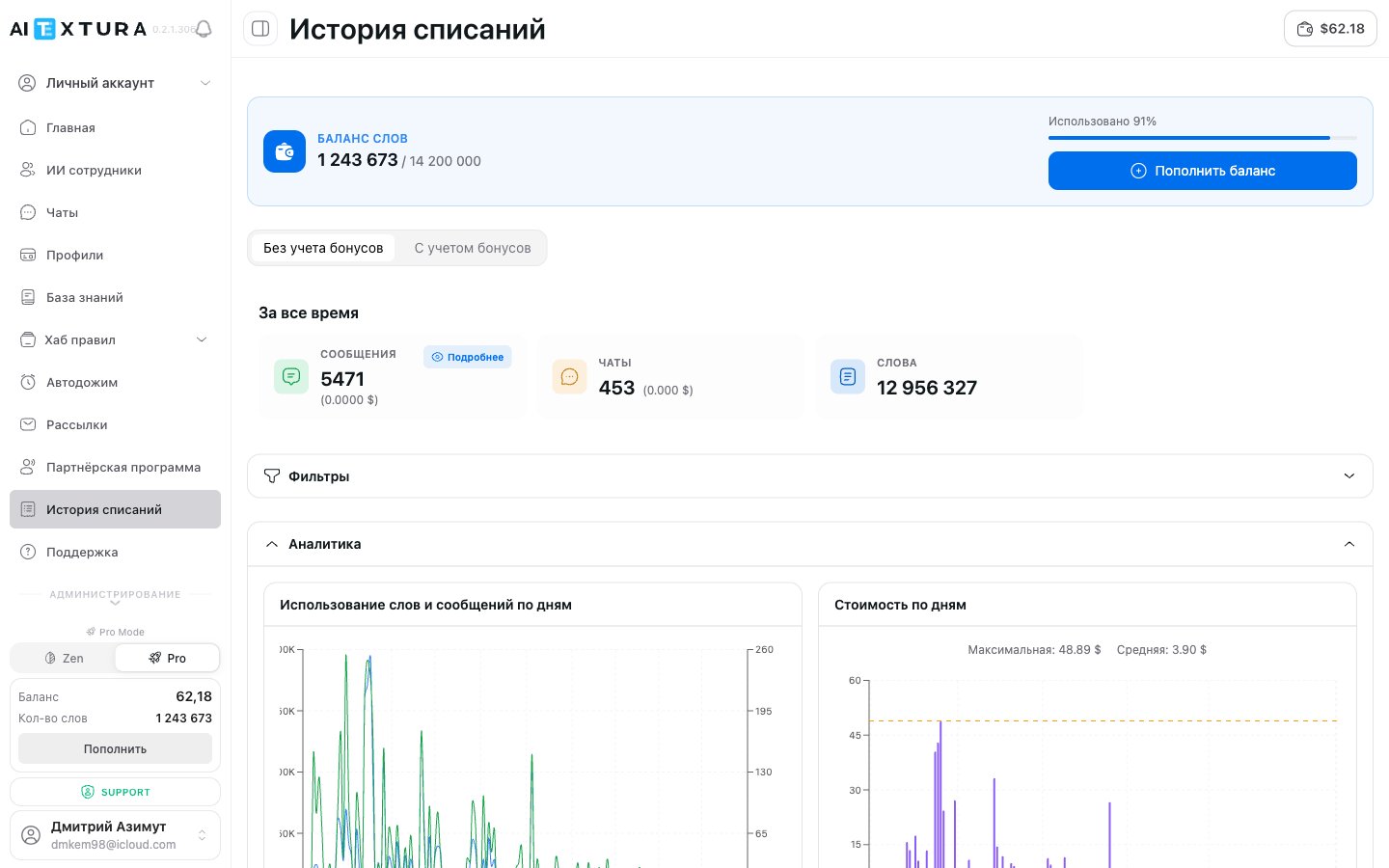
Charge History is the platform’s financial hub, where all statistics on word and fund usage are collected. Here you can see how many words each AI Employee used, what it cost, how spending changed by day and month, and manage plans and balance top-ups.
AI Employees
Managing AI Employees
Dashboard
Overall platform analytics
Persona
Setting tone and instructions
Knowledge Base
Connected data sources
You’ll find this section in the platform’s left menu: Charge History.
Below the balance block is a toggle with two tabs:
Mode
What it shows
Excluding bonuses
Actual spending — only what was charged to your paid balance
Including bonuses
Total usage, including words received through bonus programs and promotions
Excluding bonuses is selected by default. If you take part in the partner program or have received bonus words, switch to the second mode to see the full picture.
Three cards with key figures for the selected period:
Metric
What it means
Example
Messages
Total number of messages and their total cost
5,308 ($0.0000)
Chats
Number of unique conversations and their total cost
424 ($0.000)
Words
Total number of words used
12,724,376
The heading above the cards shows the period — All time by default. When you apply filters, the figures are recalculated. The Messages card is clickable — click Details for a breakdown.
The Filters button lets you narrow the data by two parameters:
By period — a specific date range (week, month, or custom interval)
By employee — spending by a specific AI Employee
The employee filter is especially useful if you have several AI Employees. It quickly shows which one uses the most resources — so you can optimize its instructions or Knowledge Base.
After you apply filters, all data on the page — summary metrics, charts, and the table — is recalculated.
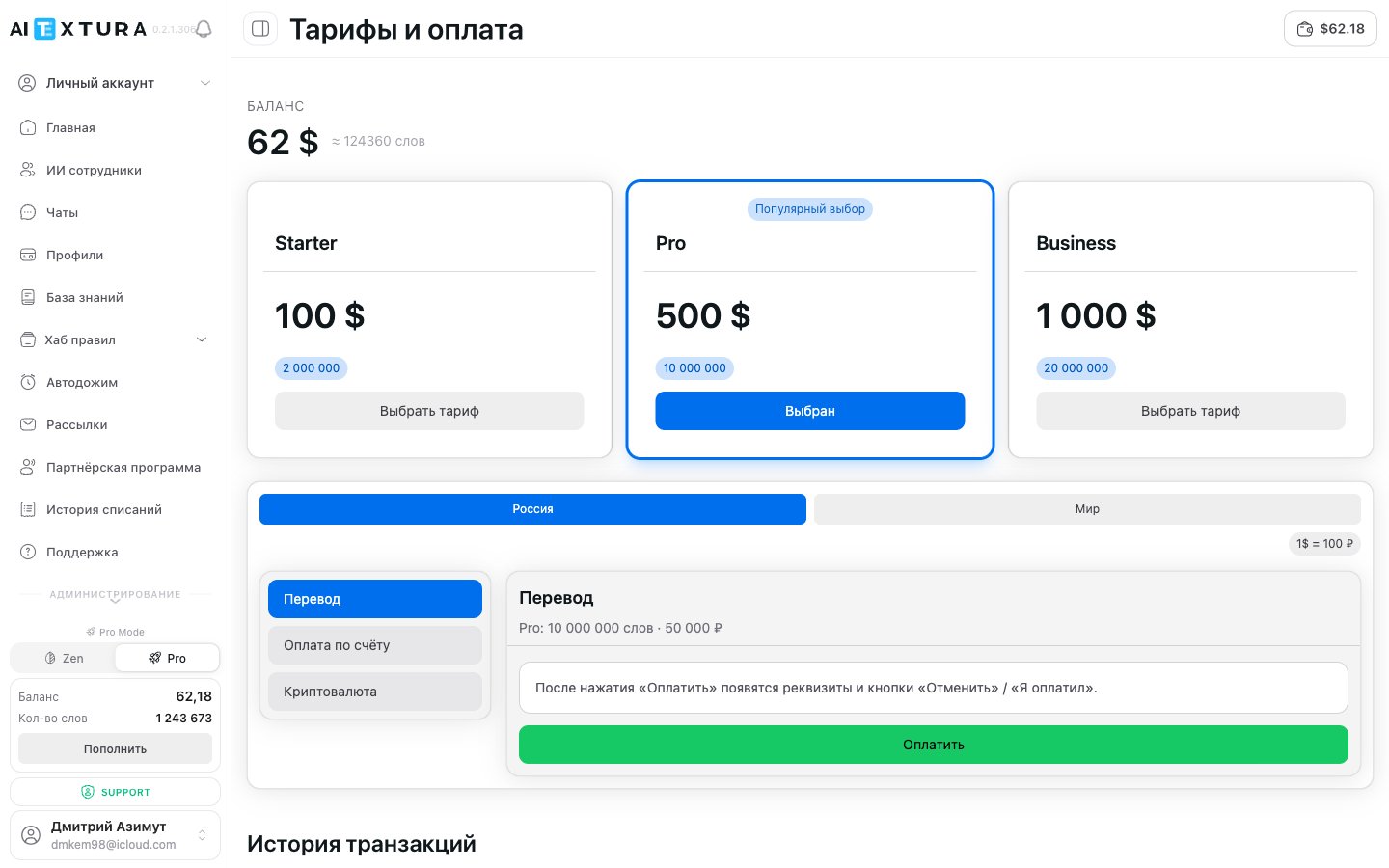
The AI Textura platform uses a pay-per-word model:Cost = Number of words x Price per wordThe price per word depends on your plan. The bigger the word package, the lower the price per word.
Active use, several AI Employees, moderate customer flow
Business
$1000
20,000,000 words
Chains, agencies, high customer flow, or large Knowledge Bases
The price per word on the Business plan is lower than on Starter thanks to the package size. If you consistently use more than 2 million words a month, a larger package is more cost-effective. Check your current usage in the Charge History table and on the charts.
The platform supports two regional payment gateways:
Region
Payment methods
Russia
Bank transfer (to a settlement account), Pay by invoice (the platform issues an invoice), Cryptocurrency
World
International cards and payment systems
The conversion rate for ruble payments: $1 = ₽100.
The Cryptocurrency method is available in the Russia region — it’s convenient if you don’t have Russian bank details or if your card doesn’t go through on international gateways.
Words are the platform’s unit of accounting. Every message (from both the customer and the AI Employee) uses a certain number of words. This includes the message text, the conversation context, Knowledge Base queries, and talent activity. A typical AI Employee message can use anywhere from a few hundred to a few thousand words.
Why does the cost per message differ between AI Employees?
The cost depends on reply length, context size (the length of the previous conversation), use of the Knowledge Base and talents, and the profile update mode. An AI Employee with short replies and scheduled profile updates costs significantly less.
What does the Type column in the table mean?
The Type column shows the charge category. If there’s no type data, it shows “No data”.
What happens if my word balance runs out?
All active AI Employees pause. Customers stop getting replies until you top up. We recommend topping up in advance and keeping an eye on the progress bar.
What's the difference between Excluding bonuses and Including bonuses?
Excluding bonuses shows only paid word usage. Including bonuses also counts words received through the partner program or promotions. If you don’t take part in bonus programs, there’s no difference.
Can I view spending for a specific AI Employee?
Yes. Click Filters and select the AI Employee you need. All data on the page is recalculated for that AI Employee only.
How often is the data updated?
The data updates in real time. Each new message is reflected in the statistics immediately.
Where can I see my remaining balance without opening Charge History?
The balance is visible at the bottom of the sidebar (amount in dollars and number of words) and in the top-right corner of every page (a button with the amount in dollars).
Which plan should I choose?
If you’re just launching 1–2 AI Employees and want to try the platform, choose Starter (100/2,000,000words)∗∗.Withsteadyusageof2millionwordsamonthormore,moveto∗∗Pro(500 / 10,000,000) — the price per word goes down. Chains and agencies with high customer flow choose Business ($1000 / 20,000,000).
Can I pay from Russia?
Yes. The Russia region offers three methods: bank transfer, pay by invoice, and cryptocurrency. The conversion rate is $1 = ₽100.
What does the Gateway column in the transaction history show?
The gateway is the payment system the payment went through. For example, “International” if you paid with a foreign card. For payments from Russia, it shows the corresponding Russian gateway.
I need an invoice and closing documents
Support issues invoices: write the amount you need — the invoice is sent to your email and duplicated in the chat. Request certificates of completion and other closing documents the same way, specifying the period and email. If you use electronic document exchange (EDO), mention it in the same request.
Do I need to sign a contract?
No. Payment constitutes acceptance of the public offer; no separate contract is needed.
On the free plan, the AI Employee stopped replying
The daily request limit was reached — the AI Employee stays silent until the next day. Integrations with PMS and spreadsheets also don’t work on the free plan: to test them, you need a paid plan or a trial bonus from your manager.