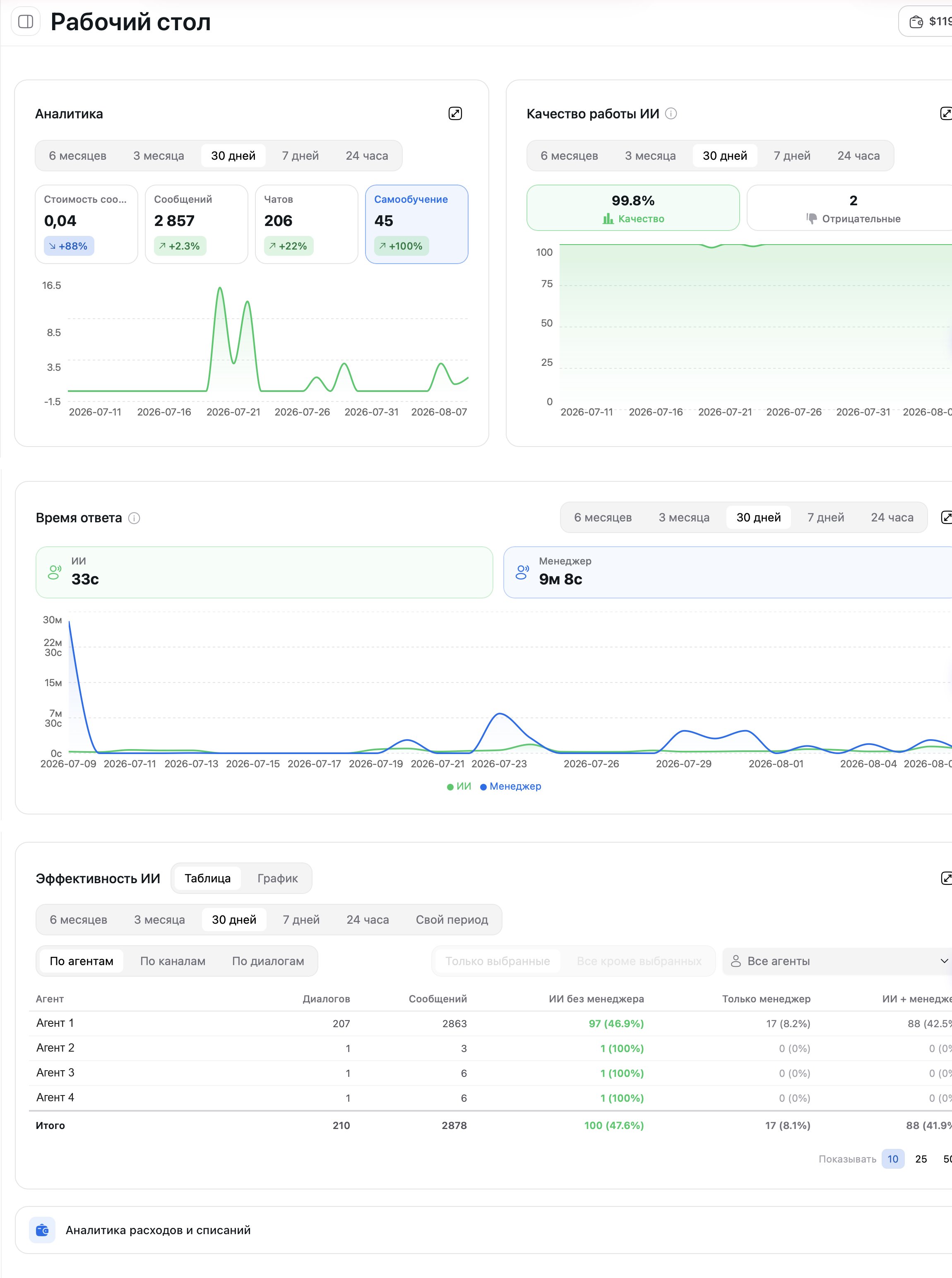
The first thing you see after logging into AI Textura is the Dashboard. It consolidates analytics across all your AI employees: how many messages were processed, how many chats were opened, and how much it cost. One page — and you know exactly how your employees are performing.

AI Employees

Manage your virtual employees

Chats

Dialog management center

Billing

Billing history and balance

Account Settings

Your account parameters

Video walkthrough

A short video tour of the Analytics and Profiles sections on the dashboard.

Context: personal account vs organization

The dashboard shows a different set of data depending on the context you are in — a personal account or one of your organizations. The context is switched in the top menu (or via the organization selector in the sidebar).
ContextWhat the dashboard shows
Personal accountEmployees, chats, and expenses tied to you personally
OrganizationAggregated data across all organization employees, the organization’s overall balance, team KPIs
Dashboard in organization context: aggregated analytics, organization balance
If the data you expect isn’t there — check whether you’re in the right context. Personal account and organization analytics are not mixed.

Analytics widget

The page’s main widget. The period switcher is on top, followed by metric cards and a line chart.

Period switcher

PeriodWhat it shows
6 monthsHalf-year summary (selected by default)
3 monthsQuarterly trends
30 daysMonthly overview
7 daysWeekly activity
24 hoursData for the last day
Click the desired tab — all metrics and the chart instantly redraw.

Metric cards

Below the period switcher there are four clickable cards:
MetricWhat it shows
Message costTotal message cost in dollars for the selected period
MessagesTotal number of messages processed by all employees
ChatsNumber of unique dialogs
Self-LearningNumber of questions that landed in the FAQ / self-learning section
Each card displays a percentage change compared to the previous equivalent period. For example, +600% means a sixfold increase.
Click any card — the line chart below redraws to show the trend for that specific metric.

Line chart

Below the cards is a line chart visualizing the selected metric over time. The horizontal axis shows dates, the vertical axis shows values. The chart automatically adapts to the selected period and metric.

”AI Quality” widget

A separate widget that scores how well employees handle responses:
  • Quality % — overall quality indicator for the selected period.
  • Negative — number of responses clients or managers marked as poor (including via thumbs down).
  • Chart — quality dynamics over time.
If quality drops sharply, open chats with negative feedback via the Chats section and review specific dialogs. Often the issue is solved by one rule in the Persona or one entry in the knowledge base.

”Response Time” widget

The widget was added in v2.5.0 — one of the headline monitoring additions of 2026.
The widget compares response speed in chats:
LineWhat it shows
AIAverage response time of the AI employee. Usually seconds (e.g., “9 s”)
ManagerAverage response time of a human manager when they join the chat. Usually minutes or hours (e.g., “1 h 30 m”)
The daily chart lets you see which days/hours managers respond more slowly than usual and where it makes sense to delegate more scenarios to the AI.
Compare “AI” and “Manager” — if the gap is very large, it’s a signal that some routine questions in manager-only chats can be moved into Quick Answers or the knowledge base so the AI handles them itself.

”AI Efficiency” widget

An analytical widget with two display modes — Table and Chart — and three breakdowns:
BreakdownWhat it shows
By employeeEffectiveness of each AI employee separately
By channelWhich channels (Telegram, Wazzup, Bitrix24, etc.) generate more load
By dialogDistribution across specific chats
Table columns:
  • Employee
  • Dialogs
  • Messages
  • AI without manager — dialogs where the AI handled it alone
  • Manager only — dialogs where only a human replied
  • AI + manager — mixed dialogs
An employee filter and pagination are available.
The “AI without manager” column is the best automation indicator. The higher the share of such dialogs, the less time your managers spend on routine work.

”Spending and billing analytics” card

A separate card linking to the Billing History section — there you’ll see the detailed billing history per employee and channel, the organization balance, and top-ups.

Balance and words

In the top-right corner of the screen (and in the sidebar), you can always see:
  • Balance — current account balance in dollars
  • Word count — remaining word limit
  • Top Up button — for quickly adding funds
The balance is visible on every page of the platform — keep an eye on it so your employees don’t stop due to insufficient funds. Balances of the personal account and the organization are stored separately — top up the context where the employees are running.
Dashboard: all widgets, balance, and the top-up button

How to use the dashboard

1

Check the context

Make sure you are in the right context — personal account or a specific organization. The switcher is in the sidebar.
2

Select a time period

In the “Analytics” widget, click the desired tab: 24 hours, 7 days, 30 days, 3 months, or 6 months.
3

Review the metric cards

Look at the four cards: message cost, number of messages, chats, and self-learning. Pay attention to the percentage change.
4

Click a metric of interest

Click a card to update the line chart and display the trend for the selected indicator.
5

Cross-check with quality and response time

Scroll down and check the “AI Quality” and “Response Time” widgets. If you see anomalies — go to Chats to review specific dialogs.
6

Review efficiency

In the “AI Efficiency” widget, switch the breakdown (By employee / By channel / By dialog) to see where automation works best.
7

Check the balance

In the top right corner, make sure you have sufficient funds. If needed, click Top Up.

FAQ

Yes, every time you visit the page you see the most current data.
The “Analytics” summary widget shows data across all employees. For detailed statistics on a specific employee, use the “AI Efficiency” widget (the “By employee” breakdown) or the Billing History section.
It represents the change compared to the previous equivalent period. If “30 days” is selected, the comparison is with the preceding 30 days.
This is normal and expected. The AI employee replies instantly, while a manager joins when they see a notification or open the chat. The “Response Time” widget exists precisely to show this gap and help you decide which scenarios to hand to the AI.
The widget appeared in v2.5.0. If you’re just starting out or have no dialogs with manager replies in the selected period, the charts will have little data. Expand the period to 30 days or more.
Most likely, your employees run in the organization context. Switch to the relevant organization in the sidebar — the data will appear.