

Add files
Open your AI Employee → Knowledge Base tab.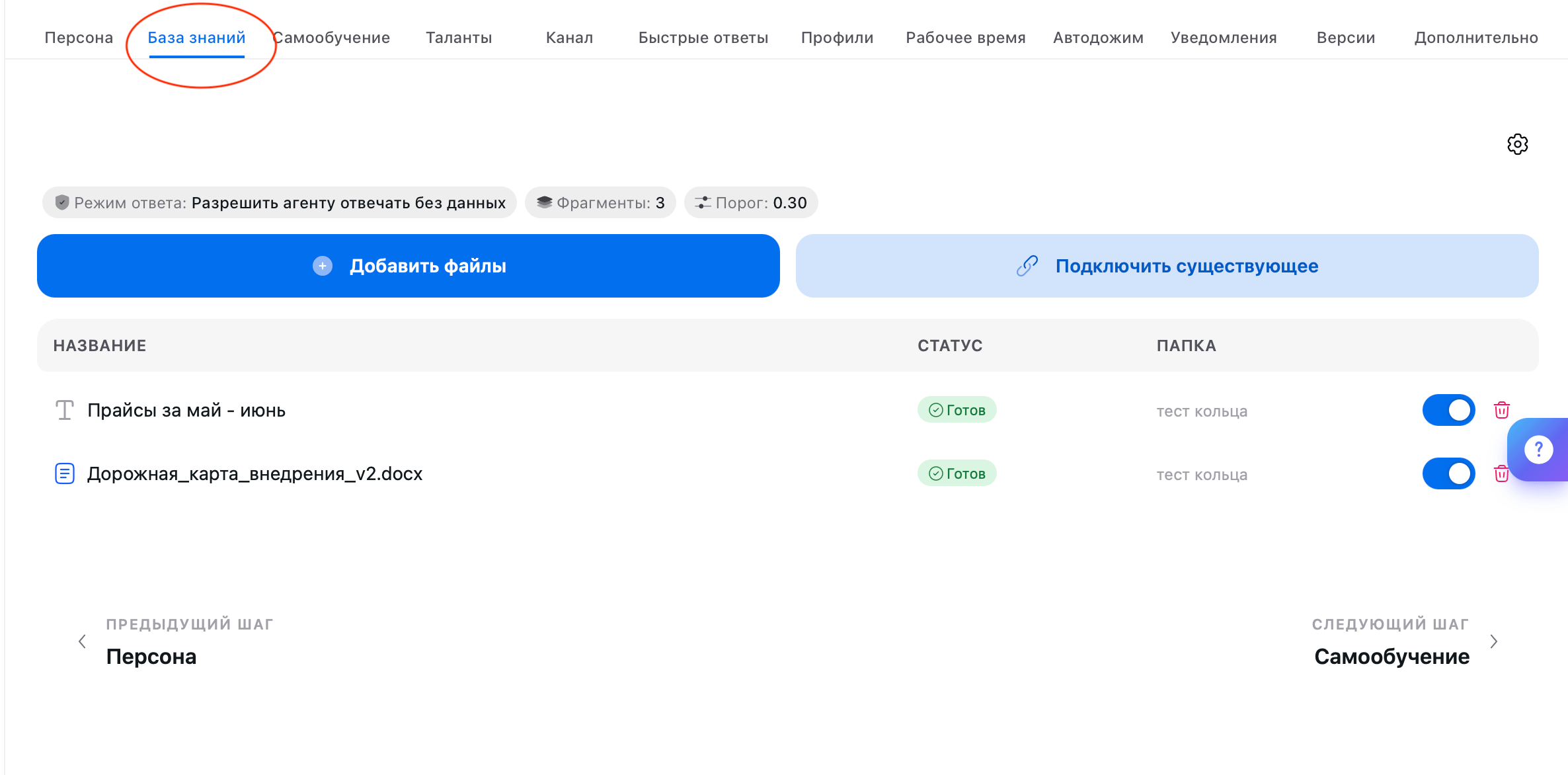
- Add files — upload new sources.
- Connect existing — reuse sources from another of your AI Employees that’s already set up. Select individual files or a whole folder: you don’t need to upload a shared price list five times for five AI Employees.
How it works
The Persona and the Knowledge Base split the work. In the Persona, you define behavior: how your AI Employee leads the conversation, what tone it uses, what it does in different situations. The Knowledge Base is only a fact reference — it doesn’t change behavior. Here’s how it works: documents are split into small chunks in advance. For each customer message, your AI Employee searches those chunks for ones whose words match the question and, if it finds them useful, answers based on them. The key takeaway: your AI Employee doesn’t know “the whole document” — only the chunks that matched the question. A customer asks “do you have cartridges for the AQ-500 filter?” — the AI Employee finds chunks with the word “AQ-500” and answers from them. But for “do you have consumables?”, the same chunk may not come up, even though it’s in the Knowledge Base.Technically, this is RAG (retrieval-augmented generation) — first a search of the Knowledge Base, then an answer based on what was found. The practical takeaway: use the same words in your documents that your customers use in their questions.
Search settings
The gray gear in the top-right corner of the tab opens Search and Response Settings. The defaults work for most cases — come here only if your AI Employee starts answering differently than you need.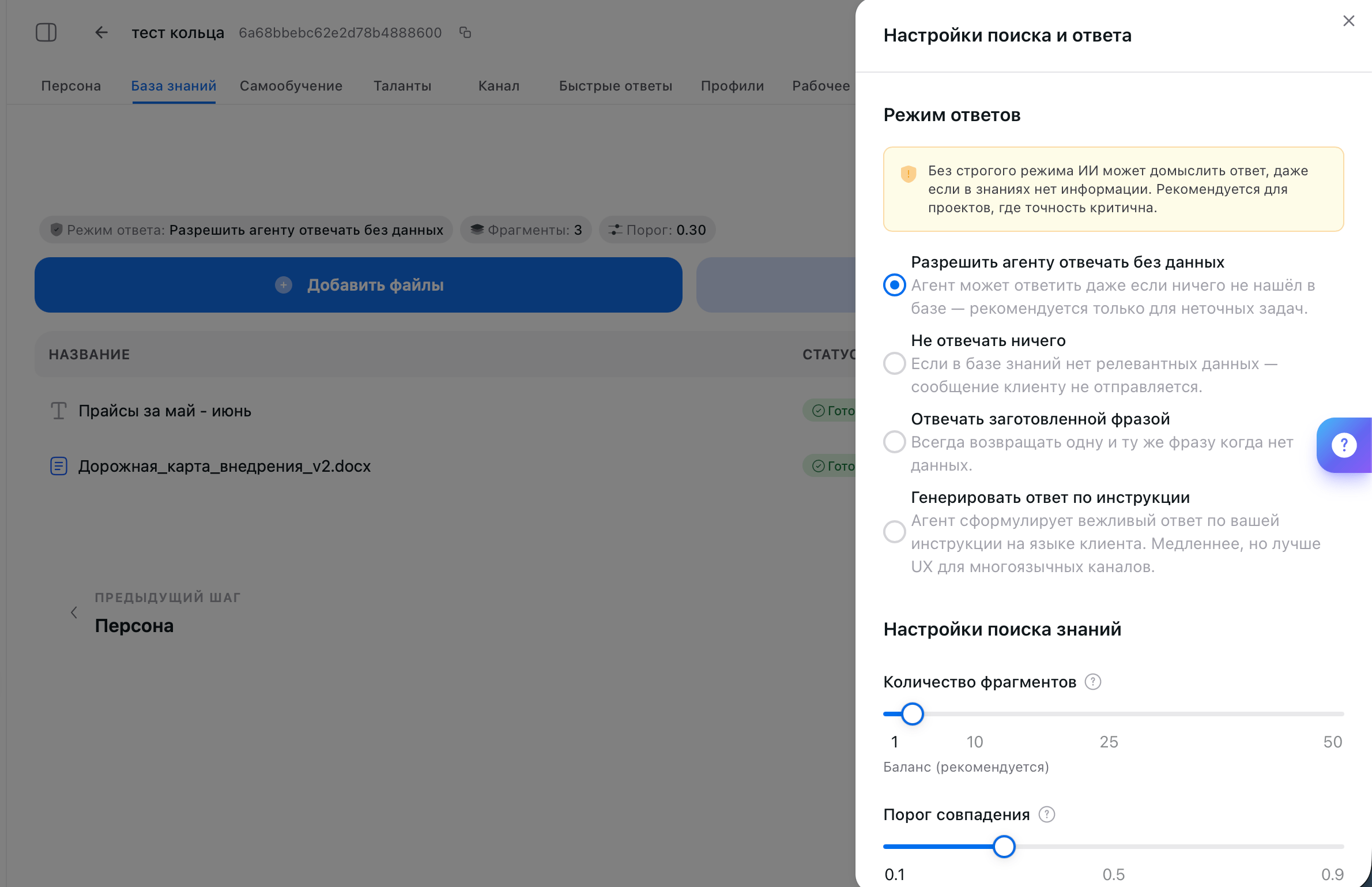
Response mode
What your AI Employee does when it finds no matching data in the Knowledge Base.Number of chunks
How many retrieved chunks your AI Employee uses for a single reply. The slider goes from 1 to 50.
How to choose for your Knowledge Base:
- If you have one or two short sources, 3–5 is enough.
- If your Knowledge Base is large and varied (price list, policies, service descriptions), set 8–12: the right chunk may be spread across different documents.
- If replies come out fragmented, as if your AI Employee saw only half — increase by 2–3.
- If replies become long and “watery” — decrease by 2–3.
Match threshold
How closely a chunk must match the question to be used in the reply. The slider goes from 0.1 to 0.9; the default is 0.30.
How to choose for your Knowledge Base:
- If your AI Employee often says “I don’t know” even though the fact is in the Knowledge Base, lower the threshold in steps of 0.05 until answers appear.
- If your AI Employee answers the wrong question and pulls in neighboring topics, raise the threshold in steps of 0.05.
The Knowledge section in the left menu
This is the shared storage for all sources across all your AI Employees: you can see what’s uploaded where, organize files into folders, rename them, and delete what you don’t need. You don’t need it for everyday work — everything you need happens on the Knowledge Base tab of a specific AI Employee. Look there when you have many sources and want to tidy up.FAQ
The AI Employee says “I don't know” even though the file is uploaded
The AI Employee says “I don't know” even though the file is uploaded
The customer uses different words than the ones in the document. Add your customers’ wording to the document, lower the match threshold, or increase the number of chunks.
The AI Employee makes up facts
The AI Employee makes up facts
Switch the response mode to Don’t answer at all or Answer with a preset phrase, and add a rule to the Persona forbidding answers without data from the Knowledge Base.
The AI Employee quotes old prices
The AI Employee quotes old prices
Sources don’t update themselves. Delete the old file and upload the new one.
The AI Employee stays silent on some questions
The AI Employee stays silent on some questions
The mode is set to Don’t answer at all, or the match threshold is too high. Lower the threshold in steps of 0.05 until answers appear.
Replies have become vague and “watery”
Replies have become vague and “watery”
Too many chunks or too low a threshold — your AI Employee is drowning in extra text. Reduce the number of chunks by 2–3 or raise the threshold.
How many sources can I add?
How many sources can I add?
There’s no limit on the number. But every extra source is more text for your AI Employee to search through: the more irrelevant documents, the higher the chance of an inaccurate reply and the more words you use.
Is the data updated automatically?
Is the data updated automatically?
No, all knowledge is static. If the original document changes, delete the old source and upload the new version. This applies to web pages too: the platform saves the text as of the import.
How do I prepare documents so search works better?
How do I prepare documents so search works better?
The more structured the text, the more accurate the search. Headings, short paragraphs, lists, tables — the chunks come out meaningful. A solid twenty-page wall of text gets split at random, and the reply ends up with the middle of an unrelated thought.Split a long document into several topic files and give them clear names: “Price list 2026 March.pdf” instead of “Document_final_v3(2).pdf”.
The AI Employee's reply doesn't match what's in the Knowledge Base. Why?
The AI Employee's reply doesn't match what's in the Knowledge Base. Why?
Most likely, the Persona kicked in, not the Knowledge Base. Check the instructions: if they include a scenario for this case, your AI Employee follows it instead of searching. The Knowledge Base handles facts; the Persona handles behavior.
The AI Employee gives inaccurate info about nearby restaurants and parks
The AI Employee gives inaccurate info about nearby restaurants and parks
It gets general information about the city from the model itself, and that can be outdated. Upload your own file about the neighborhood — what’s nearby, how to get there, opening hours — and add a rule to the Persona: answer questions about the area only from that file.
The PDF uploaded, but the AI Employee doesn't see it
The PDF uploaded, but the AI Employee doesn't see it
The file has no text layer: to the platform, a scan or a photo of a document is just an image. Open the PDF, copy the text into a Google Doc, and add a link to it — or paste the text as a Text source.
The website link was added, but none of its facts show up
The website link was added, but none of its facts show up
The platform takes only the text from the page: images, PDF attachments, and content loaded by scripts aren’t read. If the website is protected against bots, the page is imported empty — copy the text manually and add it as a Text source.
My data changes every day — what should I do?
My data changes every day — what should I do?
The Knowledge Base is static, so it’s not the place for daily stock levels, prices, and schedules. Your AI Employee gets live data through talents: a Google Sheet, CRM, or PMS answers it at the moment of the question.
A deleted source is still shown in the list
A deleted source is still shown in the list
It’s no longer used in replies — this is a display delay. Refresh the page; if the row is still there, contact Support with the source name.
Several AI Employees need the same price list
Several AI Employees need the same price list
Don’t upload it again: in the second AI Employee, click Connect existing and select the file or a whole folder. There will still be a single source, and any edit reaches all of them.
What’s next
Persona
How your AI Employee leads conversations and what tone it uses
Self-Learning
Ready-made question–answer pairs for frequent requests
Talents
Teach it to take action: deals, bookings, emails
Channels
Connect Telegram or a CRM