

Subscribe
Open the AI Employee → Notifications tab and click Get notifications. The platform redirects you to Telegram — tap Start there, and all notifications from this employee will come to your phone.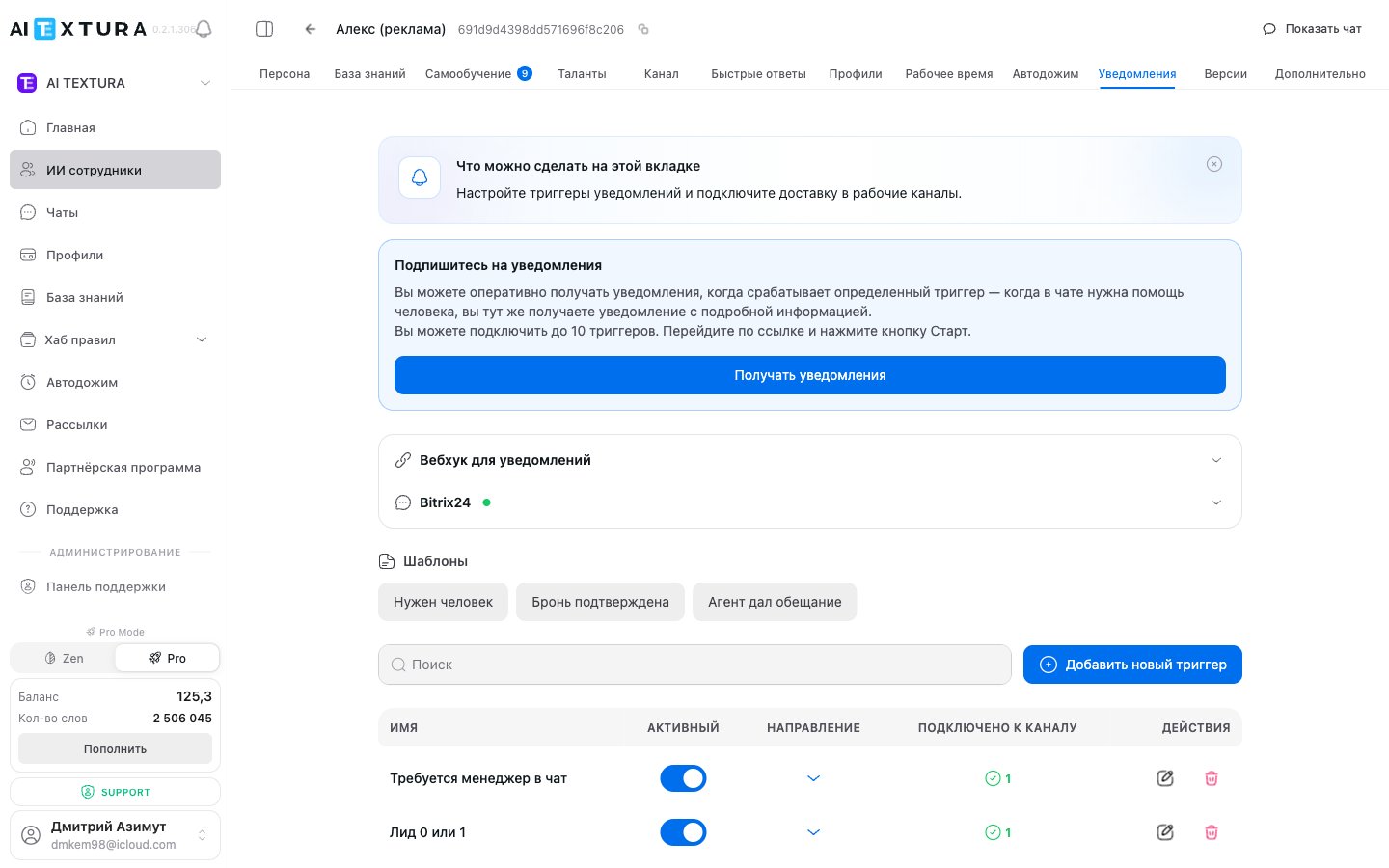
If you work in Bitrix24
If you work in Bitrix24
You can receive notifications right inside your portal — in a chat with specific staff members, without setting up Telegram.
1
Create a webhook in Bitrix24
Applications → Webhooks → Add webhook → Inbound webhook.
2
Select permissions
Chat and notifications (im) and Users (user_basic).
3
Paste the URL into AI TEXTURA
Copy the webhook URL, expand the Bitrix24 block on the Notifications tab, paste the URL, and click Load users.
4
Choose recipients
In the User IDs field, select who should receive notifications and click Save.
If Telegram doesn't work for you and you don't have Bitrix24
If Telegram doesn't work for you and you don't have Bitrix24
That leaves a webhook: notifications are sent to your URL, and from there you route them wherever you like — your own system, email, another messenger. This is a job for a developer.Expand the Notification webhook block, paste the URL into the Webhook URL field, and click Save. The platform sends a POST request with JSON: the fields
event, version, timestamp, data. The Show webhook format button shows the exact format.An empty field disables the webhook.Set up a trigger
A trigger is a rule that sends a notification. It isn’t set for the employee as a whole but for a channel: in each trigger, you choose which channel’s conversations it watches. Until you have triggers, nothing will arrive, even if you’ve subscribed.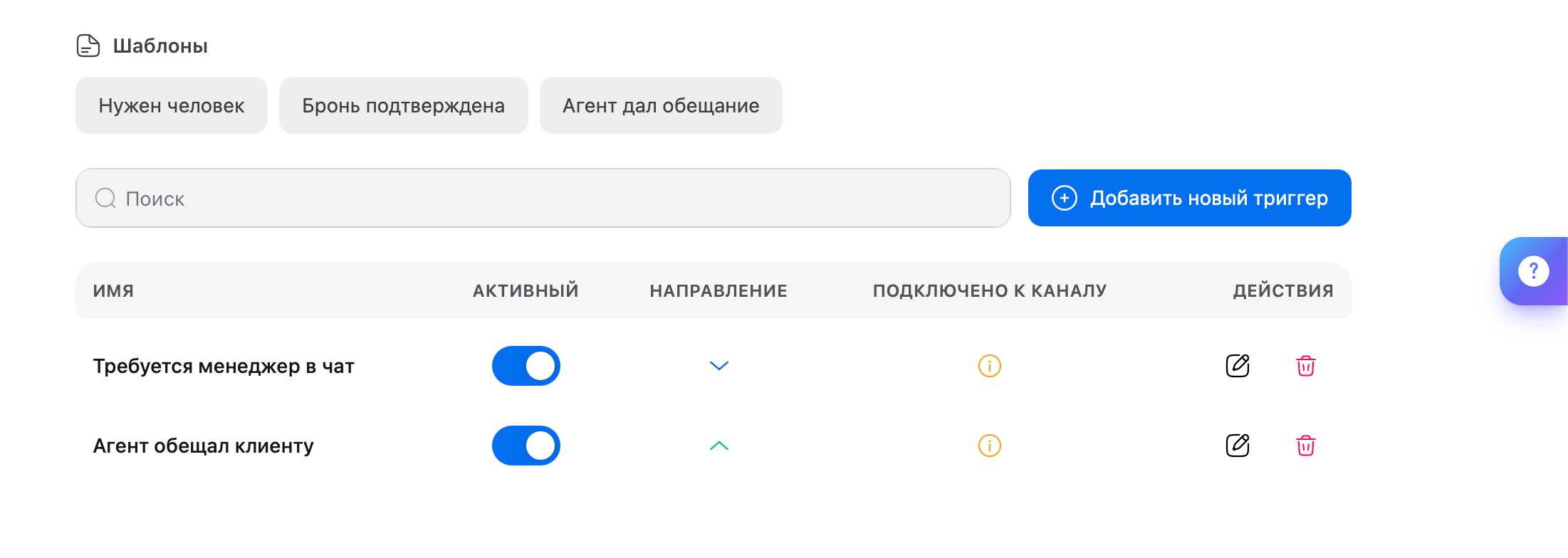
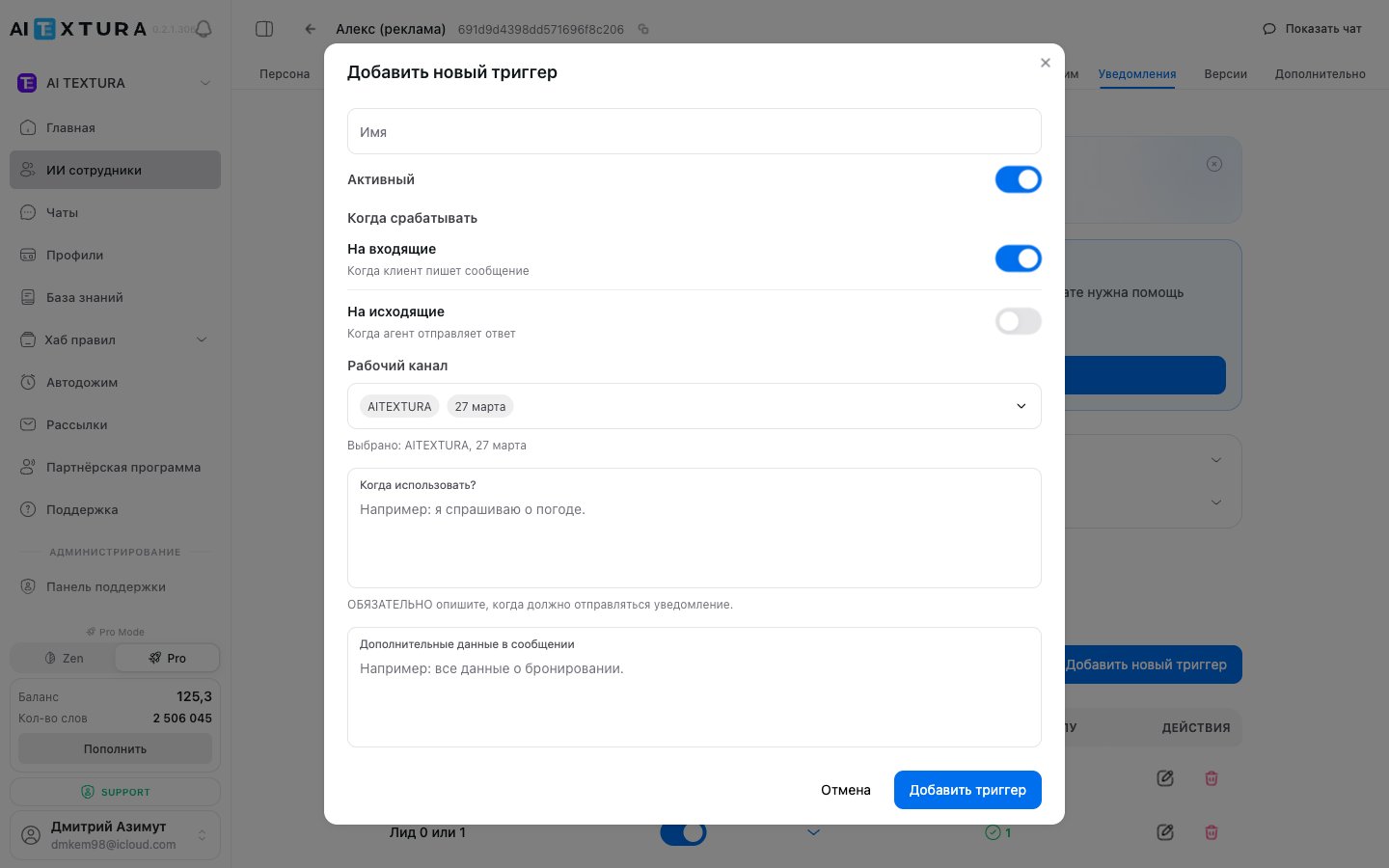
Name
Name
The notification’s title — you’ll see it when the trigger fires. Make it clear at a glance: “Manager needed in chat,” “Send an invoice,” “Conflict.”
When to use
When to use
Describe in your own words the moment you want a notification for. These aren’t keywords: a separate AI reads the conversation and decides whether the event has happened.
When the customer asks to bring a human into the chat — an operator, manager, or administrator
When the customer asks for an invoice
Additional data in the message
Additional data in the message
Here you list what you want to see in the notification itself: all booking details, full name, order total, a brief summary of the request.It works the same way: the AI reads the whole conversation and pulls a short summary from it — only the data you asked for. Without this field, you get the bare fact that the trigger fired, with no context.
Working channel
Working channel
The channel the trigger is tied to: if you choose Telegram, it watches only Telegram conversations. Until a channel is selected, the notification will never arrive.
Incoming and outgoing
Incoming and outgoing
This determines how you phrase the condition. For incoming: “when the customer asks for a refund”; for outgoing: “when the employee promised to call back.”
Chat pause
Chat pause
Besides sending a notification, a trigger can stop the employee so it doesn’t interrupt the manager.
You can create up to 10 triggers per channel.
How to test
Notifications come only from channels — Telegram, WhatsApp, Bitrix24, amoCRM. They don’t work in the account’s test chat, so test them this way:1
Connect a channel
One is enough; the fastest is a Telegram bot.
2
Set up a trigger for that channel
Take the Human needed template and select the channel in the Working channel field.
3
Subscribe
Click Get notifications, then Start in Telegram.
4
Write "I need a manager" to the bot
Or take the conversation to the point where the employee promises to pass the question to a human.
5
Receive the notification
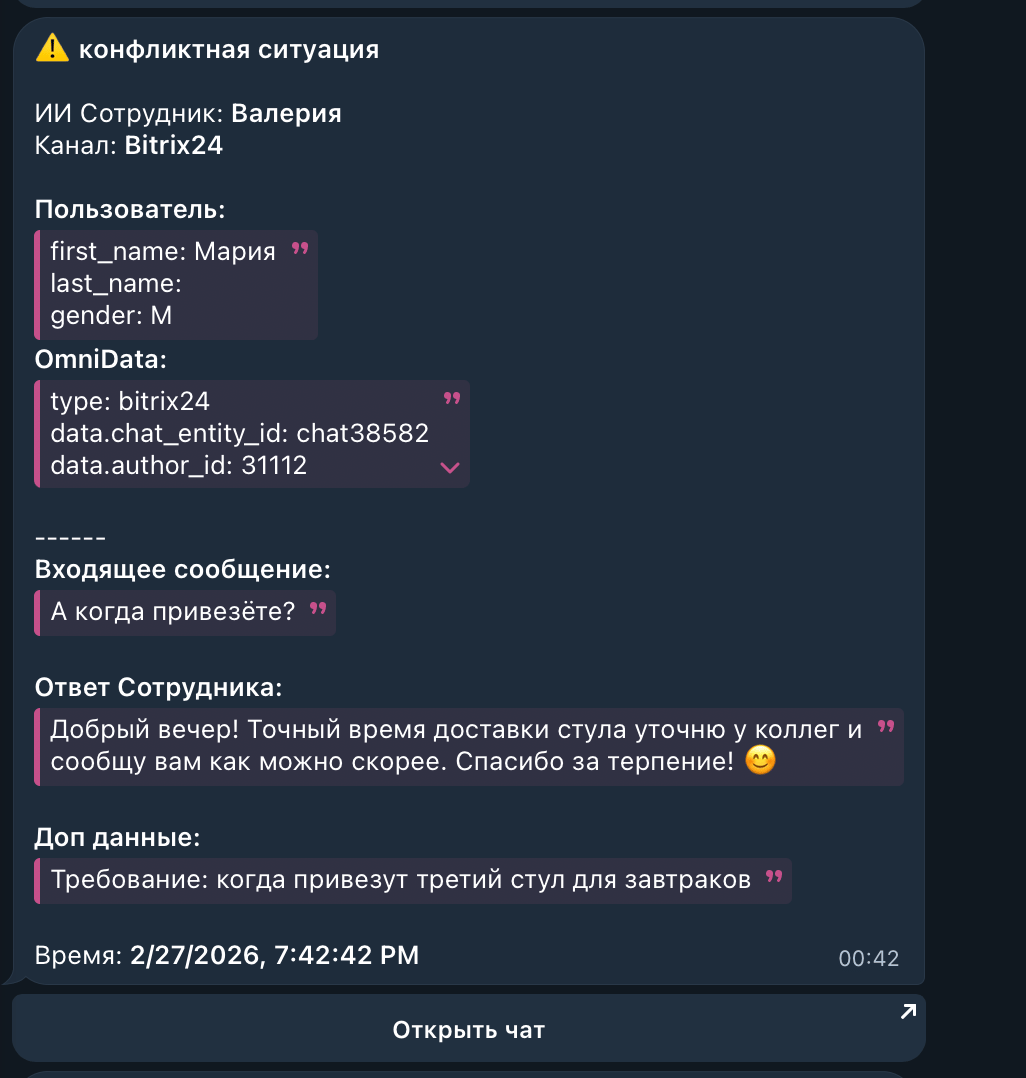
It contains all the important information from the conversation — and a button to open it.
FAQ
The employee wrote "I'll pass this to a manager," but no notification arrived
The employee wrote "I'll pass this to a manager," but no notification arrived
The employee only said it. That phrase comes from the escalation rules in the Persona, which control what the customer reads in the chat. Handing the conversation over to you is the trigger’s job, and it’s a separate feature: until a trigger exists, the employee will keep making empty promises.
Notifications don't arrive in the test chat
Notifications don't arrive in the test chat
That’s expected: the account’s test chat doesn’t send them. Test your setup by chatting in a connected channel — for example, a Telegram bot.
The trigger doesn't fire
The trigger doesn't fire
The condition is vague or too narrow. Rewrite it in the first person and in more detail: not “complaint,” but “when I complain about service quality or threaten to leave a negative review.” Also check that the trigger is active and the right working channel is selected.
Notifications arrive too often
Notifications arrive too often
The condition is too broad. Add specifics: instead of “when I ask a question,” use “when I ask a question the employee couldn’t answer and express dissatisfaction.”
The notification is missing data I need
The notification is missing data I need
Add it to the Additional data in the message field: name, booking number, total, the gist of the request. The AI includes only what you listed.
Can I get notifications by email?
Can I get notifications by email?
Not directly. With a webhook and an automation service like Make, n8n, or Zapier, you can set up email in a few minutes.
What’s next
Channels
Connect a channel — notifications don’t arrive without one
Persona
Escalation rules: when the employee promises to call a human
Quick Answers
Handle common situations with preconfigured answers
Additional Settings
The “Start AI” command and other employee behavior toggles