Your AI Employee’s first setting: create instructions from your website, a template, or an interview — then test them in the test chat.
The Persona is your AI Employee’s main set of instructions: who it is, how it talks, and what it does. You don’t have to write it from scratch — the platform builds the instructions for you, and all that’s left is to review them and adjust them to your needs.
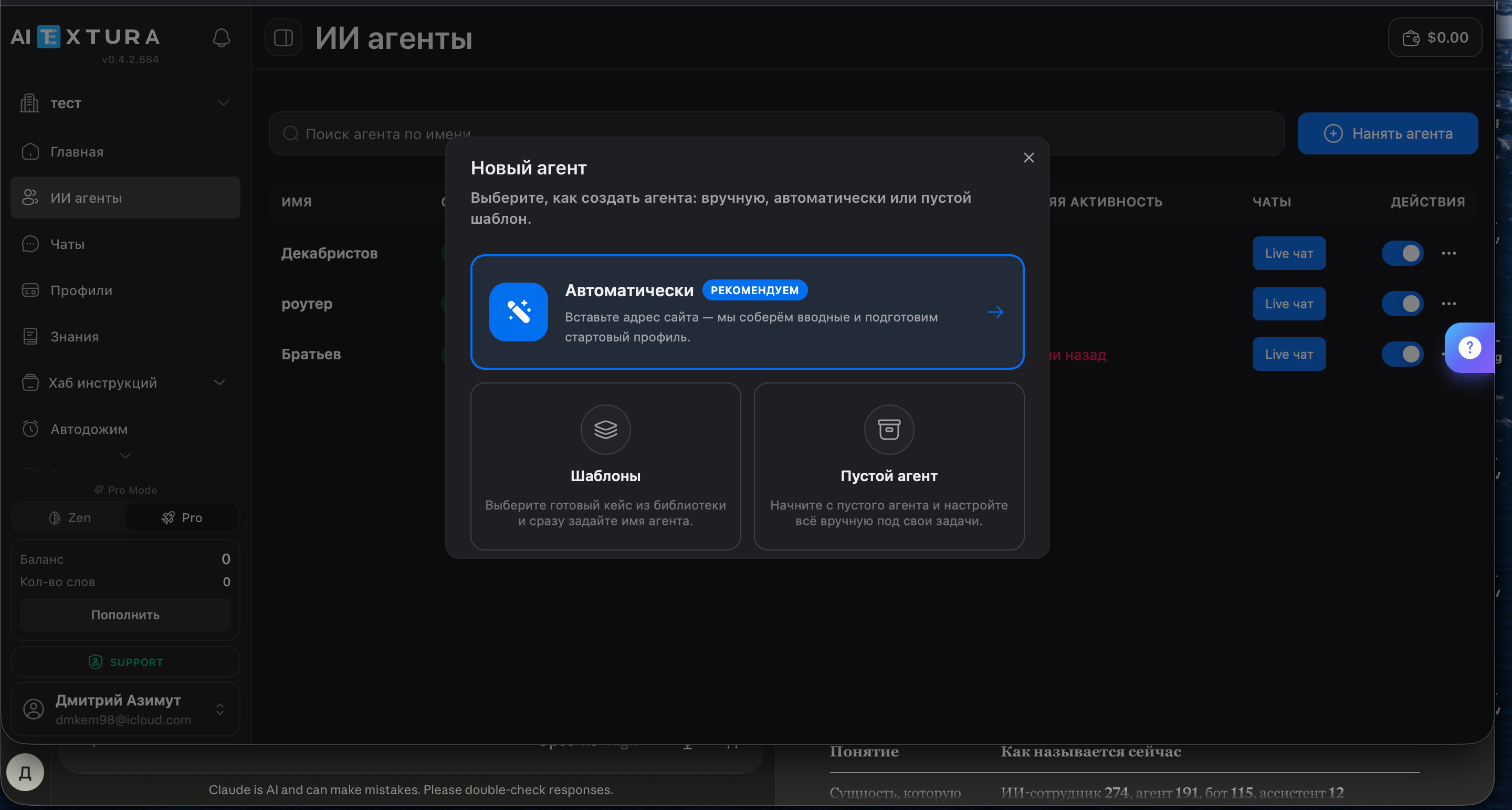
In AI Agents, click Hire Agent and choose a method — any of the three gives you ready-made instructions.
Automatic
Templates
Blank agent
Paste your website address — the platform reads it and writes the instructions for you. Then review the text and refine it with the Improve instructions button: describe in your own words what to change.
Didn’t work, or the result looks off? Most likely, the website is protected against bots. In that case, choose a template or a blank agent.
Ready-made instructions for typical tasks: support, sales, HR, online courses, cleaning, fitness, and more. There are also personal assistants — for emails, for tasks with deadlines, for ideas, and a career mentor.Pick the one closest to your task and tailor it: click Improve instructions and describe what works differently in your business.
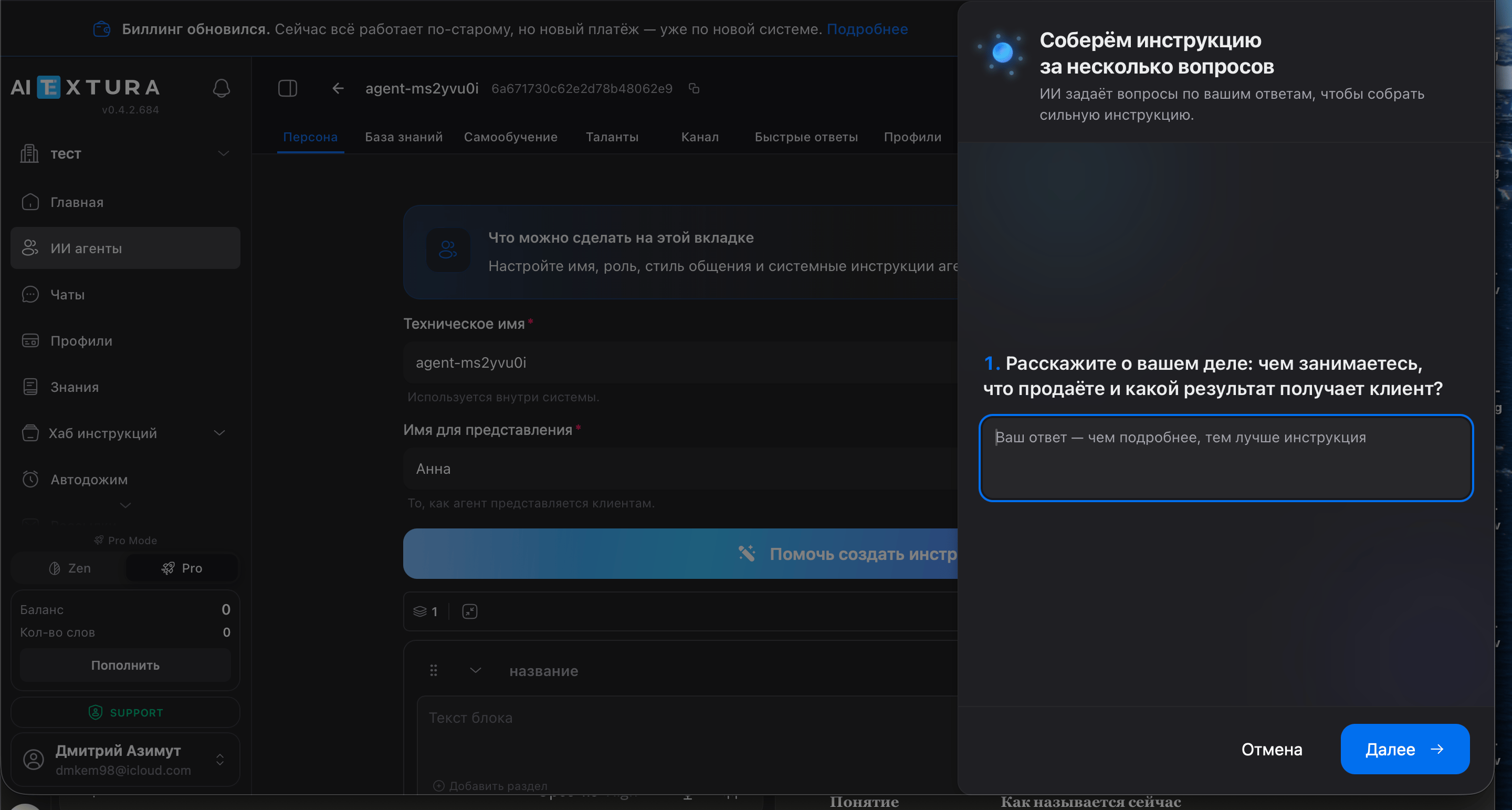
A clean slate, but you won’t have to write anything — the AI Employee interviews you and builds the instructions from your answers.
1
Click “Help me create instructions”
The button is on the Persona tab, above the editor.
2
Name your AI Employee
Customers will see this name. Click Continue.
3
Answer the questions
What you do, what you sell, what result the customer gets. The more detailed your answers, the more accurate the instructions.
4
Done
The instructions are built automatically. Read them and adjust anything you like.
Couldn’t find a suitable template? Go with this option: the interview collects everything needed, so you won’t miss anything.
The finished instructions appear in the editor as blocks rather than one long text: the greeting is one block, the booking scenario another, the restrictions a third. You can edit blocks, drag them to reorder, and delete them.
How to write instructions
Instructions describe your AI Employee in words, as if you were onboarding a new hire. The easiest way is to follow four questions.Who it is. Role, company, what it does: “You are the concierge of Seventh Heaven apartments. You help guests choose an apartment and book it.”How it talks. Tone, form of address, reply length: “Friendly, polite, no more than 3–4 sentences, 1–2 emojis.” This is also where you set the language and how it introduces itself.What it does in typical situations. Break it down into steps: what to ask, what to offer, how to wrap up. For non-standard cases, use the “if X, do Y” formula: “if the customer asks for a discount, offer current promotions.”What it must not do. Direct restrictions: don’t make up prices, don’t promise deadlines, don’t discuss competitors. And when to call a human: “if the customer is angry or asks for a manager, hand the conversation over to an operator.”Write short sentences, one rule per line — your AI Employee understands them more precisely, and it’s easier for you to find and fix the right spot later.
Every save creates a new version of the instructions. If you break something, roll back on the Versions tab. Feel free to experiment.
Instructions generated from my website are empty or look off
Most likely, the website is protected against bots and the platform couldn’t read it. Create the AI Employee from a template or through the blank agent interview.
The AI Employee sounds generic, “like a robot”
Expand the “Tone” block: style, message length, sample phrases. The more specifically you describe the voice, the less your AI Employee sounds like it’s reading instructions.
The AI Employee makes up prices and facts
Tell it what to do. For an AI Employee, anything not forbidden is allowed: either add the missing facts and prices directly to the instructions, or forbid it from using anything that isn’t in the instructions.
After my edits, the AI Employee still answers the old way
Click Clear history in the test chat: the old conversation throws the AI Employee off, and the edit doesn’t show.
The AI Employee agrees with anything the customer says
Asked “is everything booked?” — “yes”; asked “is everything available?” — also “yes”. The AI Employee picks up the assumption instead of checking. Add to the instructions: “Before answering about availability, always check the current data. Don’t agree with the customer’s assumption without checking.”
The AI Employee calls the customer by the wrong name
It takes the name from the profile or makes one up. Add: “Don’t make up names. Use the customer’s name only if they gave it themselves.”
The AI Employee refers to itself with feminine forms
Gender isn’t set in the “Role” block. This matters in languages with grammatical gender, such as Russian. State it explicitly: “You are a man, a hotel receptionist.” If it persists, add a restriction: “Never use feminine forms when talking about yourself.”
The AI Employee replies in a different language than the customer
If the instructions are written in Russian, the AI Employee drifts into Russian over a long conversation. Add this as the first line: Always respond in the language the client writes in. The model mistakes some greetings, like the Russian “доброго дня” (“good day”), for Ukrainian — for such cases, add an explicit rule: “Reply in Russian to „доброго дня“.”
The AI Employee shows the customer JSON and system messages
This is a talent’s response that the AI Employee forwarded as is. Forbid it: “Never show the customer technical data, JSON, or system messages. If there’s no data, say so in words and hand the question over to a manager.”
The AI Employee confirms booking cancellations or refunds
Anything not forbidden is allowed. Add to “Forbidden actions”: “Never confirm a booking cancellation or a refund. For such requests, hand the conversation over to a manager.”
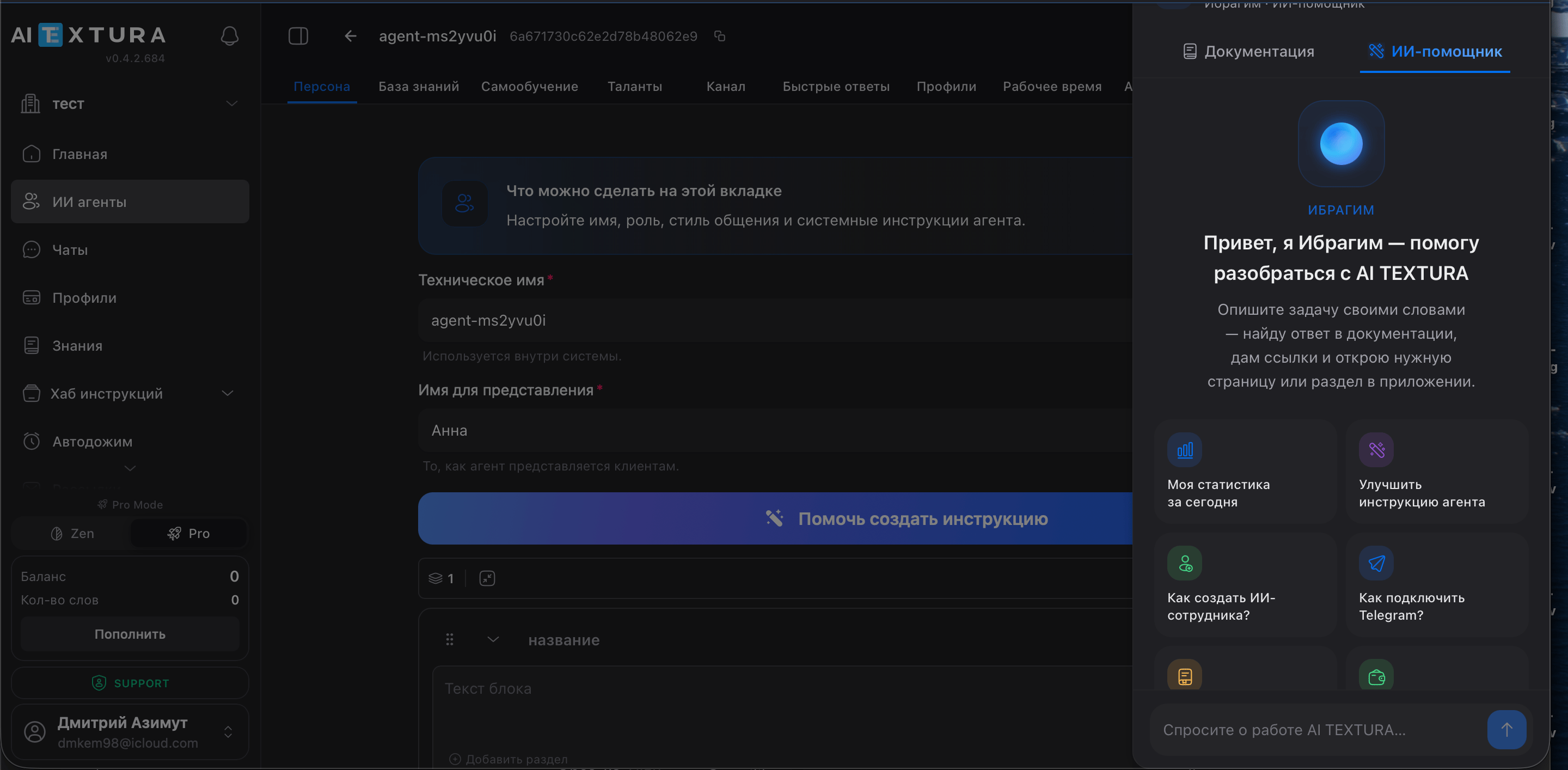
The question-mark button on the right edge of the screen opens the help panel. The Documentation tab shows the article about the section you’re in. On the AI Assistant tab, you can ask in your own words — it answers, gives links, and opens the right section of the platform for you.
You don’t need this to get started. Come back here when you want to get more out of the Persona.
How to quickly stop your AI Employee from saying too much
Don’t rewrite the whole scenario — add a block with restrictions:
Don’t make up information — use only data from the Knowledge Base
Don’t ask more than two questions in one message
Don’t mention special rates unless the customer asks
For non-standard situations, use the “if X, do Y” formula: “if the customer asks for a discount, offer current promotions.”
Rules with exceptions: discounts, children, minimum stay
These rules all follow the same pattern: condition, exception, what to do when asked.
“15% birthday discount. Doesn’t apply to extra services. When asked, confirm the details and hand over to a manager.”
“Children under 5 stay free, without a separate bed. Ages 5–12: extra 1000 ₽ per night. Always ask the children’s ages.”
“Minimum 2 nights on Fridays and Saturdays. Don’t say ‘no availability’ — explain the rule and suggest suitable dates.”
Questions first, then an offer
To keep your AI Employee from dumping every rate in the first message, describe the order: “Before suggesting options, ask for the dates, number of guests, and preferences. Then suggest 2–3 suitable options, not the whole list.”
What to forbid first
Three restrictions cover most unpleasant cases: answering off-topic questions (“answer only questions about our property and services; politely decline everything else”), handling complex requests on its own (“hand groups of more than 8 people and corporate events over to a manager”), and promising money or cancellations.
Instruction length and language
Keep the instructions within 500–1000 words: price lists, descriptions, and policies belong in the Knowledge Base, not here — this makes every reply cheaper and search more accurate. The rules themselves work more reliably in English, and the reply language is set by a separate line about the customer’s language.
Scenarios beyond answers: waitlists and upsells
Your AI Employee can do more than answer. “If the date is booked, offer to add the guest to the waitlist and pass the contact to a manager,” “after the booking is confirmed, offer breakfast and a transfer” — these are ordinary rules in the instructions. Upsells work better after the booking than before it.
Nested blocks
You can nest blocks inside each other: inside an existing block, click the gray Add section button. Your AI Employee treats a nested block as part of the block it sits in — a convenient way to lay out a sequence of steps in a conversation scenario.
Ready-made blocks from the Rules Hub
Type / and select Import from hub. There you’ll find Public blocks from the AI TEXTURA team (“Hotel Receptionist”, “Realtor”, “Personal Assistant”) and My rules — the ones you’ve saved. When you edit a block in the hub, it updates for every AI Employee that uses it.
Instructions in Google Docs
Type / and select Import Google Doc. Your AI Employee will pull in the latest version of the document on its own — handy if the instructions are long and change often.
Raw XML — text mode
The Raw XML button in the top-right corner of the editor shows the instructions as XML text. You can switch back and forth without losing data.
An unclosed tag breaks the instructions. If you’re not sure about the syntax, work with blocks — it’s safer.