

Connect the channel
Open the AI Employee → Channel tab → Connect New → amoCRM.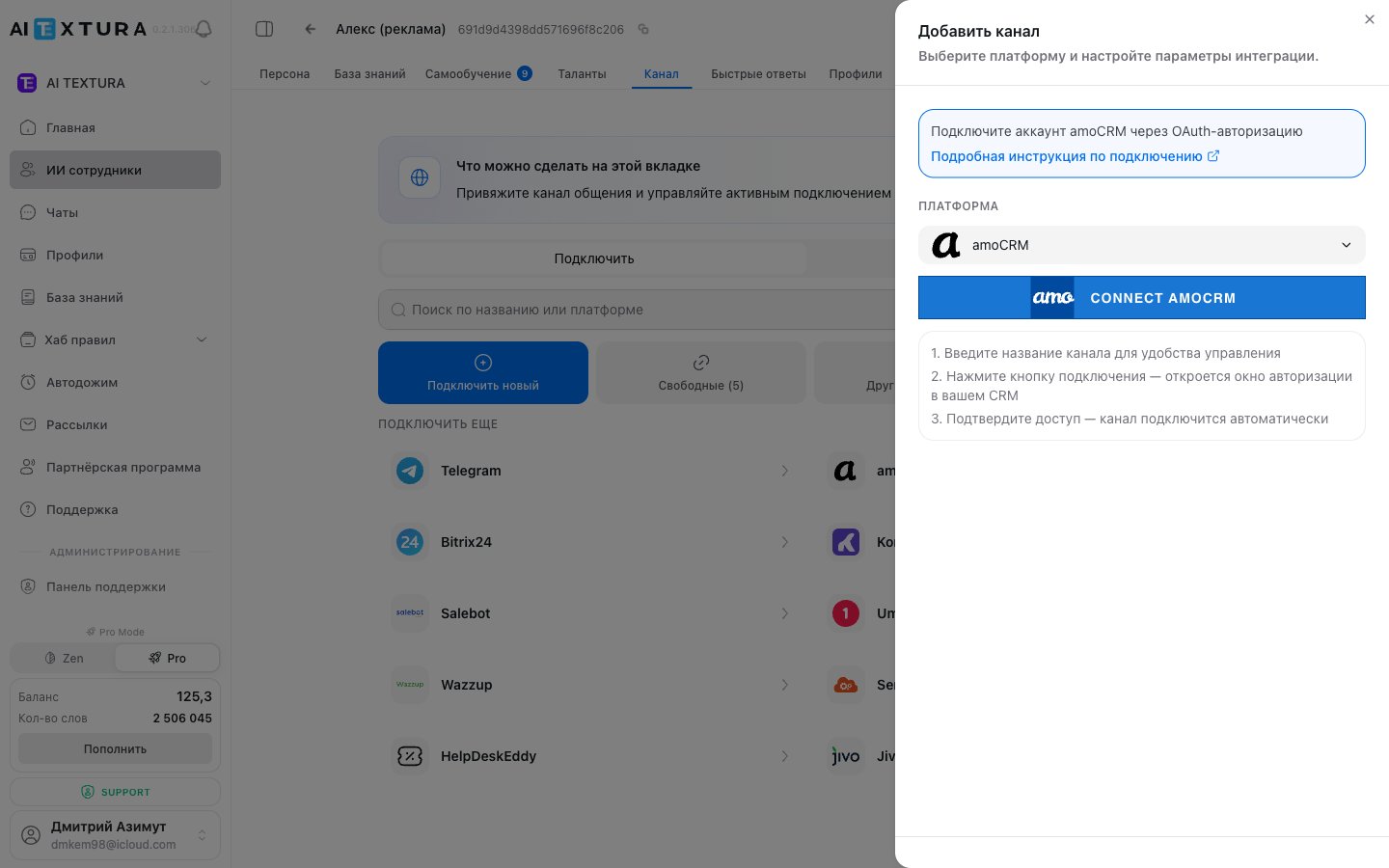
Choose sources
To open a connected channel, click it on the Connected tab. The first thing to do is narrow the scope: your AI Employee doesn’t always need to reply in every chat at once.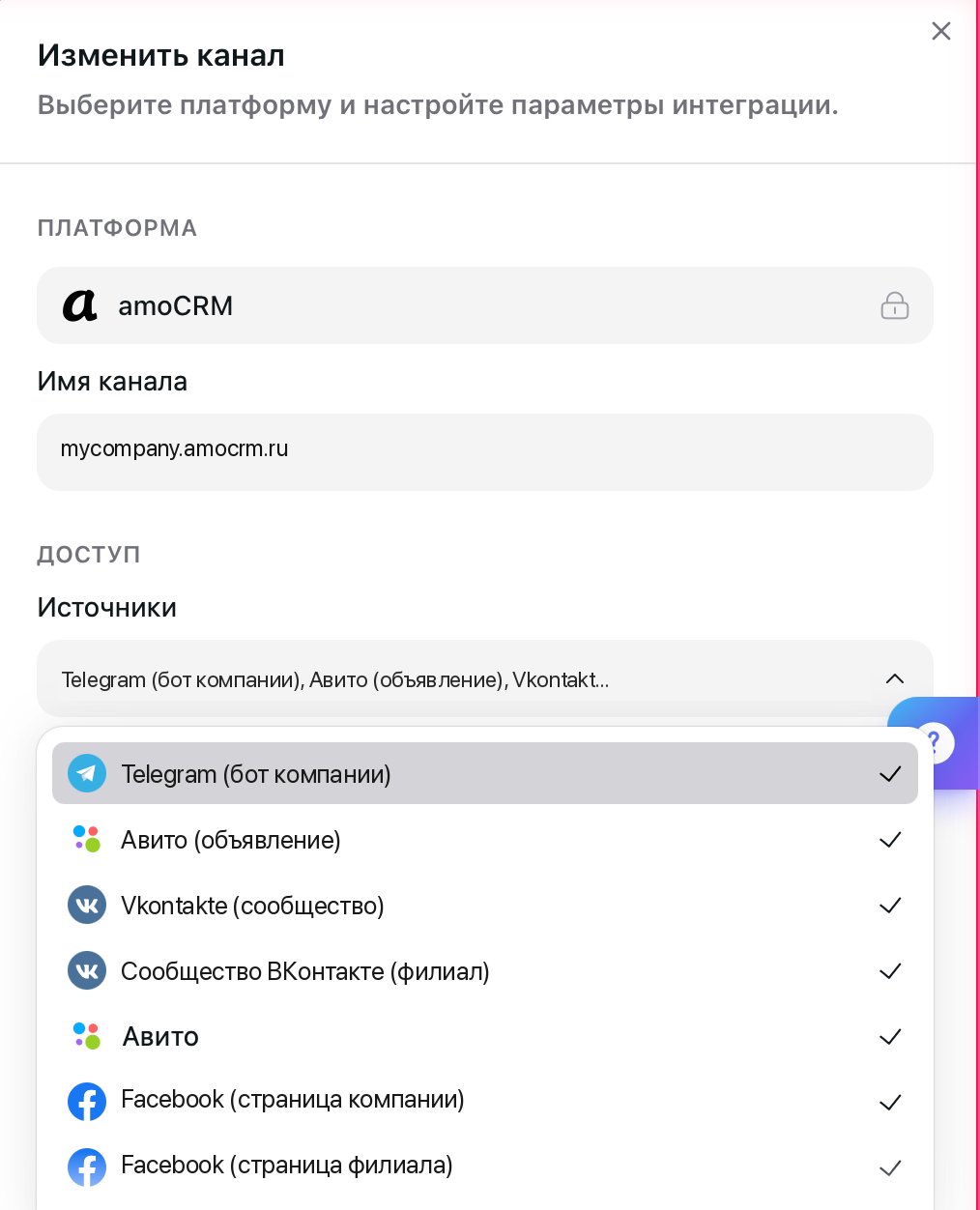
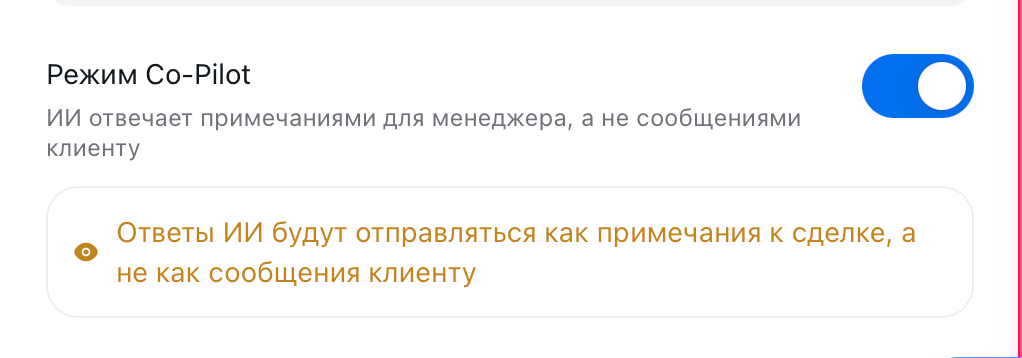
Co-Pilot mode
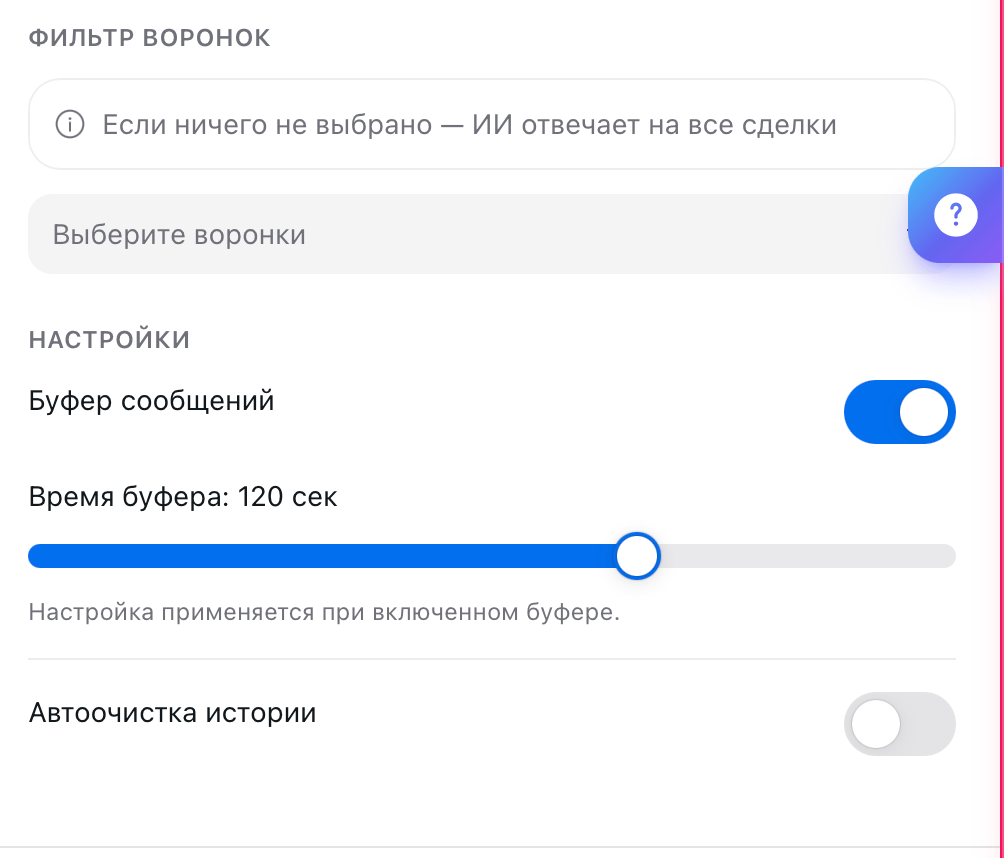
Settings
Actions in amoCRM
The channel only brings in messages; on its own, it doesn’t create deals or tasks. To let your AI Employee work with cards hands-on (create deals and contacts, look up customers, add notes and tasks), connect the amoCRM talent on the Talents tab: here’s how.FAQ
The AI Employee writes to customers on behalf of a real manager
The AI Employee writes to customers on behalf of a real manager
The channel is connected under that manager’s user account. Create a separate user in amoCRM, such as “AI TEXTURA,” and reconnect the channel under it: from then on, replies will go out under that name.
Connecting says the account is already connected, but there's no channel
Connecting says the account is already connected, but there's no channel
Webhooks from a previous connection are still there. In amoCRM, delete the AI TEXTURA integration entirely along with its webhooks, then delete the channel on the platform and connect again.
Conversations in amoCRM close on their own
Conversations in amoCRM close on their own
First, check the robots and automation rules in amoCRM itself: they’re more often what closes the deal, not the AI Employee. If there are no such rules, contact Support and include an example deal.
What’s next
Bitrix24
The same setup for Bitrix24
Talents
Deals, tasks, and notes handled by your AI Employee
Channels
All the ways to connect customers to your AI Employee
Profiles
What the AI Employee remembers about a customer