

What you need
- Bitrix24 portal administrator rights: only an administrator can access webhooks and Open Channel settings.
- At least one channel connected in the Bitrix24 Contact Center, such as Telegram, WhatsApp, Avito, or website live chat. Your AI Employee hears the customer through the Open Channel, not directly.
Connection
1
Create a webhook in Bitrix24
Open Applications → Developer resources → Other → Inbound webhook. In the Permissions block, select: CRM (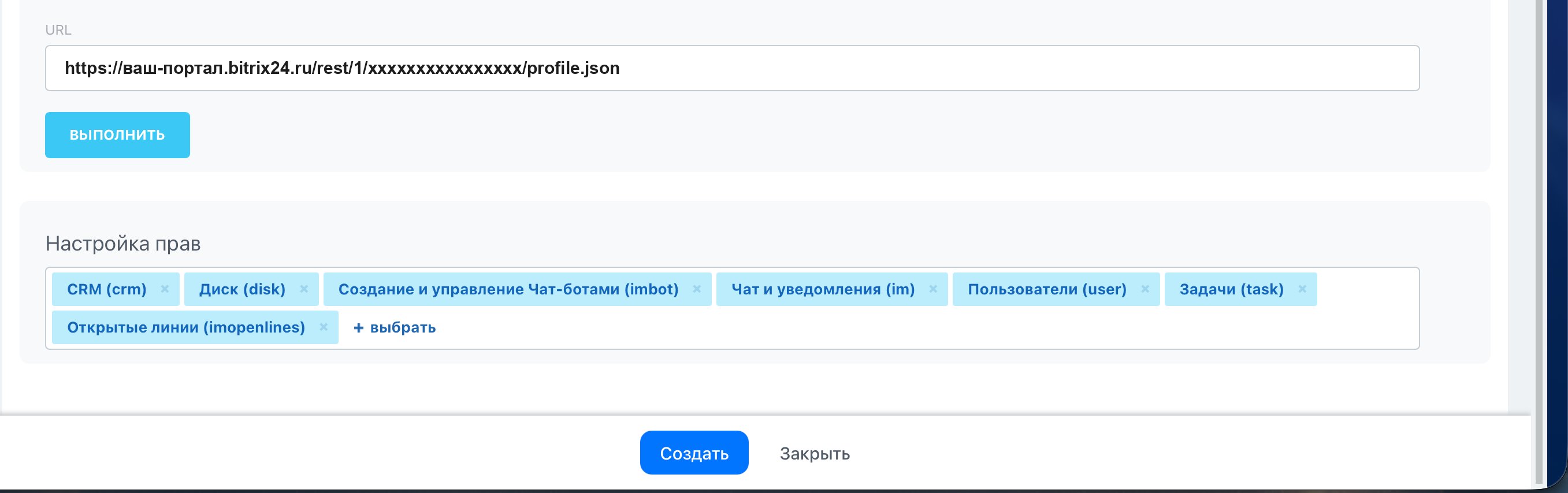
crm), Drive (disk), Chatbot creation and management (imbot), Chat and notifications (im), Users (user), Tasks (task), Open Channels (imopenlines).https://your-portal.bitrix24.ru/rest/1/abcdef0123456/.2
Go back to AI TEXTURA and connect the channel
Open the AI Employee → Channel tab → Connect New → Bitrix24. Enter a Channel Name (only you see it), paste the webhook address into the Webhook URL field, and click Create.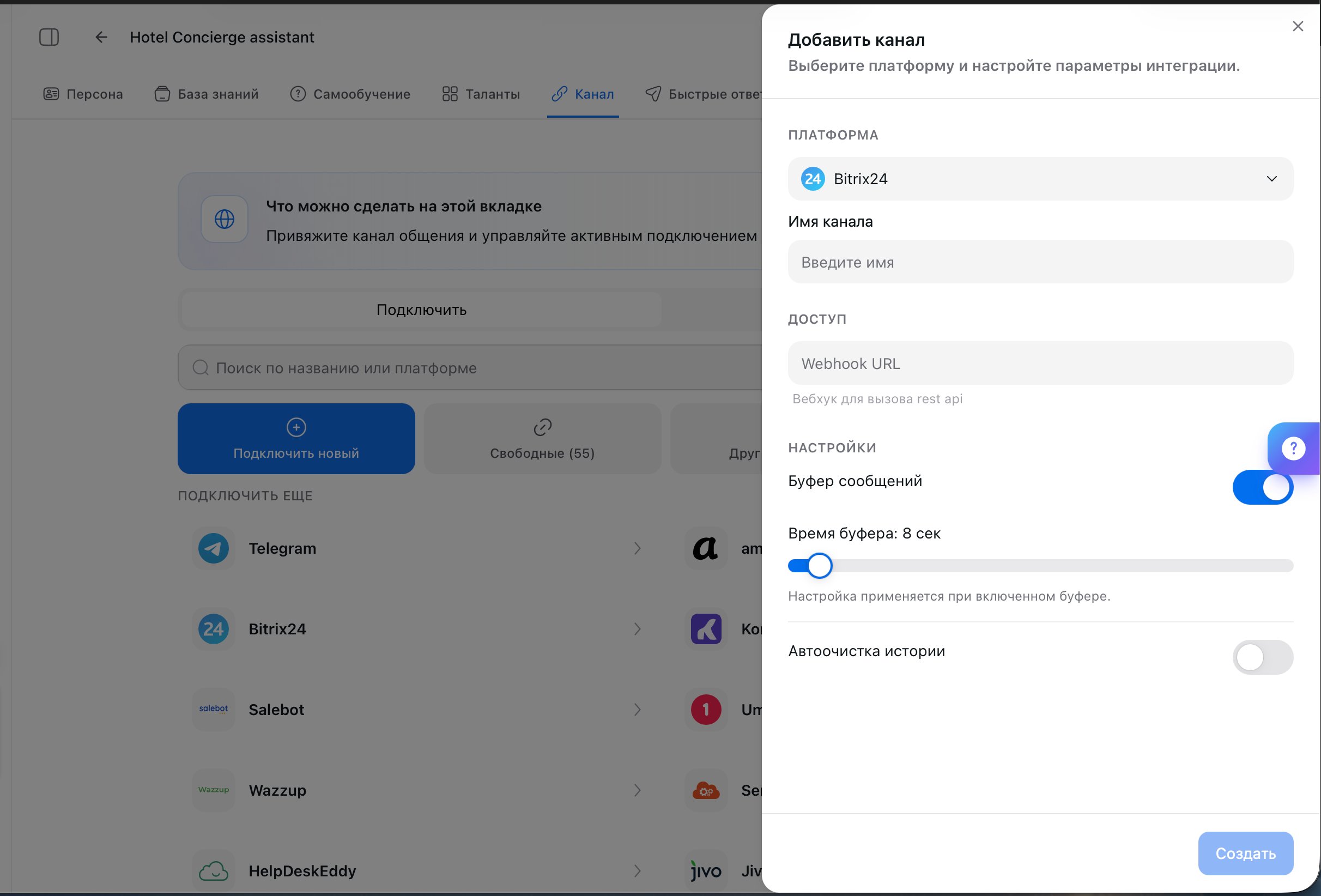
3
Go back to Bitrix24 and assign the chatbot
Until the chatbot is assigned as the responsible person, messages from the Open Channel don’t reach your AI Employee.Open the Contact Center and select the channel where the AI Employee should reply, such as Telegram, WhatsApp, or website live chat.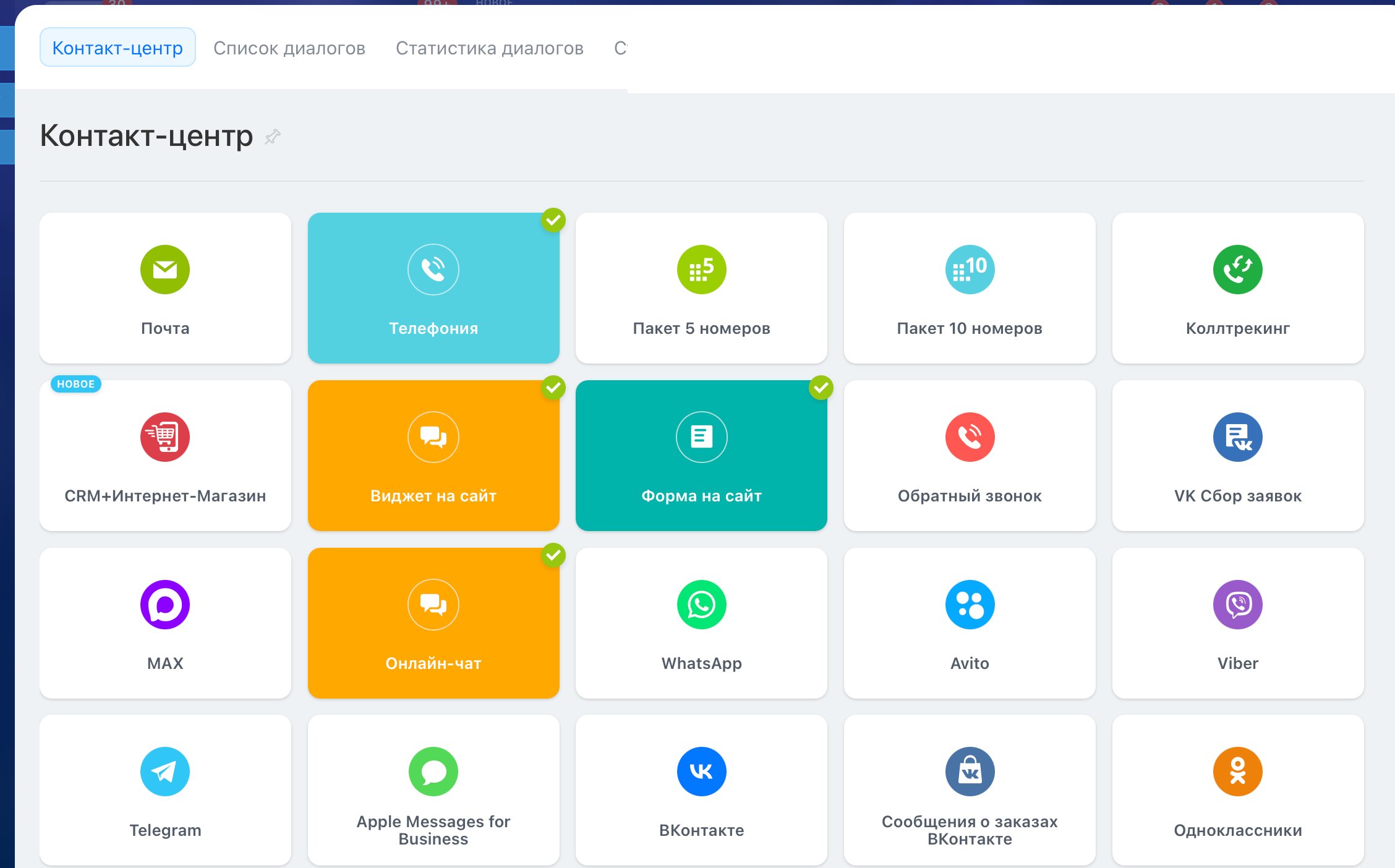
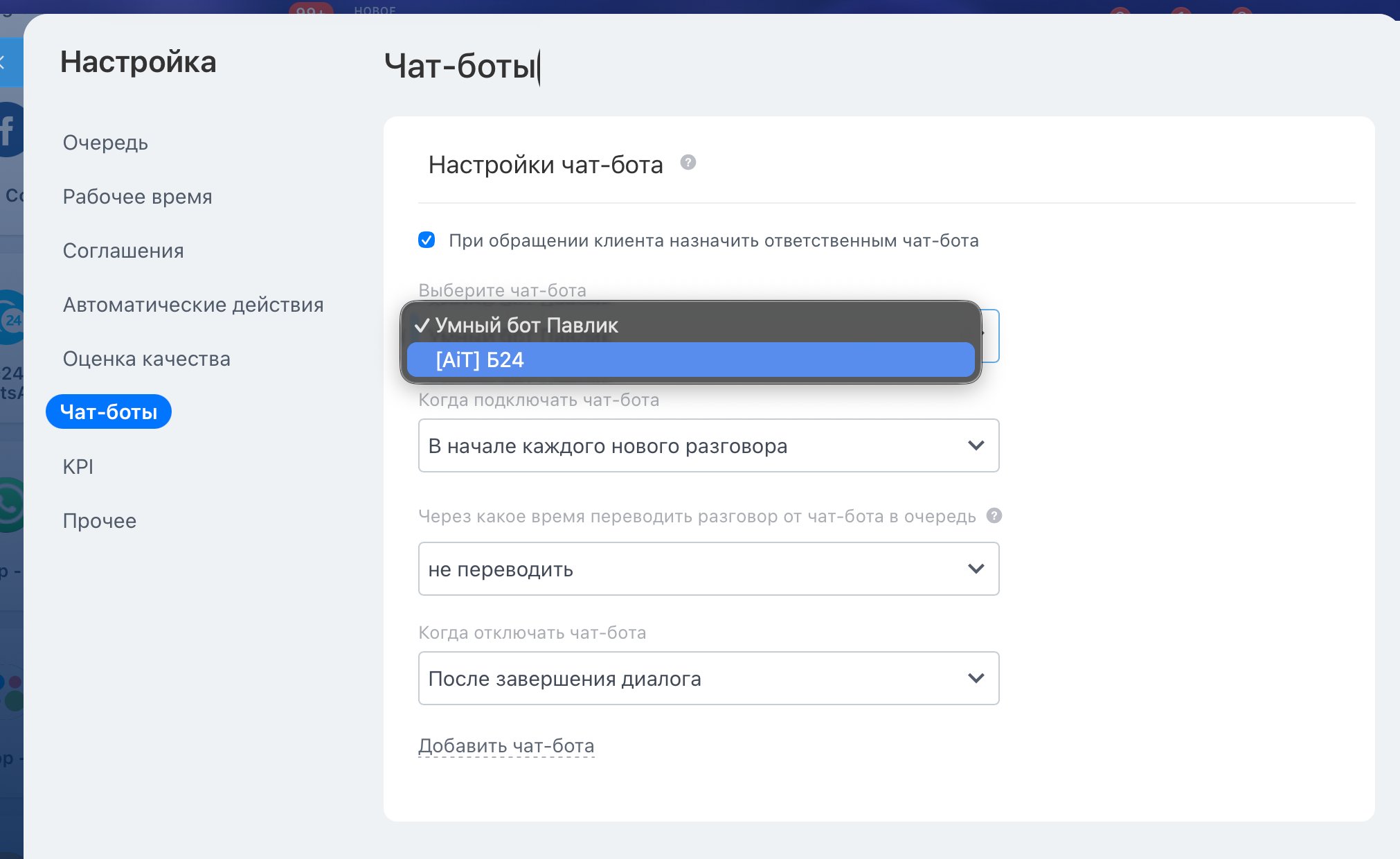
Save the Open Channel settings.
4
Go back to AI TEXTURA and configure the channel
Open the channel by clicking it on the Connected tab and go through the settings: pipeline filter, operator involvement, message buffer, Co-Pilot mode.
Test it
Write to the connected channel as a customer, for example to the Telegram bot set up in this Open Channel. Your AI Employee replies in the same chat, and the conversation appears in Chats.Channel settings
The defaults don’t suit every portal, so go through the settings right away. Pipeline Filter narrows the scope. While nothing is selected, the AI Employee replies to all deals. Select one pipeline, and it works only there, leaving your cold leads or post-sale support alone.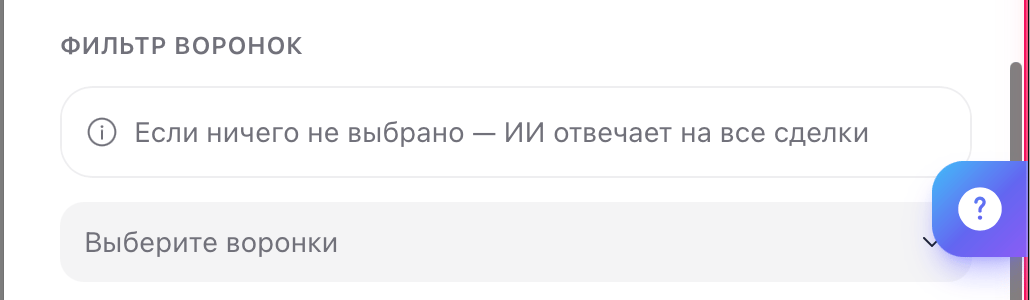
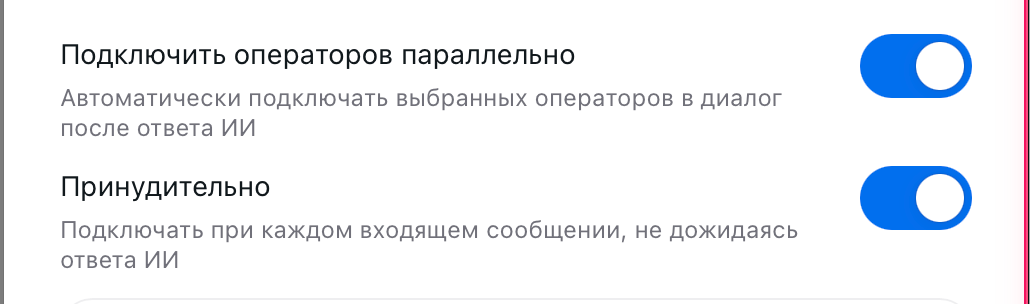
Co-Pilot mode

Actions in Bitrix24
The channel only brings in messages: it doesn’t create deals or leads, set tasks, or assign responsible persons. The Bitrix24 talent does all that: how to connect it.FAQ
Which Bitrix24 plan do I need
Which Bitrix24 plan do I need
The Basic plan is enough: you need Open Channels and the Developer resources section with inbound webhooks, and both are included in Basic.
A customer sent a photo. Will it reach the AI Employee?
A customer sent a photo. Will it reach the AI Employee?
Open Channels pass attachments as links, and how a file looks in the portal depends on the message source. Test it on your setup: send a test photo from WhatsApp, Telegram, and the website widget.
Notifications in Bitrix24
You can receive alerts that a customer is asking for a manager in the portal chat, sent to specific employees, instead of in Telegram. Set this up on the Notifications page.What’s next
Talents
Deals, tasks, and responsible persons handled by your AI Employee
amoCRM
The same setup for amoCRM
Notifications
An alert for you when a customer asks for a human
Channels
All the ways to connect customers to your AI Employee