

In the platform menu, this section is called Agents: the list holds both AI Employees and Autonomous Agents — a second type that doesn’t talk to customers but works for you.
Hire an AI Employee
Click Hire Agent in the top-right corner. There are three ways:
Right after hiring, the AI Employee editor opens. The first tab you see is Persona — start there; the other settings are organized in tabs along the top.
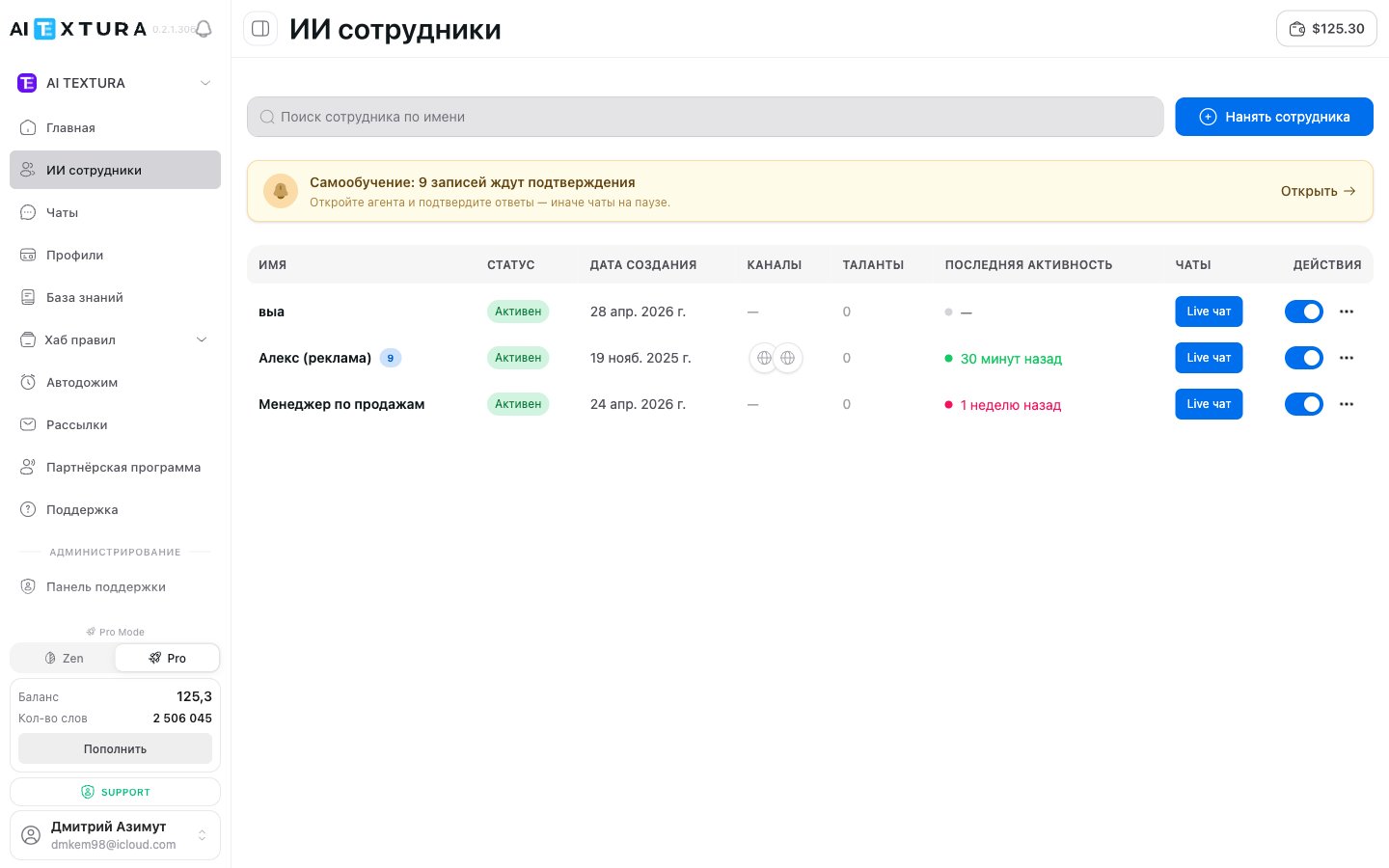
The list
Click a row to open that AI Employee’s settings.
The toggle turns the AI Employee off completely: it stops processing new messages, and customers get no reply. If you only want to take it off night shifts, use Working Hours instead of turning it off.
The … menu has three actions: Edit opens the settings, Copy creates a copy with all settings, and Delete.
Live chat
The Live chat button opens the same test chat you have inside the AI Employee. What makes it useful is that you can copy the link from the address bar and send it to anyone. The other person doesn’t need a platform account or a connected channel: they open the link and talk to your AI Employee.FAQ
The AI Employee is created but doesn't answer customers
The AI Employee is created but doesn't answer customers
Check in this order: the toggle in the Actions column is on, at least one channel is connected, and it isn’t a day off according to Working Hours.If there are unconfirmed entries on the Self-Learning tab, chats may be paused — review them.
Do I need a separate AI Employee for each property or branch?
Do I need a separate AI Employee for each property or branch?
Not necessarily. If your properties follow the same rules, one is enough — describe each property in its own block in the Persona. Use separate AI Employees when properties have different services, different rules, or their own PMS: otherwise the AI Employee will start mixing their data in a single reply.
One channel for several branches — the AI Employee mixes up properties
One channel for several branches — the AI Employee mixes up properties
The clean solution is a separate channel and a separate AI Employee for each branch. If you have only one channel, add an explicit rule to the Persona: which property was asked about, and which source to take the data from.
I created an AI Employee from a website link, but it knows very little
I created an AI Employee from a website link, but it knows very little
The platform reads only the page you linked, not the whole website. Check the result in the Persona and add the rest to the Knowledge Base.
How do I hand a conversation over to another AI Employee?
How do I hand a conversation over to another AI Employee?
Use Quick Answers: the Transfer to another AI action hands over the whole conversation, and Get answer from another AI brings a colleague’s reply into the current conversation. This is also how you build a setup with a dispatcher AI Employee: it identifies the topic and routes the customer to the right specialist.
A colleague just needs to talk to the AI Employee — do they need an account?
A colleague just needs to talk to the AI Employee — do they need an account?
No. Send them the Live chat link. Only people who will log in to the platform and change settings need an account — add them to the Organization with the right role.
How many AI Employees can I hire?
How many AI Employees can I hire?
The limit depends on your plan — you can see the current limits in the billing section.
What’s next
Persona
Your AI Employee’s character, role, and rules — setup starts here
Knowledge Base
The documents and data it draws answers from
Channels
Connect Telegram or a CRM, and your AI Employee starts answering customers
Talents
Teach it to take action: deals, bookings, emails