

Connect a channel
Open the AI Employee → Channel tab → Connect.1
Choose a platform
In the Connect More list, click the one you need: Telegram, amoCRM, Wazzup, or any other.
2
Fill in the connection fields
Each platform has its own fields: some ask you to sign in to the service, others ask for an API key or a webhook URL. Follow the on-screen prompts.
3
Configure the channel
Settings differ by platform: Telegram has channel type, inline buttons, and message buffer; Planfix has handoff to an operator and note mode. You can change them later on the Connected tab.
4
Click Connect
The channel appears on the Connected tab and starts receiving messages.
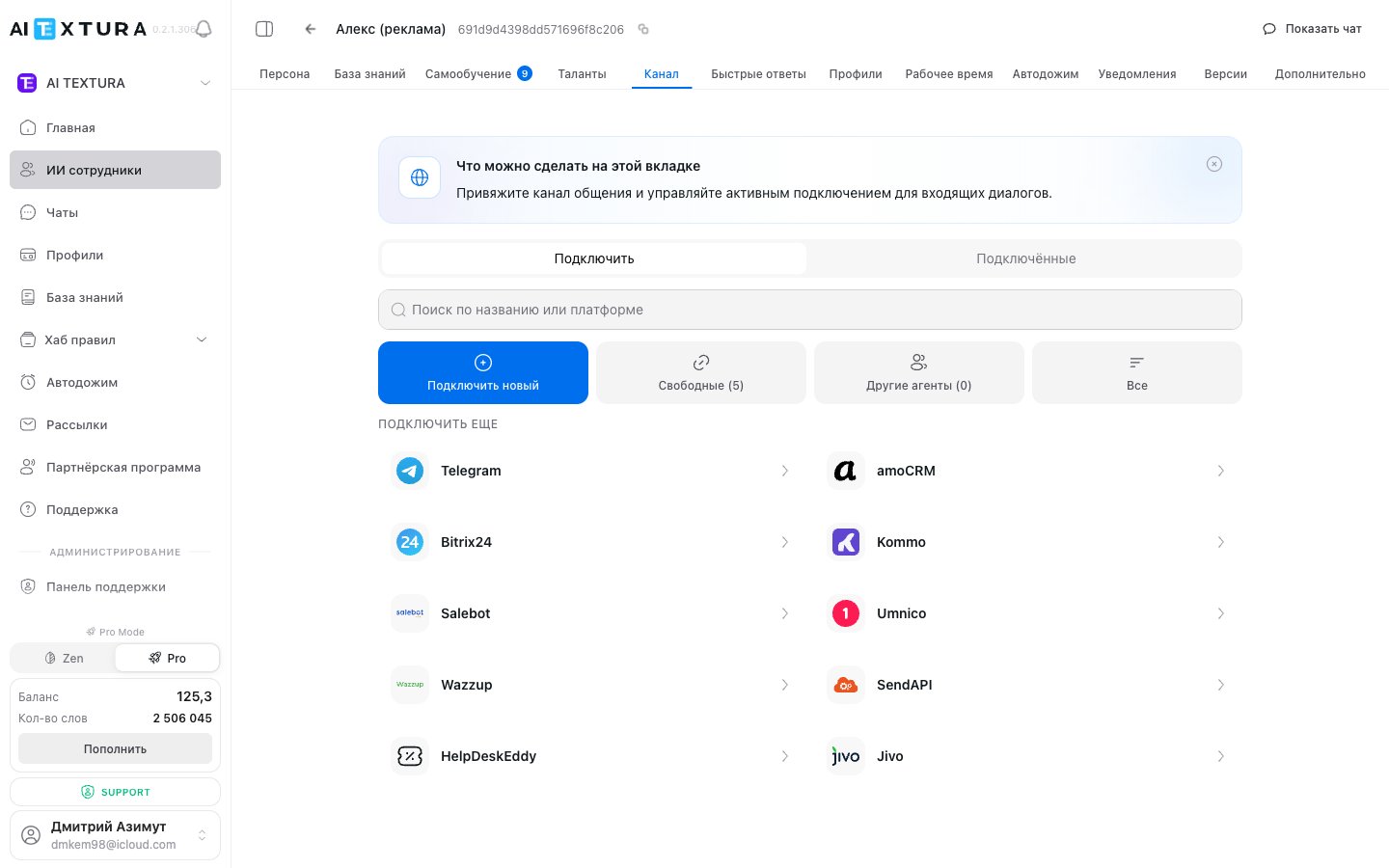
Section tabs
At the top of the section are two tabs: Connect and Connected. The second one lists the channels already linked to the AI Employee you’re configuring. The Connect tab has four filter buttons:Platforms
Only Telegram connects directly, with a bot token and free of charge. WhatsApp, Avito, Instagram, VK, email, and website widgets reach your AI Employee through an intermediary:- CRM: amoCRM, Bitrix24, Kommo.
- Channel manager: Wazzup, Umnico, Salebot, SendAPI, Jivo. It gathers your messengers in one account and gives you a single key.
- Ticket system: HelpDeskEddy, Planfix.
You pay the channel manager directly; it isn’t included in your AI TEXTURA subscription. The price depends on how many channels and phone numbers you connect, so check their pricing before you sign up.
FAQ
The AI Employee is set up but doesn't reply to customers
The AI Employee is set up but doesn't reply to customers
Check in order: is at least one channel connected; is the Active toggle on for that channel; is the AI Employee itself active; does the current time fall within Working Hours. The AI Employee may still reply normally in the test chat, because the test chat doesn’t depend on channels.
How to move a channel to another AI Employee
How to move a channel to another AI Employee
Open the AI Employee you want → Channel tab → Other Agents → select the channel and reconnect it. You don’t need to disconnect it from the previous AI Employee first: the channel leaves it automatically, because it only works with one.
Turn off the channel or the AI Employee: which to choose
Turn off the channel or the AI Employee: which to choose
If you need to reply manually for a while, turn off the AI Employee. Messages keep arriving in Chats; the AI just won’t reply to them. A disabled channel stops receiving incoming messages entirely, and conversations from that period won’t reach the platform.
A customer sent a voice message, and the AI Employee didn't understand it
A customer sent a voice message, and the AI Employee didn't understand it
Voice messages only work in Telegram: there, the AI Employee transcribes the recording, replies in text, and can reply by voice if text-to-speech is enabled in its settings. In other channels, voice messages don’t reach it.
The AI Employee replies in the CRM, but deals aren't created
The AI Employee replies in the CRM, but deals aren't created
A channel only passes the conversation through; it doesn’t create anything in the CRM. Actions are handled by a talent for the same CRM.
Customers receive duplicate messages
Customers receive duplicate messages
Two common causes: a failure on the channel manager’s side, in which case contact Support and we’ll check what arrived and when; or the customer replies using “reply to message,” and the quote arrives as a separate incoming message.
The AI Employee replies to itself or to another bot
The AI Employee replies to itself or to another bot
Automated messages from another bot reach the channel, and the AI Employee mistakes them for a customer. Add these messages to the spam filter, or add a rule to the Persona not to reply to messages that start with a specific phrase.
A customer splits one thought into five messages and gets a separate reply to each
A customer splits one thought into five messages and gets a separate reply to each
Turn on Message Buffer in the channel settings and set the buffer time to 8–16 seconds: the AI Employee waits until the customer finishes and replies with a single message. For website chat, keep the buffer minimal, since visitors expect an instant reply.
The AI Employee takes half a minute or longer to reply
The AI Employee takes half a minute or longer to reply
Most often it’s calling talents, such as a PMS or CRM, and waiting for them to respond. Check that nothing unnecessary is connected and that the instructions aren’t too long; also check the platform status at
status.aitextura.com. If replies are consistently slow, contact Support with example conversations and response times.What’s next
Talents
Actions in external systems: deals, bookings, tasks
Notifications
Telegram messages when something important happens in a conversation
Chats
Where to view conversations from all connected channels
Working Hours
When the AI Employee replies across all its channels