

Persona
The employee’s role, tone, and instructions
AI Employees
Employee management
Knowledge Base
Connected data sources
Versions
Configuration change history
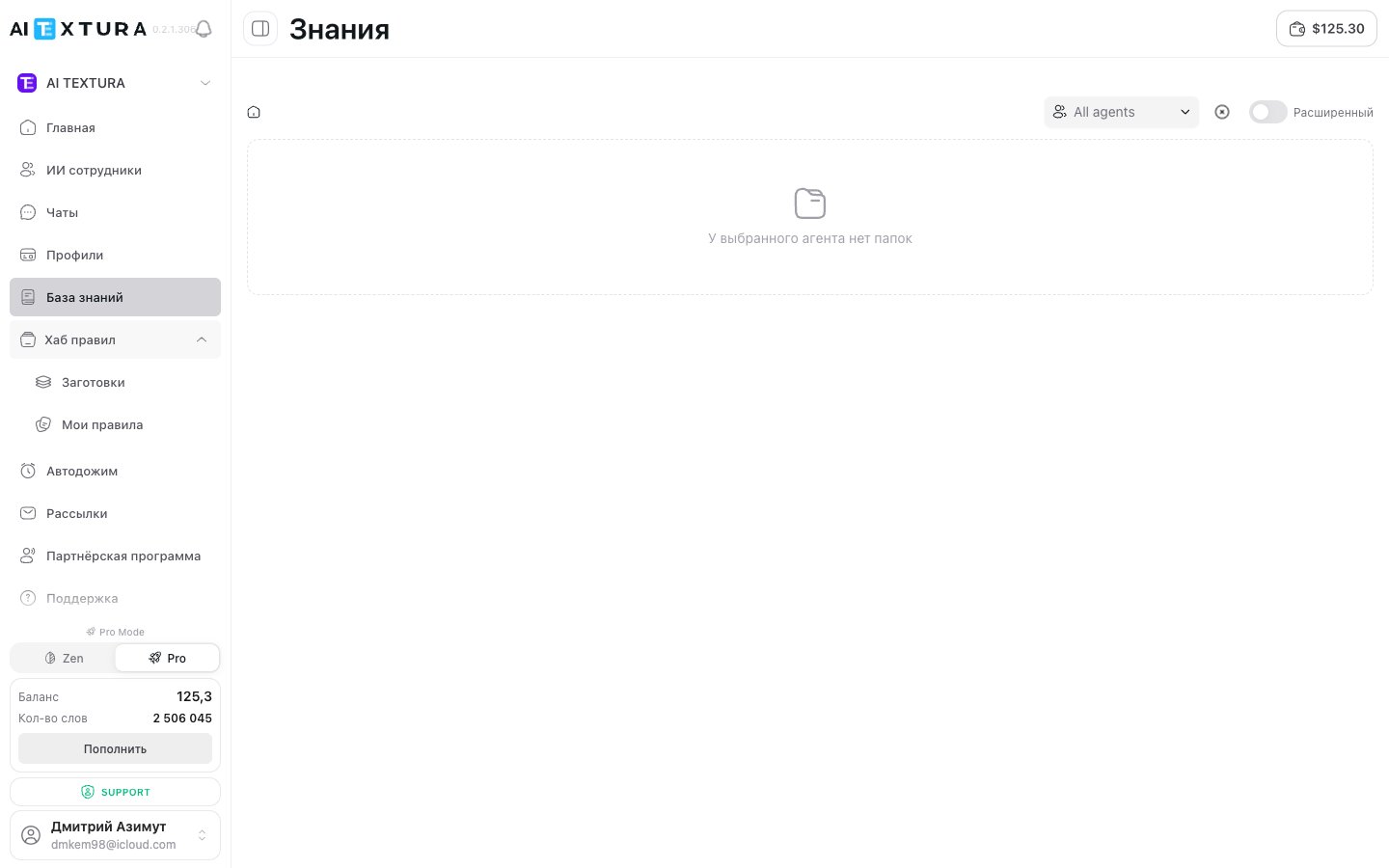
Rules Hub structure
The hub has two sections. Each is available both from the left menu and through the Apply template button inside the Persona editor.
Both sections work the same way: you find the block you need, click it, and it’s added to the selected employee’s Persona. You can then edit the block for your specific task.
Presets — templates from the AI Textura team
Presets are a library of professionally written blocks covering typical roles and scenarios. The AI Textura team built them from real cases so you can launch an employee quickly without lengthy setup.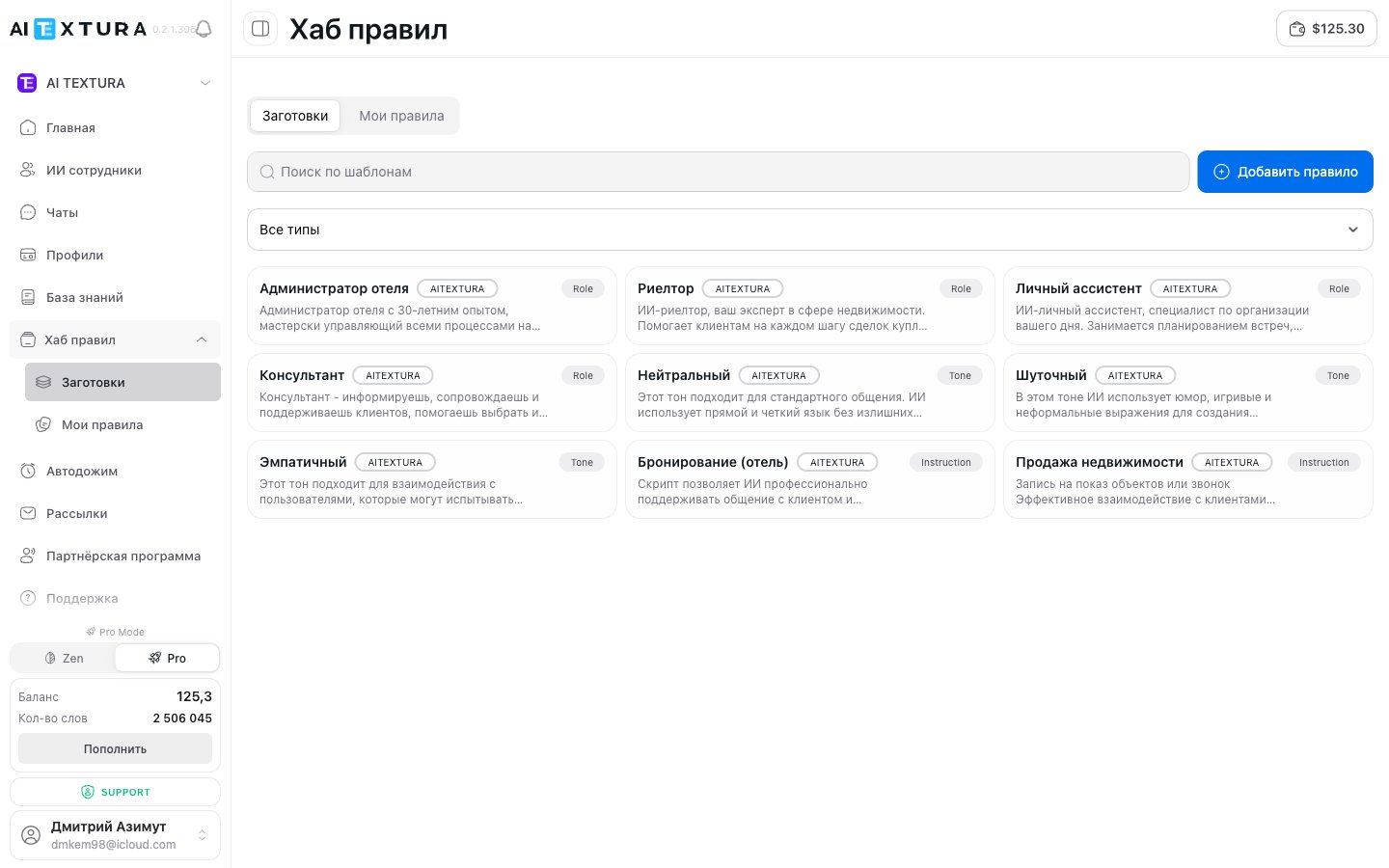
Full list of AI TEXTURA presets
Each preset belongs to one of the three Persona block types. Below is the complete current catalog:Role — who your employee is
Tone — how the employee talks
Instruction — step-by-step scenarios
Searching templates
The Presets section offers two tools:- Search by name — enter a keyword, such as “hotel” or “booking”
- “All types” filter — pick a specific block type (Role, Tone, Script, etc.) to narrow the list
How to apply a template
1
Option 1 — from the Rules Hub (left menu)
- Open Rules Hub → Presets in the left menu
- Find the template you need using search or the filter
- Click the template
- Choose the employee you want to apply it to
- The block is added to the employee’s Persona
My rules — your personal library
My rules is where the blocks you saved from any employee’s Persona are stored. It’s your personal library of reusable instructions. Typical use cases:- The same rules for several employees (for example, “don’t make up information” or “don’t ask more than two questions in one message”)
- A universal communication tone applied to all of the company’s employees
- Proven scenarios you’ve polished on one employee and want to reuse
How to save a block to My rules
1
Open the employee's Persona
Go to the employee and open the Persona tab.
2
Save the block
Find the block you want to save and click the ”…” icon (block menu) → Save.
3
The block is available in the Hub
The block appears in My rules — both in the left menu and in the Apply template window inside the Persona editor.
How to apply a saved block to another employee
1
Open the target employee's Persona
Go to the employee → the Persona tab.
2
Open templates
Click Apply template → go to the My rules tab.
3
Apply and adapt
Click the block you need — it’s added to the Persona. Edit the text if needed and save your changes.
Rules in My rules are grouped by type: Role, Tone, Script, custom. Use the “All types” filter and name search to find blocks quickly.
Creating a rule directly in the Hub
Besides saving blocks from a Persona, you can create a new rule right in the Hub, without tying it to a specific employee:- Open Rules Hub → My rules in the left menu
- Click Add rule
- Set the name and block type
- Write the instruction text
- Save
The ”/” command — quick import from the editor
In the Persona editor, you can insert blocks from the Hub with the / command, invoked at the end of the editor:Ways into the Rules Hub
Block actions
FAQ
What's the difference between Presets and My rules?
What's the difference between Presets and My rules?
Presets are ready-made templates from the AI Textura team, available to all users. My rules are your own blocks that you saved or created. Presets can’t be edited in the Hub — only after you apply them to an employee. You have full control over My rules.
If I change a block in My rules, will it update for all employees?
If I change a block in My rules, will it update for all employees?
No. When you apply a block from the Hub to an employee, a copy is inserted into the Persona. Changes to the original don’t affect copies already inserted, and vice versa. To update a block for several employees, you have to do it manually for each one.
Can I use one template for several employees?
Can I use one template for several employees?
Yes. Apply the template to one employee, then to another — each gets its own copy that you can edit independently.
Is there a limit on the number of saved rules?
Is there a limit on the number of saved rules?
No. You can save as many blocks as you need. We recommend giving blocks clear names and using filters so you don’t get lost.
Can I delete a block from My rules?
Can I delete a block from My rules?
Yes. Deleting a block from the Hub doesn’t affect employees who already have it applied — they keep their own copy.
Does the order of applied templates affect the employee's behavior?
Does the order of applied templates affect the employee's behavior?
Yes. Blocks placed higher in the Persona have higher priority. After applying a template, you can drag blocks into the order you want right in the editor.