

Turn on Self-Learning
Open your AI Employee → Self-Learning tab. While the mode is off, the tab shows a yellow banner — click Enable Self-Learning or flip the toggle on the right.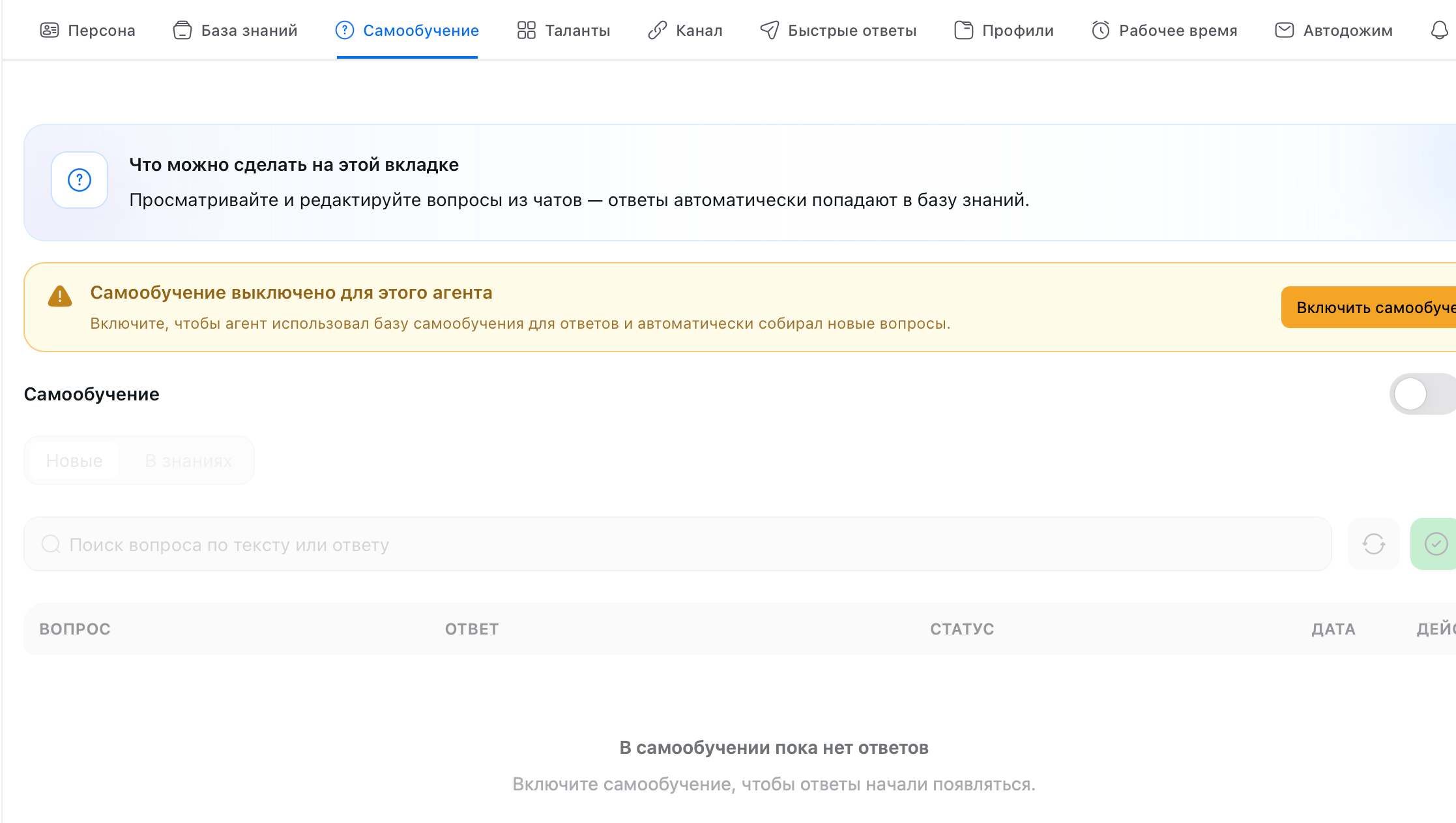
The number on the tab itself shows how many questions are waiting for your review.
Settings
The gray gear to the right of the toggle opens Self-Learning Settings. The defaults work for most cases — come here only if your AI Employee starts answering differently than you need.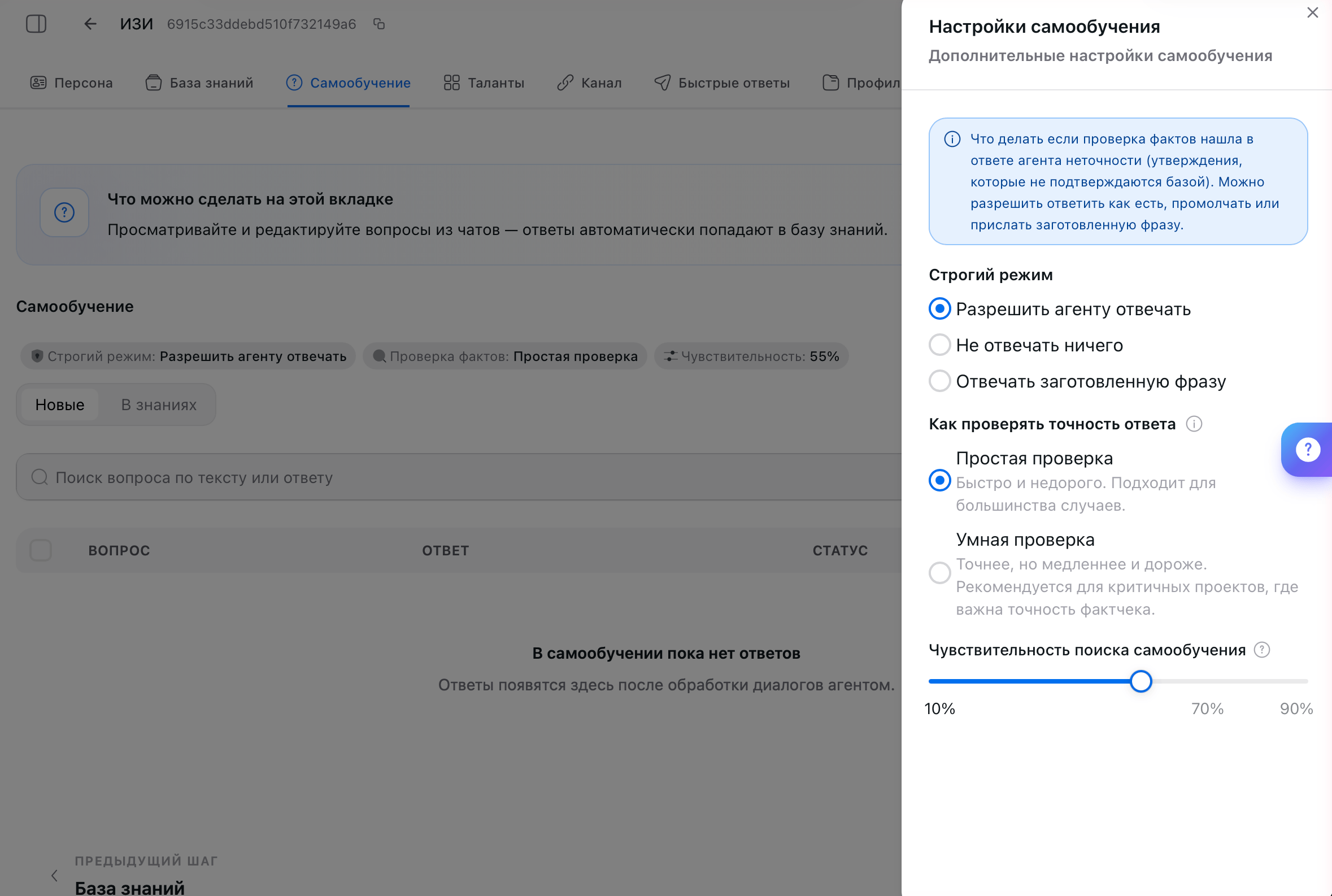
Strict mode
What to do when the fact check finds statements in your AI Employee’s reply that the Knowledge Base doesn’t confirm.
Write the preset phrase in the field below, up to 450 characters: “I don’t have confirmed information on this” or “Let me check with a colleague and get back to you.”
Answer accuracy check
Search sensitivity
How closely a new customer question must match a Self-Learning entry for your AI Employee to answer with it. The slider goes from 10% to 90%; the optimal middle ground is 70%.Review questions
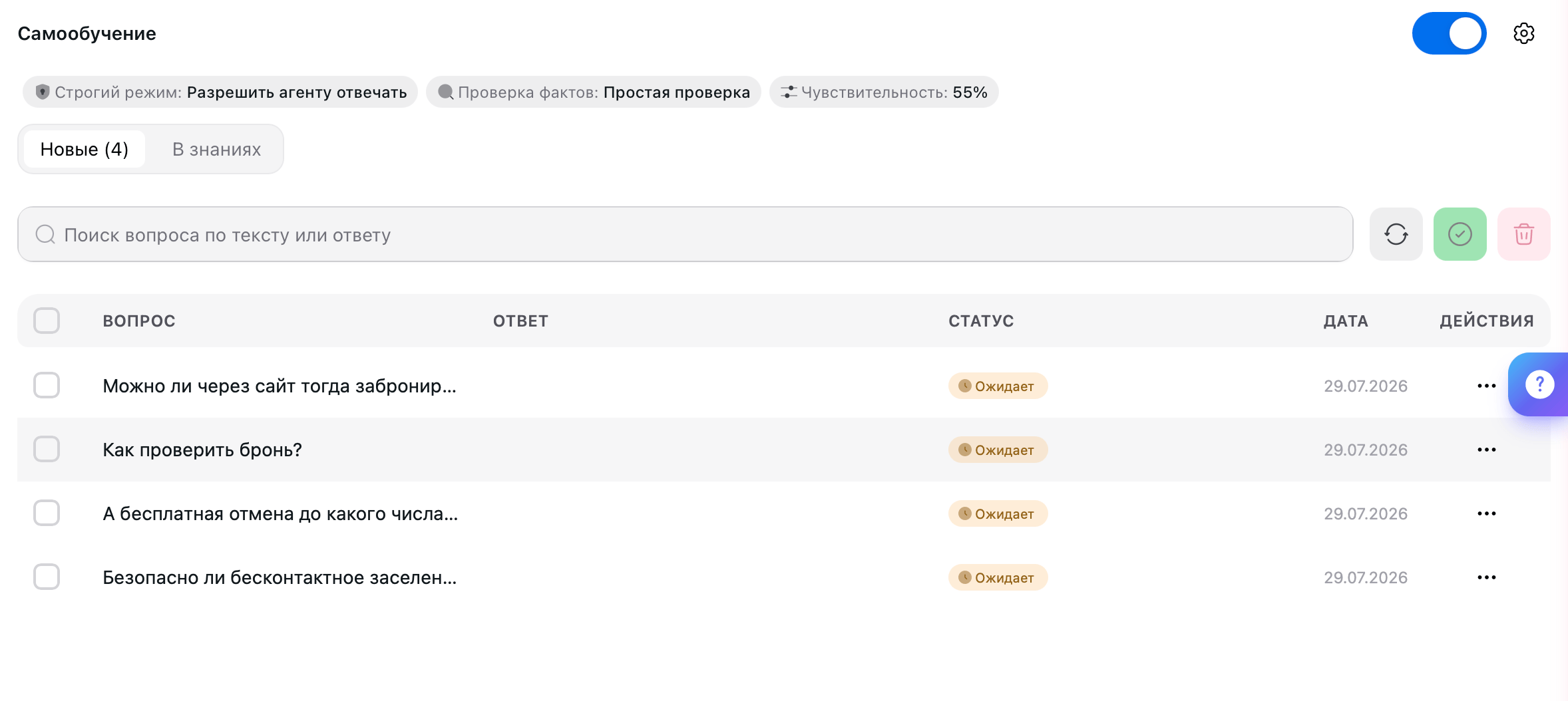
Click a row to open the edit window. The Your answer field already contains what your AI Employee said: fix any inaccuracies or confirm it as is.
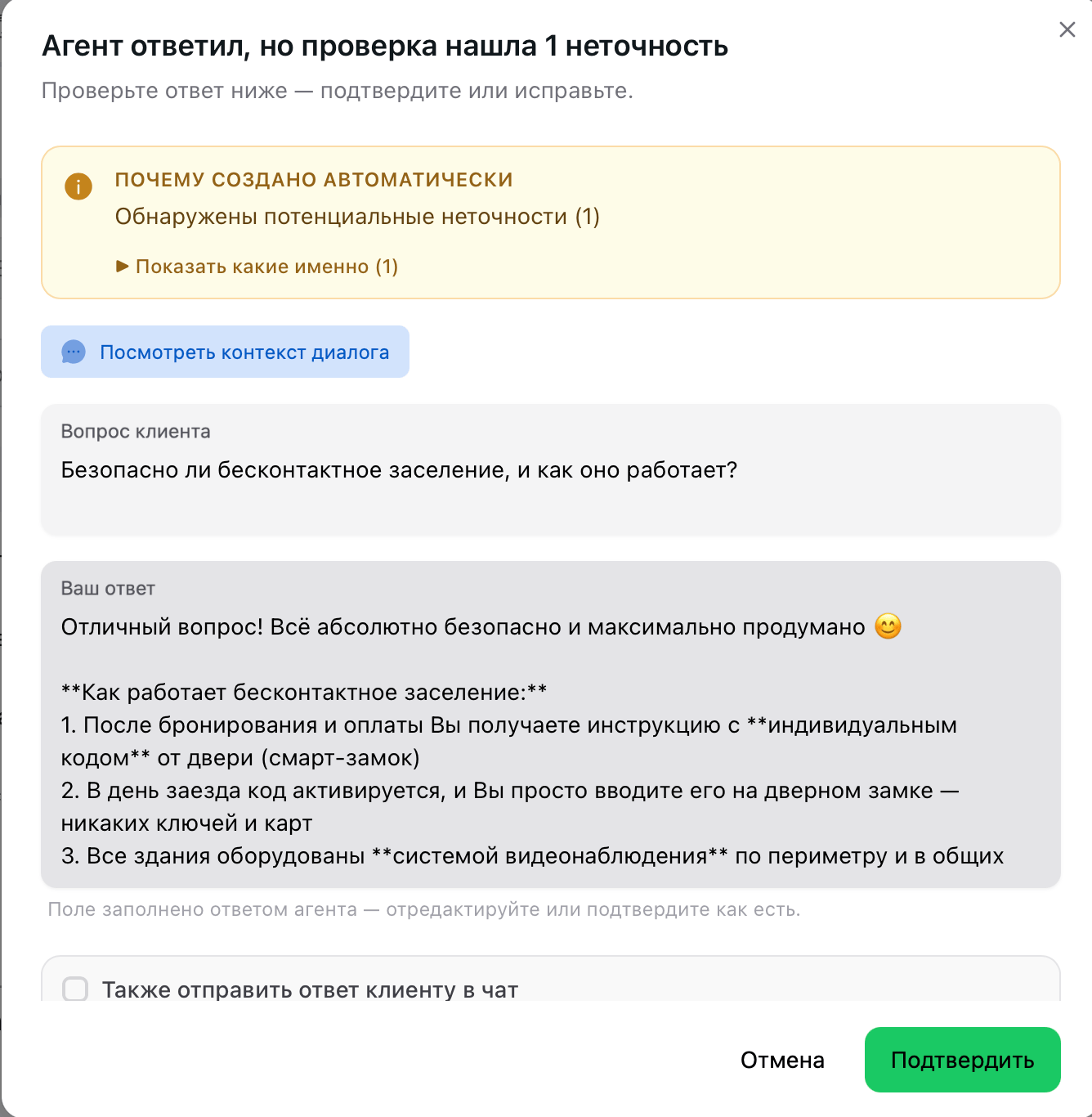
Answer style
The Additional block at the bottom of the window sets how your AI Employee answers with this entry.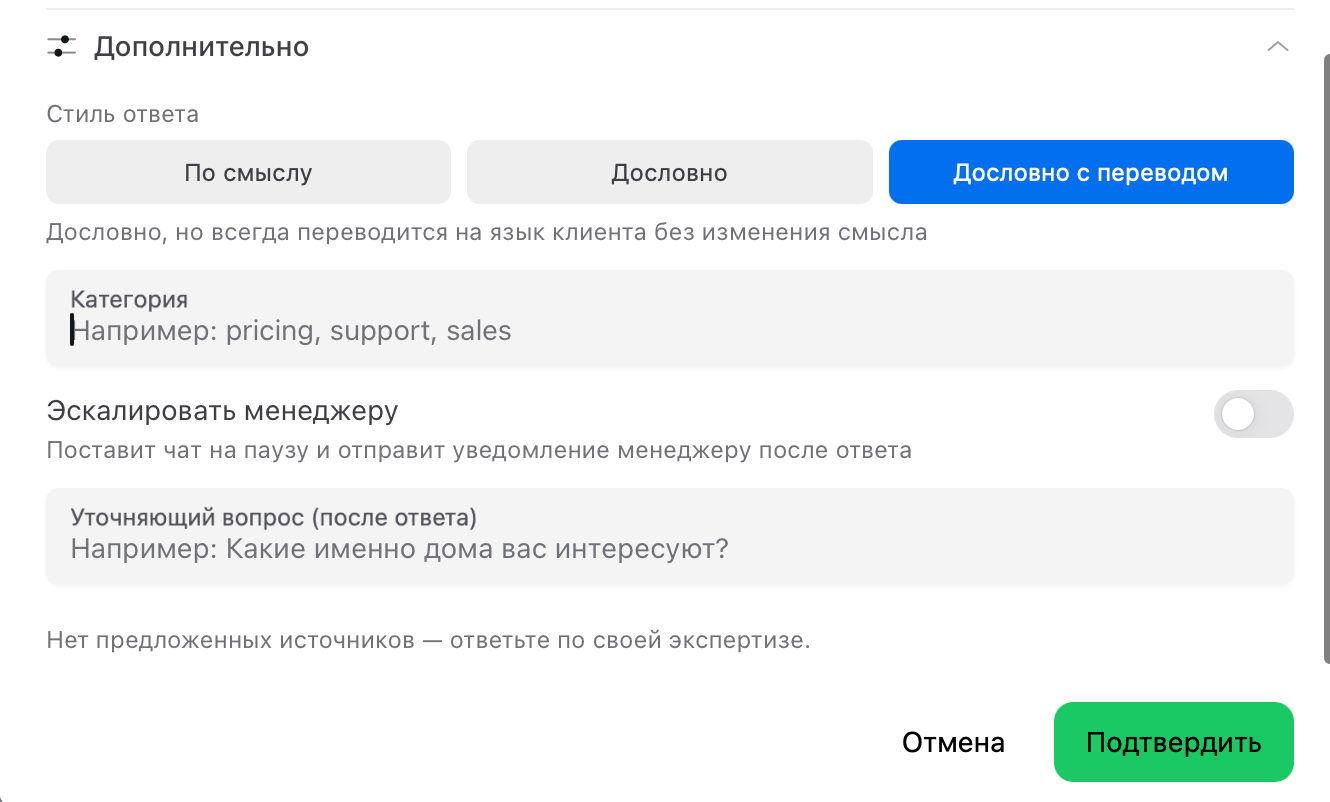
Clean up junk
Your AI Employee collects questions from real conversations, and those contain much more than questions. The list picks up “yes”, “thank you so much”, “no”, an emoji, fragments with personal data — anything it took for a request. The quick way: check all the junk with the checkboxes on the left and delete it in one go. You don’t need to go through the list one entry at a time.Clusters
When there are many entries, the platform automatically groups similar questions into clusters. “What time is check-in?”, “When can I check in?”, and “From what time do you check guests in?” are the same question for your AI Employee, and it will have one shared answer for them. The practical point is simple: don’t try to create a separate entry for every wording by hand. One well-written answer is enough — all similar questions will be matched to it, including ones you didn’t anticipate.FAQ
The AI Employee isn't answering the customer — what should I do?
The AI Employee isn't answering the customer — what should I do?
The Don’t answer at all strict mode is on: your AI Employee stays silent and waits for your decision. Open the New sub-tab, edit the answer, and click Confirm with Also send the answer to the customer in the chat checked — the answer goes straight into the conversation.To keep customers from waiting every time, switch the strict mode to a preset phrase.
The AI Employee pulls in the wrong answer — how do I fix it?
The AI Employee pulls in the wrong answer — how do I fix it?
Find the entry on the In Knowledge sub-tab and fix the answer right there.While you’re at it, narrow the question’s wording: a question that’s too general catches unrelated requests. If the entry is useless, delete it — that’s faster than rewriting.
The AI Employee doesn't find the right entry, even though a similar one exists
The AI Employee doesn't find the right entry, even though a similar one exists
Lower the search sensitivity in the settings in steps of 5%: at a high value, only close matches get through, and a customer who asks in different words won’t reach the entry.Cleaning up the question in the entry also helps — remove names, dates, and booking numbers.
I confirmed an entry, but the AI Employee answers in its own words
I confirmed an entry, but the AI Employee answers in its own words
The answer style is set to By meaning — your AI Employee rephrases your text to fit the conversation. If you need it word for word, open the entry, go to the Additional block, and select Verbatim.If a completely different answer came back, a Quick Answer was triggered — Quick Answers have higher priority.
A lot of junk has piled up: “yes”, “thanks”, emojis
A lot of junk has piled up: “yes”, “thanks”, emojis
Check these entries with the checkboxes on the left and delete them in one go — you don’t need to go through the list one by one. Learn more in Clean up junk.
It's unclear what the question in an entry is about
It's unclear what the question in an entry is about
Open the entry and click View conversation context — you’ll see the full conversation and understand what the customer meant.
There have been no entries for a week — is that normal?
There have been no entries for a week — is that normal?
First, check the Self-Learning toggle. If the mode is on, either there aren’t many conversations yet, or your AI Employee is handling things on its own — which is a good sign.
Every question ends up in the list, not just the hard ones
Every question ends up in the list, not just the hard ones
That’s how it currently works: your AI Employee collects requests, not only the ones it couldn’t answer. When reviewing, delete entries whose answer is already in the Knowledge Base — you don’t need them.
Can I add a question manually?
Can I add a question manually?
No, Self-Learning is filled only from real conversations. For your own wording, use Quick Answers.
What’s next
Persona
How your AI Employee leads conversations and what tone it uses
Channels
Connect Telegram or a CRM, and your AI Employee starts answering customers
Talents
Teach it to take action: deals, bookings, emails
Quick Answers
Answers you write yourself — with priority over Self-Learning