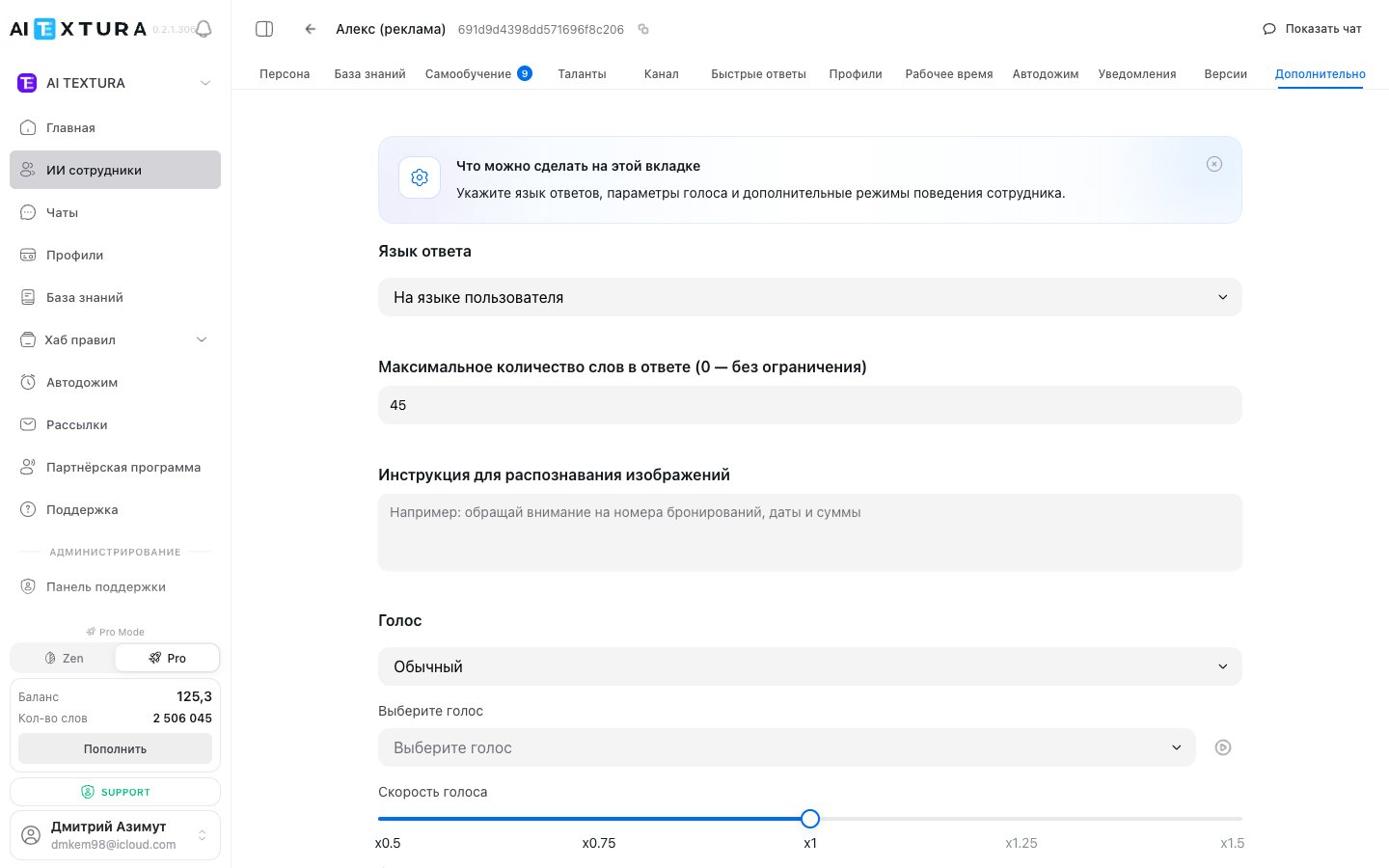
Fine-tune your AI Employee: reply language, word limit, image recognition, voice (Standard / PRO ElevenLabs), agent commands from the chat, and behavior toggles — jailbreak protection, pauses, and auto-start.
The Advanced section brings together settings that fine-tune your AI Employee’s behavior: reply language, message length, image recognition, voice (up to PRO voices via ElevenLabs), service commands for controlling the agent, and behavior toggles (jailbreak protection, auto-pause, auto-start).
Persona
The AI Employee’s role, tone, and instructions
Versions
Configuration change history
Account Settings
Global commands and the ElevenLabs integration
Telegram
Voice works in Telegram
These settings aren’t required for basic operation — the AI Employee works without them. But this is where you can fine-tune its behavior for specific scenarios and your brand’s style.
Open the AI Employee you need and go to the Advanced tab — the last (12th) tab in the AI Employee editor.
A short video: an overview of the Advanced section — jailbreak protection, pausing when a manager replies, auto-start with a configurable delay, “silent by default” mode for testing, and conversation-end detection.
A selector that defines which language the AI Employee uses to reply to customers.
Value
Behavior
In the user’s language (default)
The AI Employee automatically detects the customer’s language and replies in it
A specific language (Русский, English, Қазақша, etc.)
The AI Employee always replies in the selected language, regardless of the customer’s language
If you select a specific language, the AI Employee doesn’t stop understanding messages in other languages. It understands everything — but replies only in the selected language.
Lock the language if all your customers speak the same language or if the AI Employee gets confused by auto-detection. Keep In the user’s language for international business and tourism.
A number field that limits the length of the AI Employee’s replies.
Value
Behavior
0 (default)
No limit — the AI Employee decides the reply length itself
Any number (for example, 50 or 100)
The AI Employee tries to stay within the limit
This is a soft limit. The AI Employee doesn’t cut a reply off mid-sentence — it phrases it more concisely. It may occasionally go slightly over the limit.
For Telegram/WhatsApp, 50–80 words works well. For complex consultations (legal, medical), use 0 or 150–200.
A text field with instructions on what the AI Employee should pay attention to when analyzing photos, screenshots, and images from customers.It’s empty by default — the AI Employee analyzes images in a general way. By filling it in, you focus the AI Employee on what matters for your business.
”Look for the booking number, check-in and check-out dates, number of guests, and the amount”
Online store
”Identify the product in the photo, its condition (new, used, damaged), and any defects”
Car service
”Describe the visible damage to the car, where it is, and roughly how severe it is”
Restaurant
”Identify the dish in the photo and its approximate ingredients”
The more specific the instruction, the more accurate the result. Instead of “analyze the photo”, write: “Find the order number, date, and amount in the screenshot. If there’s no number, ask the customer.”
The API key is set globally for the account, not per agent.
1
Get an API key from ElevenLabs
Sign up or sign in to ElevenLabs and copy the API key from your profile settings.
2
Open /settings → Integrations
On the AI TEXTURA platform: profile menu (bottom-left corner) → Settings → Integrations tab. For details, see the Account Settings guide.
3
Paste the ElevenLabs key
Enter the key in the ElevenLabs API key field and save.
4
Turn on PRO in the agent
Go back to the editor of the agent you need → Advanced → Voice → switch the mode to PRO, then choose a voice and speed.
For business communication (legal, medical, finance), the sage or ash voices at x1.0 work well. For youth-oriented projects, try nova or shimmer at x1.1–x1.2.
Service commands let you control the AI Employee right from the chat — without opening the dashboard. This is handy for managers who work in the same chat as the AI Employee.
Agent commands are global. You set their text once for the whole account in /settings → General (the General settings tab). On a specific agent’s Advanced page, you see the same commands and can be sure they’re current for all your agents at once.
A manager types a command in the chat — the AI Employee recognizes it and performs the service action. The command isn’t sent to the customer — the system interprets it.
Use unique, non-obvious commands (for example, /aiti_pause or <<stop>>) so a customer doesn’t type them by accident. Common verbs like “stop” are risky.
1
Open /settings → General
Profile menu (bottom-left corner) → Settings → General settings.
2
Set the command text
For each command (Start AI, Stop AI, and so on), specify a trigger command.
Blocks prompt injection attempts — when a customer tries to make the agent “forget its instructions”, “break character”, or reveal a confidential prompt.
Turn it on for agents that handle sensitive data or are publicly accessible (bot channel, widget). For internal demo agents, you can leave it off.
When on, the AI Employee pauses automatically as soon as a manager writes in the chat personally. This prevents the AI from “interrupting” a live specialist.
By default, it works together with auto-start: the AI turns off for 10–20 minutes, and if the customer sends a new message during that time, the AI resumes.
When on, the AI Employee ignores messages from other bots in the same chat (for example, a CRM chatbot doesn’t trigger the agent). This protects against “bot writes — bot replies — bot writes” loops.
The AI Employee automatically resumes work after a pause (10–20 minutes by default) — if the customer wrote and the manager didn’t respond.
For 24/7 support, auto-start is useful — customers won’t be left without a reply at night. For premium sales, where a “human” style matters, it’s better to control the AI Employee manually with commands.
The AI Employee analyzes the flow of the conversation and determines on its own when the conversation is over (the customer said goodbye, the issue is resolved). This affects how Auto Follow-up and Notifications work.
If I choose a specific language, will the AI Employee stop understanding other languages?
No. The AI Employee keeps understanding messages in any language — but replies only in the selected one.
How are ElevenLabs PRO voices different from standard ones?
PRO sounds much more natural (lifelike pronunciation, emotion, pauses). This matters for premium businesses and audio content. The standard voices are good enough for typical replies and testing.
Where do I get an ElevenLabs API key?
Sign up at elevenlabs.io, copy the key from your profile settings, and paste it into AI TEXTURA: /settings → Integrations. After that, PRO mode becomes available on all your agents.
Does voice work only in Telegram?
Yes, for now — only Telegram. For IP telephony, contact Support.
How does Jailbreak protection work?
The AI Employee recognizes prompt injections (attempts to make it break character, reveal its instructions, or ignore its restrictions) and neutralizes them. Turn it on for public agents and scenarios with sensitive data.
Where are agent commands stored?
Globally, at the account level: /settings → General settings. On a specific agent’s Advanced tab, you see the same commands — you can change them in only one place.
What happens if I send the Clear memory command?
The AI Employee resets the entire context of the current conversation — as if the conversation just started. This is useful if the AI Employee is “stuck” in an old context.
A customer typed a command by accident -- what should I do?
Use unique, non-obvious commands (with unusual characters or prefixes). If it does happen, restart the AI Employee with the Start AI command.
What is Auto-start after pause?
After a pause (for example, after a manager reply), the AI Employee automatically resumes work after 10–20 minutes — if the customer wrote and the manager didn’t respond. This protects against “forgotten” chats.
Do I have to fill in every field in Advanced?
No. All settings have sensible defaults. Fill in only what you actually need.
How do I get the AI Employee to send photos, videos, or PDFs
The file must be stored in the cloud and open via a direct link without signing in — ending in .jpg, .pdf, or .mp4. Then describe the condition in the Persona or create a Quick Answer: “If asked about the banquet menu, send the link …”.
The customer gets a link instead of a photo
That’s the channel’s behavior, not the AI Employee’s: Telegram expands media itself, while CRMs and some aggregators show only the link. Check that the link is direct and the file opens without signing in.
Can the AI Employee make and receive calls
Yes, voice calls are connected separately through your manager: a minute of conversation costs about $0.10–0.15 plus a monthly fee for the number. A Russian number isn’t available yet — the outgoing number will be registered in another country, and SIP routing adds connection delay.