

Hire an agent
The Agents section in the left menu is a shared list of all agents and AI Employees on the account.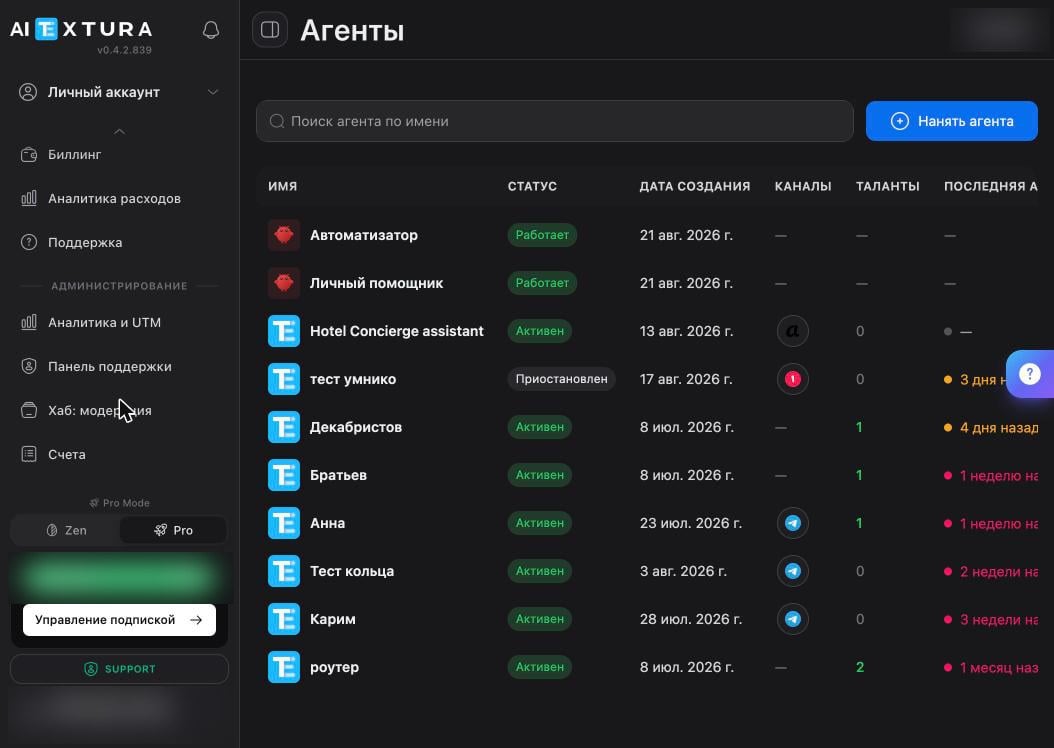
On the right of each row is an on/off toggle and a
... menu with actions, including delete. At the top are a name search and the blue + Hire Agent button — that’s where it all starts.
1
Choose what you're creating
The first wizard step, “What are we creating?”, has two cards: AI Employee (a bot for customers) and Autonomous Agent (an independent worker with its own workspace). Click the second one.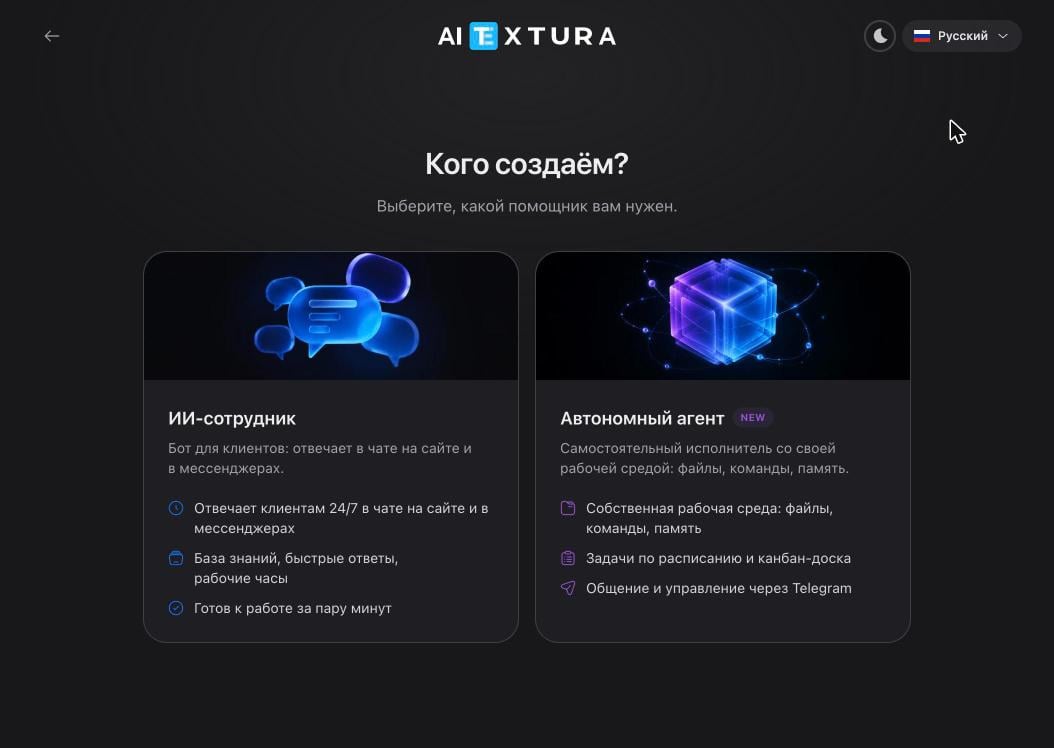
2
Pick a role
The “Where do we start?” step shows ready-made roles, each with a predefined personality and workflow. Six cards are visible; the Show more link expands all 25.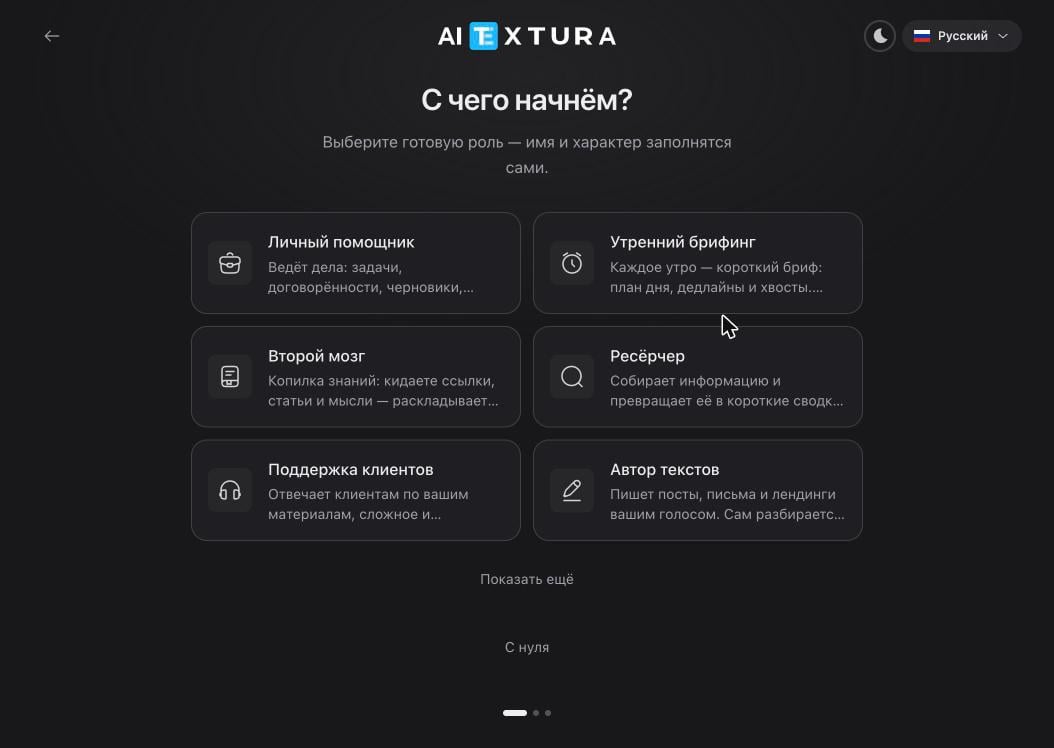
3
Pick an engine and a name
The “Set up the agent” step. The Name field is prefilled with the role name; you can change it. Below it, choose the engine.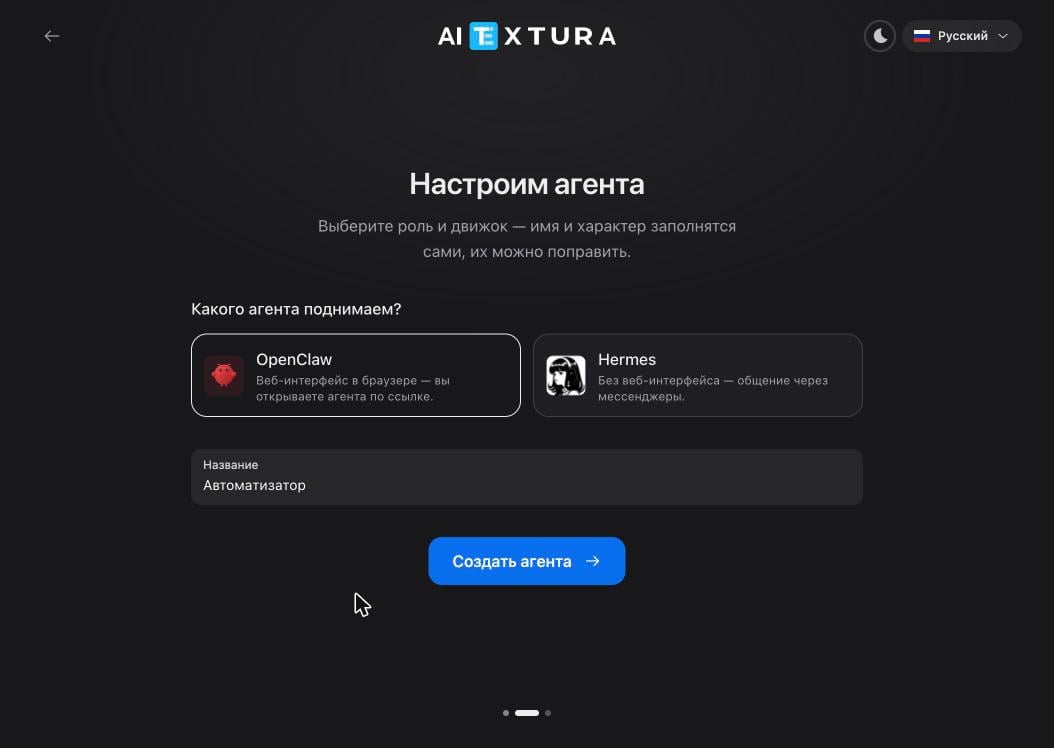
Click Create agent →.
4
Connect Telegram or skip
Right after creation, the platform offers to connect Telegram — no token needed; the bot is created in a couple of taps. You can put this off: the Skip for now link moves on, and you can connect a channel later from the workspace.Details: Connect.
5
Wait for deployment
The “Deploying the agent” screen shows a timer and five stages: starting the container → preparing the workspace → connecting tools → setting up work rules → final checks.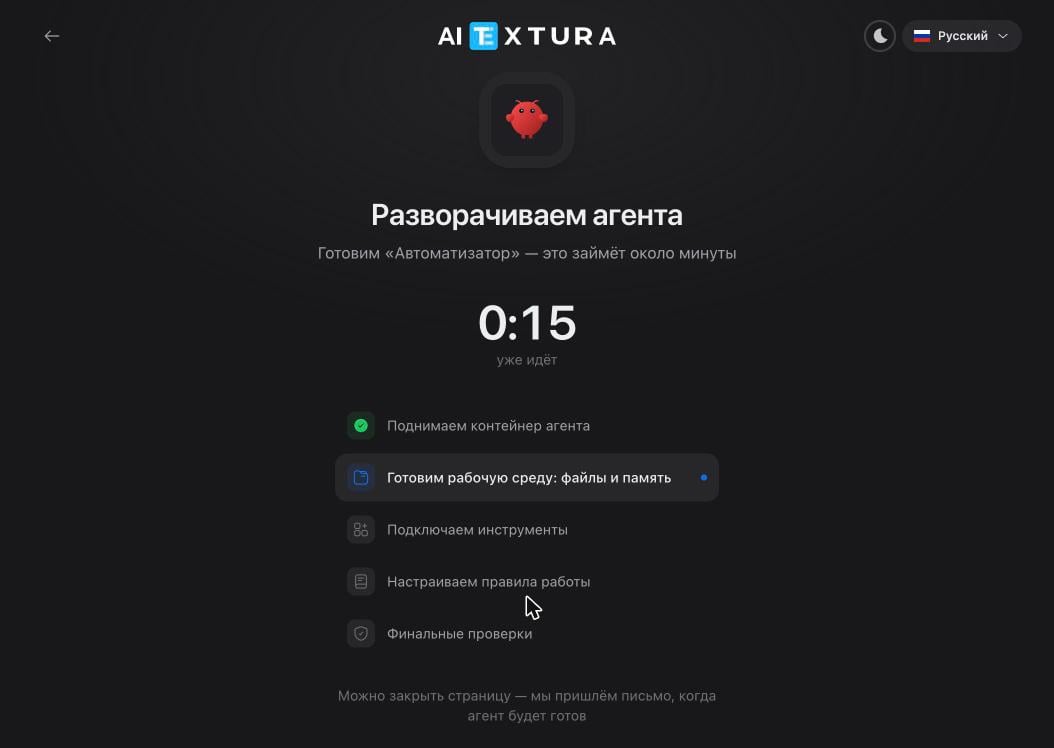
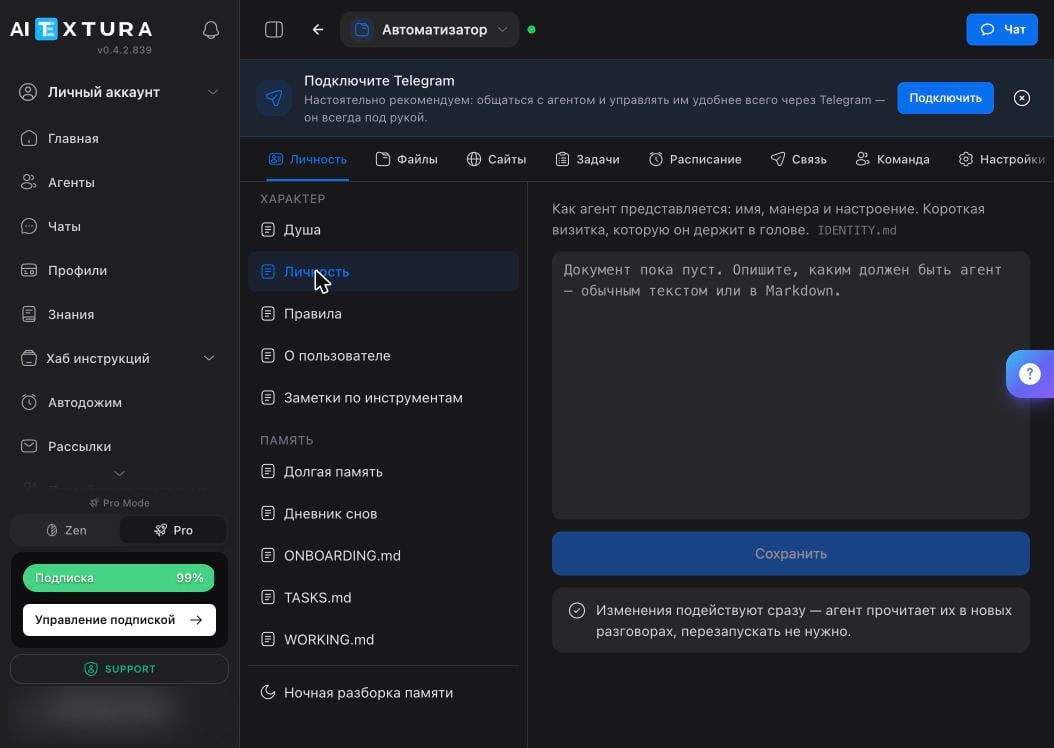
Check it
Open the agent and click Chat in the top-right corner of the workspace — a side panel with the conversation opens.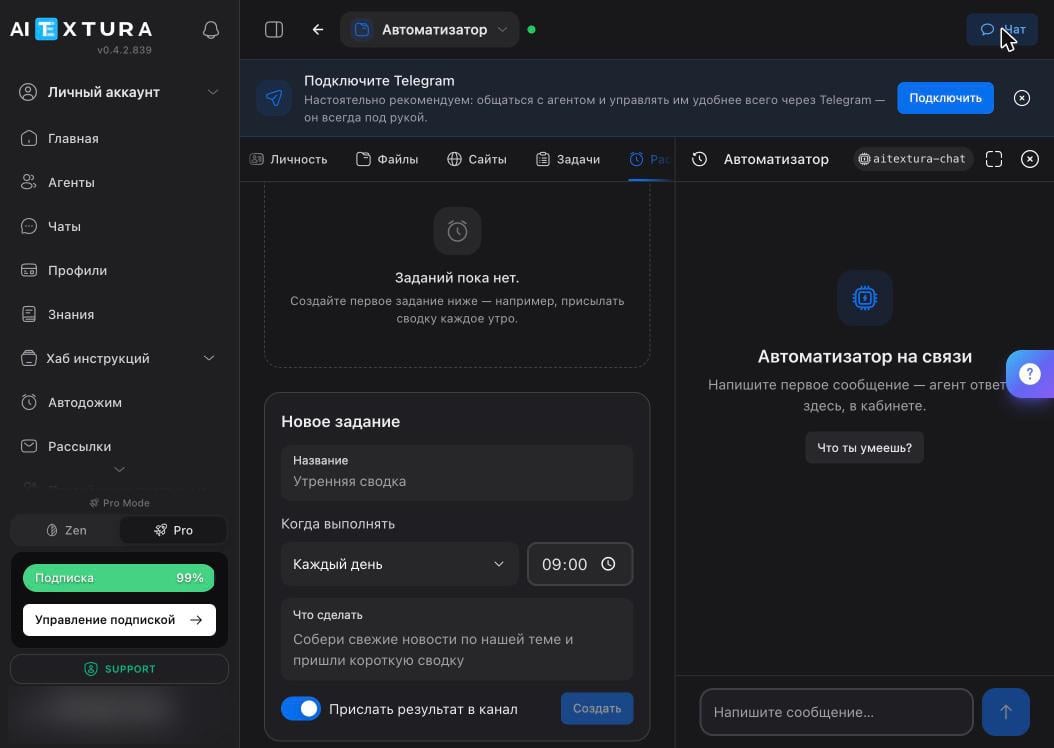
Agent limit
An account can have no more than two agents deployed at a time. If you try to create a third, the platform shows a warning and won’t let you continue. To free up a slot: Agents → the... menu of the agent you don’t need → Delete → confirm by typing its name. After that, the creation wizard works again.
FAQ
Which engine should I choose if I don't understand the difference?
Which engine should I choose if I don't understand the difference?
Keep OpenClaw — it’s selected by default and gives the agent its own web interface that opens via a link. Hermes is for when you don’t need a web interface at all and all communication goes through a messenger.
I picked the wrong role — do I need to recreate the agent?
I picked the wrong role — do I need to recreate the agent?
No. A role is starting personality text, not a hard setting: open Personality and rewrite the Soul document for your task. Changes take effect immediately; no restart needed.
Deployment is taking longer than a minute
Deployment is taking longer than a minute
Wait for the email — you can close the page; the process runs on the platform side. If the agent never shows up in the list, contact Support.
Can I create an agent without Telegram?
Can I create an agent without Telegram?
Yes, click Skip for now. You can talk to the agent right in the workspace using the Chat button. Telegram can be connected later on the Connect tab — its main purpose is getting results on your phone.
The agent is created but doesn't reply in the chat
The agent is created but doesn't reply in the chat
Check the status: a green dot next to the name means the container is running. If the agent was just restarted or you changed settings that require a restart, wait 20–30 seconds. Next step: Settings → Management → Diagnostics.
What’s next
First Run
What the agent asks in the first conversation and how to answer
Connect
Connect Telegram and manage the agent from your phone
Personality and Memory
Personality and memory files: what’s in them and what to add
Roles
25 ready-made roles and what each one does