

What you need
- HelpDeskEddy administrator rights: only an administrator can access the API key and the Dispatcher section.
- Your system address, a domain like
service.example.ru. - A dedicated employee in HelpDeskEddy for the AI to work under. You’ll need their email and ID during setup.
Connection
1
Copy the API key in HelpDeskEddy
Administration → Global Settings → System → API Key. The same key is also in the profile of the user the AI Employee will work under.
2
Create a channel in AI TEXTURA
Open the AI Employee → Channel tab → Connect New → HelpDeskEddy and fill in the three access fields.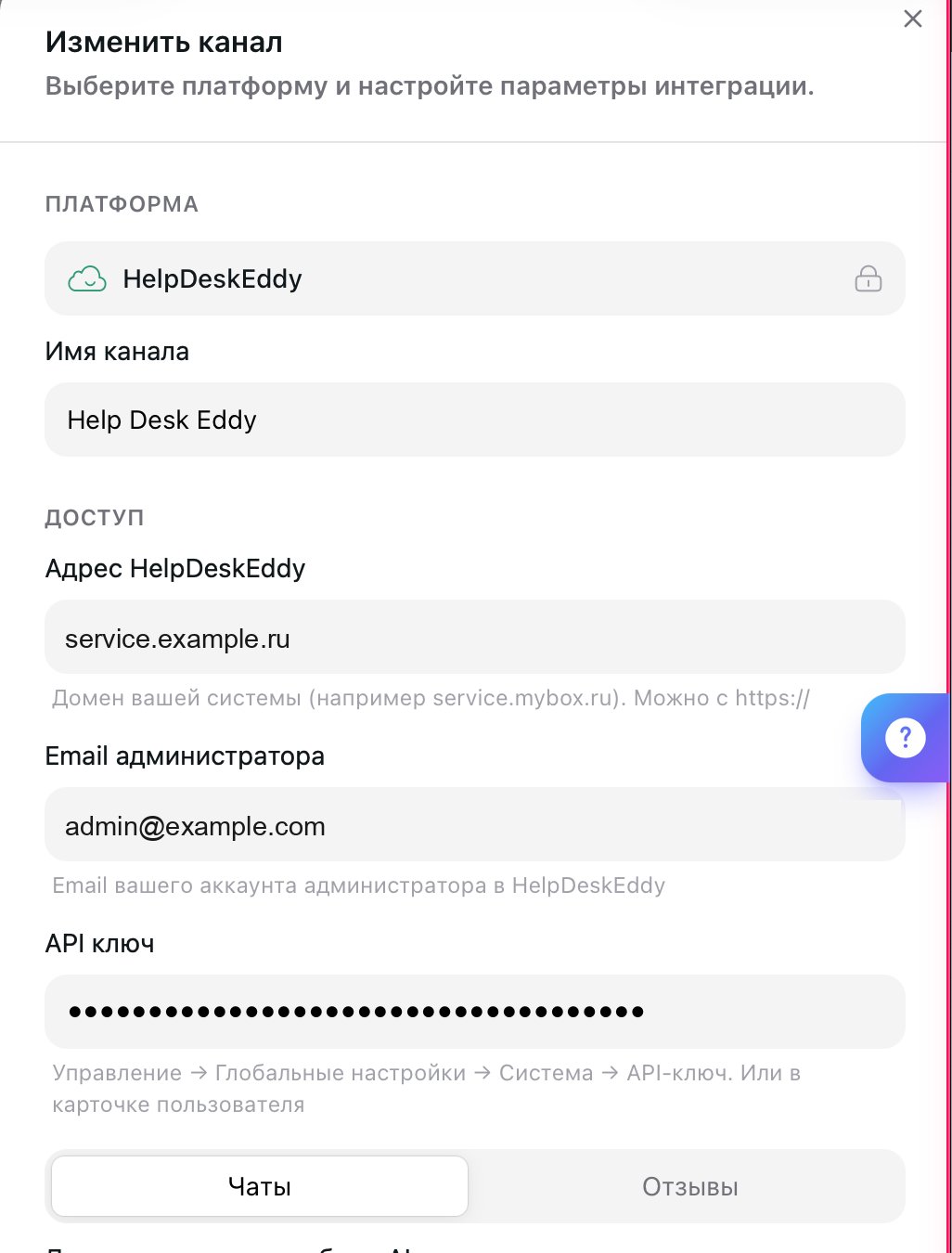
Click Create. The channel appears on the Connected tab.
3
Configure how the AI Employee handles tickets
Open the channel by clicking it on the Connected tab and go through the settings: mode, departments, handoff rules. Until you select departments, the AI Employee has nowhere to reply.
4
Go back to HelpDeskEddy and create a Dispatcher rule
The rule is what makes HelpDeskEddy call AI TEXTURA on every new message. Open Administration → Dispatcher and create a rule.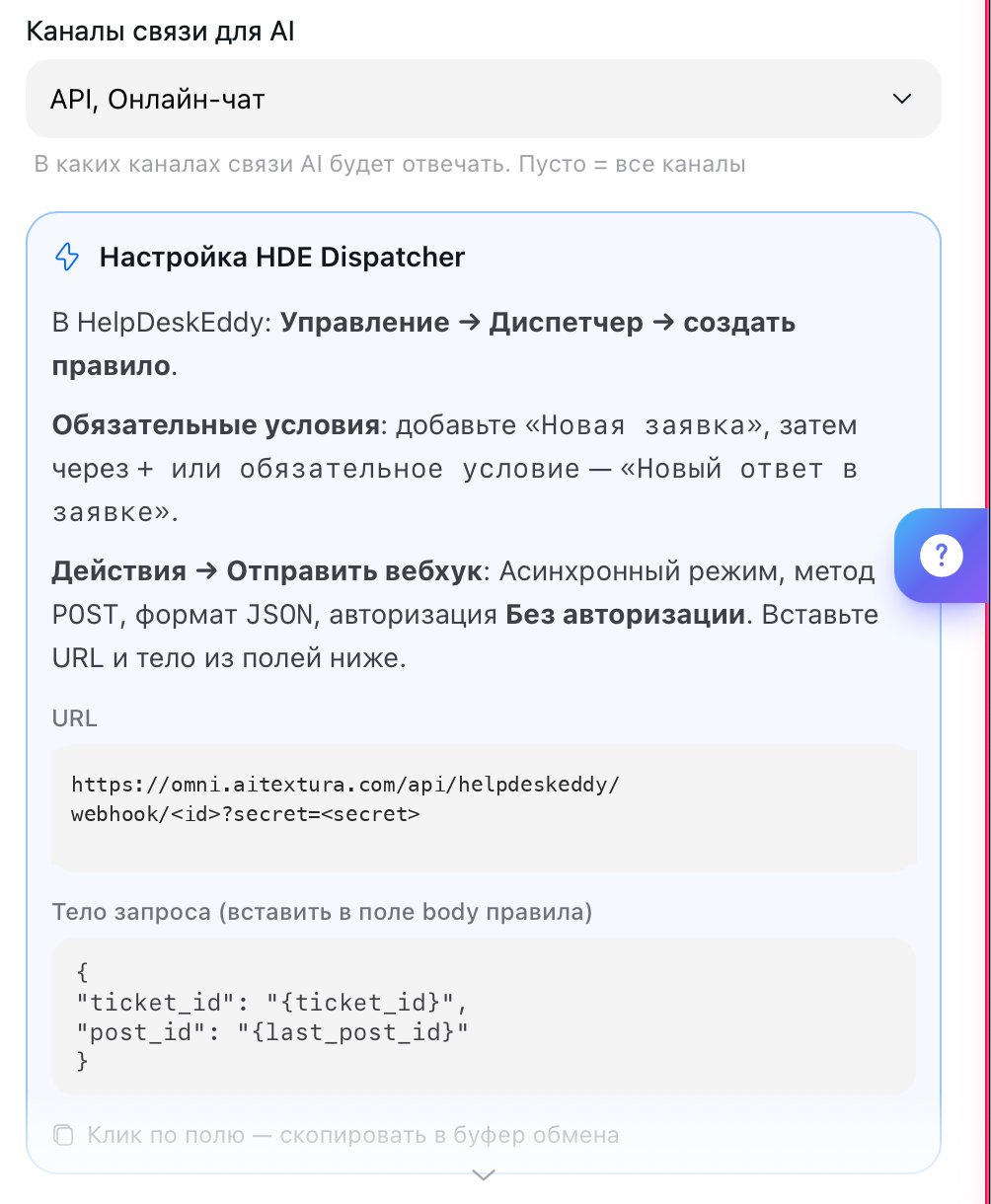
- Conditions: “New ticket” and “New reply in ticket.”
- Actions → Send webhook: asynchronous mode,
POSTmethod,JSONformat, No authorization. - Take the URL and request body from the HDE Dispatcher Setup block in the channel card: clicking a field copies it to the clipboard.
Test it
Write to any channel set up in HelpDeskEddy, for example your website live chat. A ticket appears in HelpDeskEddy, your AI Employee replies in it, and the conversation shows up in AI TEXTURA Chats.Handoff to a manager
The AI Employee handles the conversation as long as it’s the ticket’s assignee. As soon as a human manager becomes the assignee, the AI Employee goes quiet. It can hand off a ticket in two ways, and each is configured separately. First-line handoff keeps the ticket in the same department: the AI Employee sets the Operator Needed status, and the HelpDeskEddy distribution rule then picks an available manager. Use this for questions a first-line operator can resolve.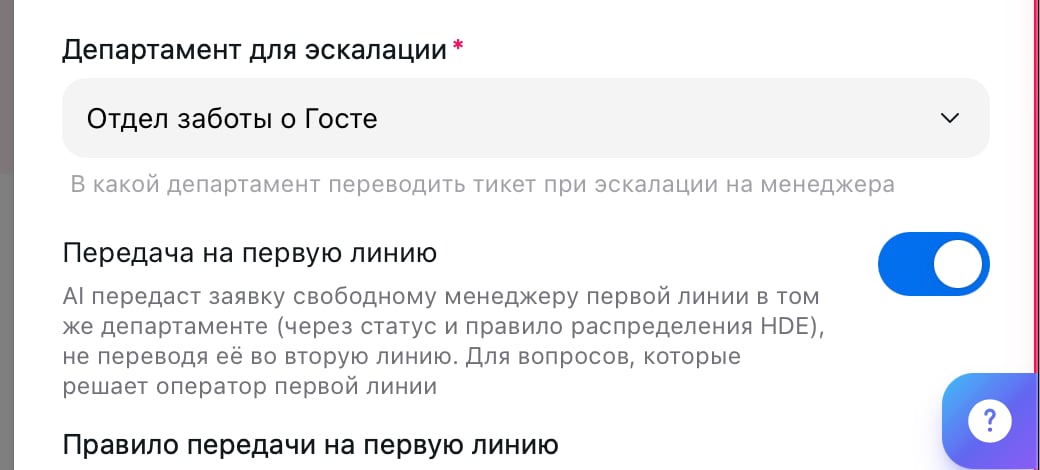
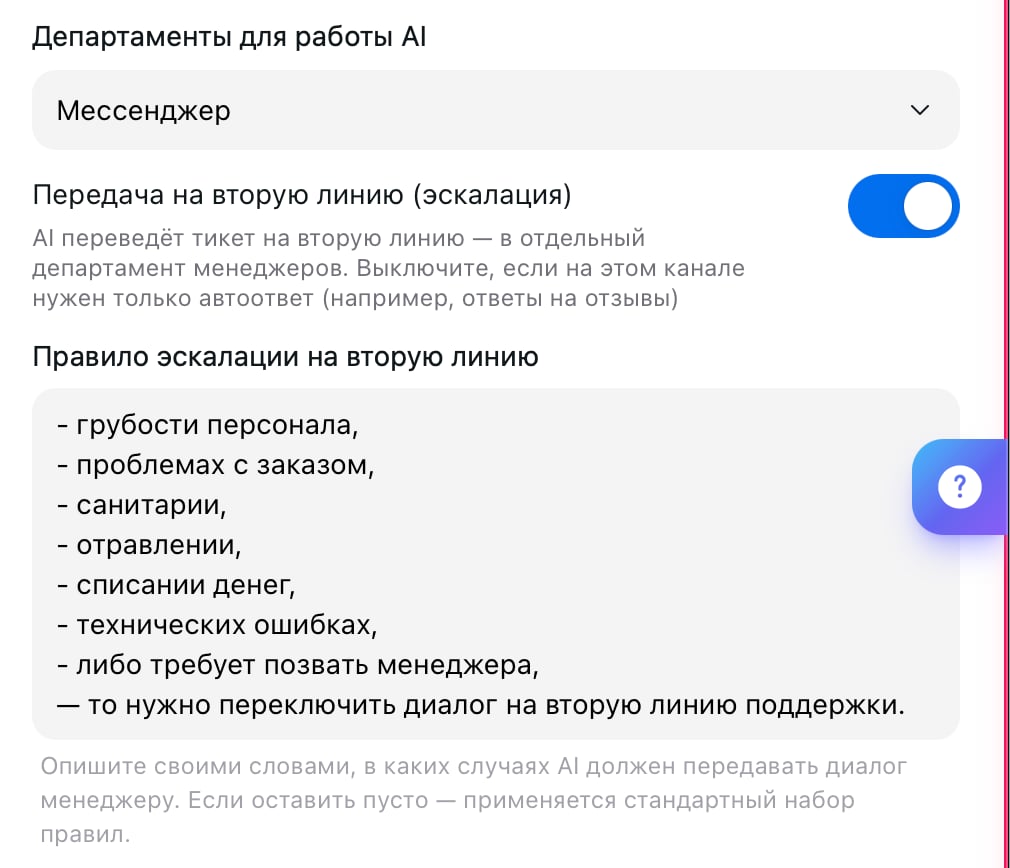
Turn off Second-Line Handoff if this channel only needs auto-replies, for example when the AI Employee responds to reviews.
Channel settings
The defaults don’t suit every support team, so go through the settings right away.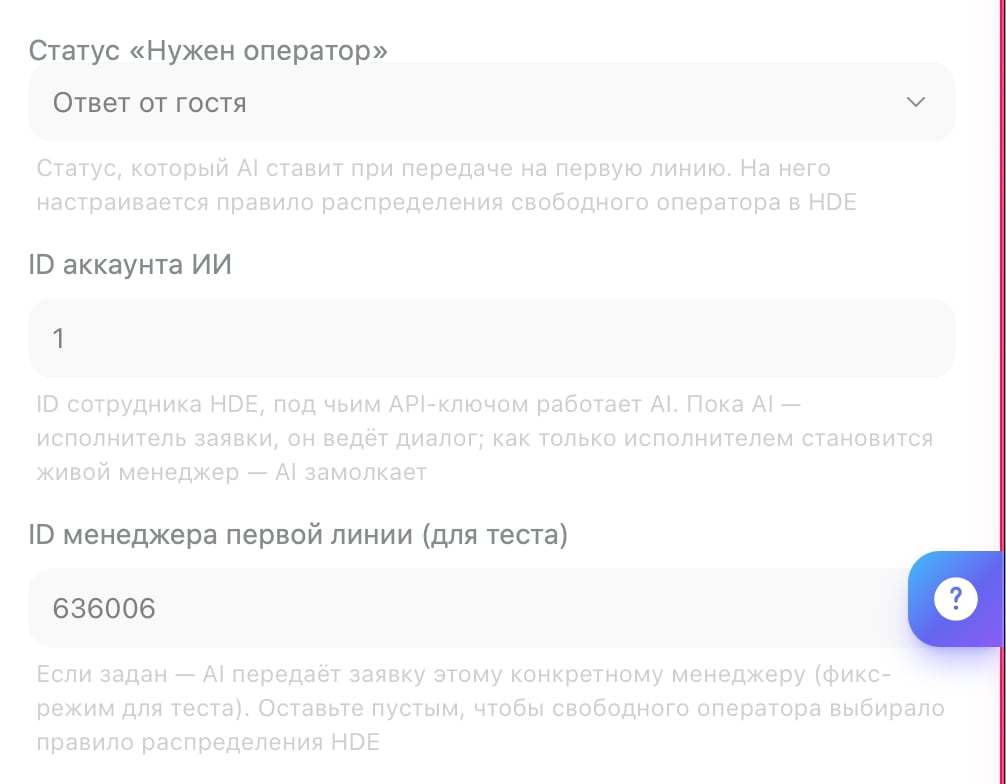
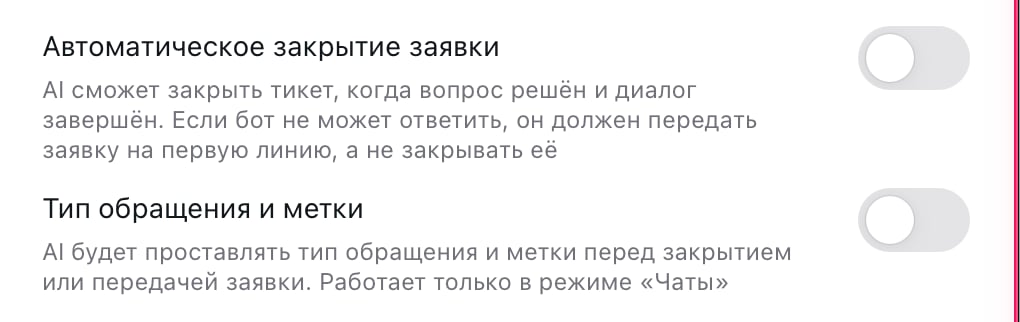
What’s next
Planfix
The other ticket system: replies as comments in tasks
Persona
Where to describe what the AI Employee handles itself and what it hands to a human
Notifications
A Telegram alert when a ticket needs a manager
Channels
All the ways to connect customers to your AI Employee